
The ARTBUTLER Server allows you to store your data in a central location, which you will need if you use ARTBUTLER PRO on more than one computer.
1. System Requirements
- You have to install the server on a computer in your network, which is available to all workstations using ARTBUTLER PRO and which will always be running during your work hours. If the server computer is protected by its own firewall, please allow connections between ARTBUTLER PRO and ARTBUTLER SERVER on port 9001.
- To install the server you need a real Mac or Windows computer, a simple hard disk, network drive or cloud storage is not suitable.
- You will need a minimum of 256MB of memory space for the installation. As these requirements are low, a small or older model computer is sufficient.
Important
- Administration rights for the server computer are required for the installation.
- The server only needs to be installed once, when you first set it up. It does not need to be updated for future ARTBUTLER PRO updates.
2. Download the Installer
Download the installer for the ARTBUTLER PRO Database Server for Mac or Windows:
3. Installation Instructions
- Download the server installer for your operating system [Mac or Windows] by selecting one of the buttons above.
- Start the installer on the computer you want to use as your server with a double click.
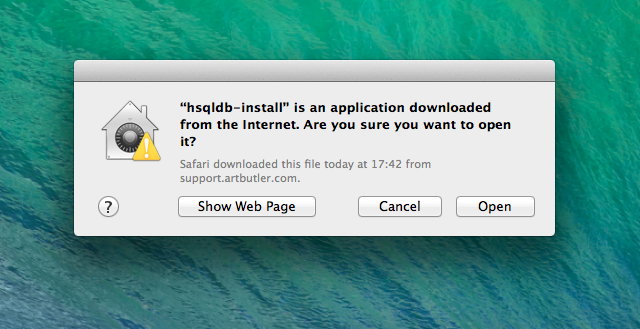
- If using a Mac, your computer may ask you if you are sure you want to open the installer with the question box shown below. Click Open.
Note: Open might not be available in the dialogue box in some cases. If so, cancel and start the installer with a right click instead and choose Open in the menu. This will make the box below appear. Click Open.
- The installer will ask for authentication. You need to have administrative rights for the computer you are using. Give the password for this computer and click Next.
- You will be asked to confirm the memory allocation setting [256MB], this amount is fine.
Note: You can choose up to 1GB depending on the memory of your computer, but please do not choose more then half of your computer’s total memory.
MacOS: set a time for the server to automatically restart and create a daily backup. See details in ARTBUTLER Backup Windows users find useful tips to achieve the same in the same article. - On the same screen you can activate encryption for the connection. This is strongly recommended if your server is accessible from the internet, e.g. to support different locations.
Note: Encryption requires ARTBUTLER 2.11 or higher!
Click Next. - Once the window appears that the installation was completed successfully, click Done.
4. Connecting to the Server
- To connect ARTBUTLER PRO to the data on your server go to: artbutler > Preferences > Database. Fill in the server computer’s name (recommended) or IP address in the Server field. If you ordered the ARTBUTLER REMOTE HOSTING SERVICE we have sent the required credentials to you via email.
Tip: To find the local server computer's name:
- On a Mac: under System Preferences > Sharing, e.g: Server.local
- On Windows: under System Control > Properties, e.g: SERVER
- Usually no password for the connection is required. A password might have been set if the server is accessible from the internet to support different locations. Please check with your administrator or refer to the settings of another computer that is already connected.
Note: The server is just a background service without an interface:
- On a Mac computer, it won’t appear in your applications after it’s been installed.
- On a Windows computer, it can be viewed within: Control Panel > Administrative Tools > Services , as HSQLDBartbutler.
