

Linking Your Template Folder to ARTBUTLER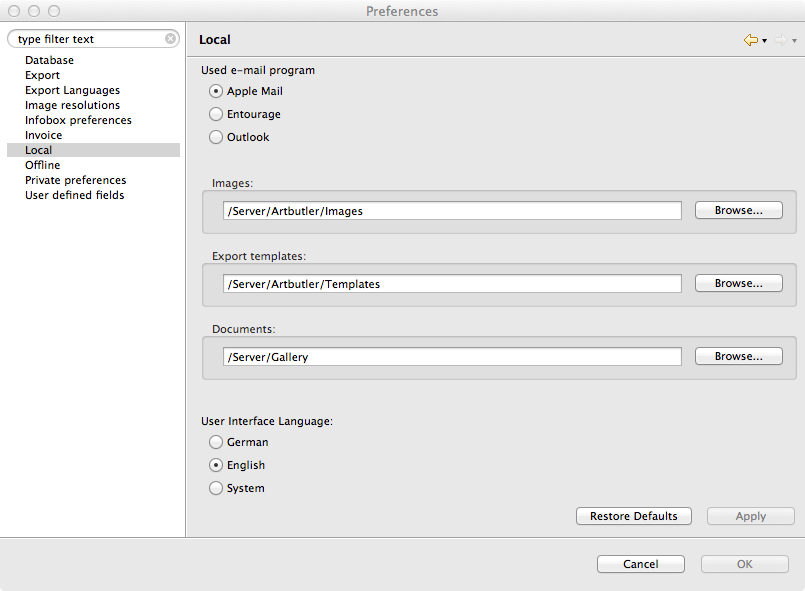
- If not yet already selected during the First Installation, select where your templates will be stored. They should be stored on your server in a folder titled Templates, within another folder titled ARTBUTLER.
- Go to Preferences within the ARTBUTLER menu.
- Select the Local tab on the left hand side menu.
- On the right hand side under Export Templates, click the Browse button and select the folder you have designated for your templates. Click Open and then OK .
Using Your Templates
To create an export with ARTBUTLER: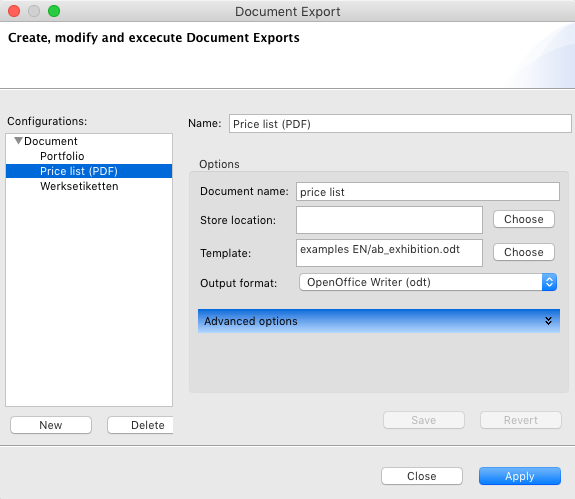
- Select where [which section of artbutler] you want to export from and what sort of template it will be. e.g: a price list document from Exhibitions.
- In this case, go to Exhibitions .
- Once the exhibition has been set up and is complete, click on the Exports
 button in your detail view.
 - Go to Documents in the drop down menu and then Documents… within the next drop down menu.
button, your export will appear in the drop down menu, in this case, Exhibition Price List.
Related articles: