Use this export template to transfer contact information to your iCloud Account in order to access your ARTBUTLER contacts on your iPhone, iPad and Mac.
Exported contents
- Firstname, Lastname, Company, Position
- Telephone, Telephone2, Telephone other, Mobile
- Fax, Fax private
- E-mail 1, E-mail 2, E-mail 3, Website
- Addresses – Business, Private, Other
- Notes
Configuration in ARTBUTLER
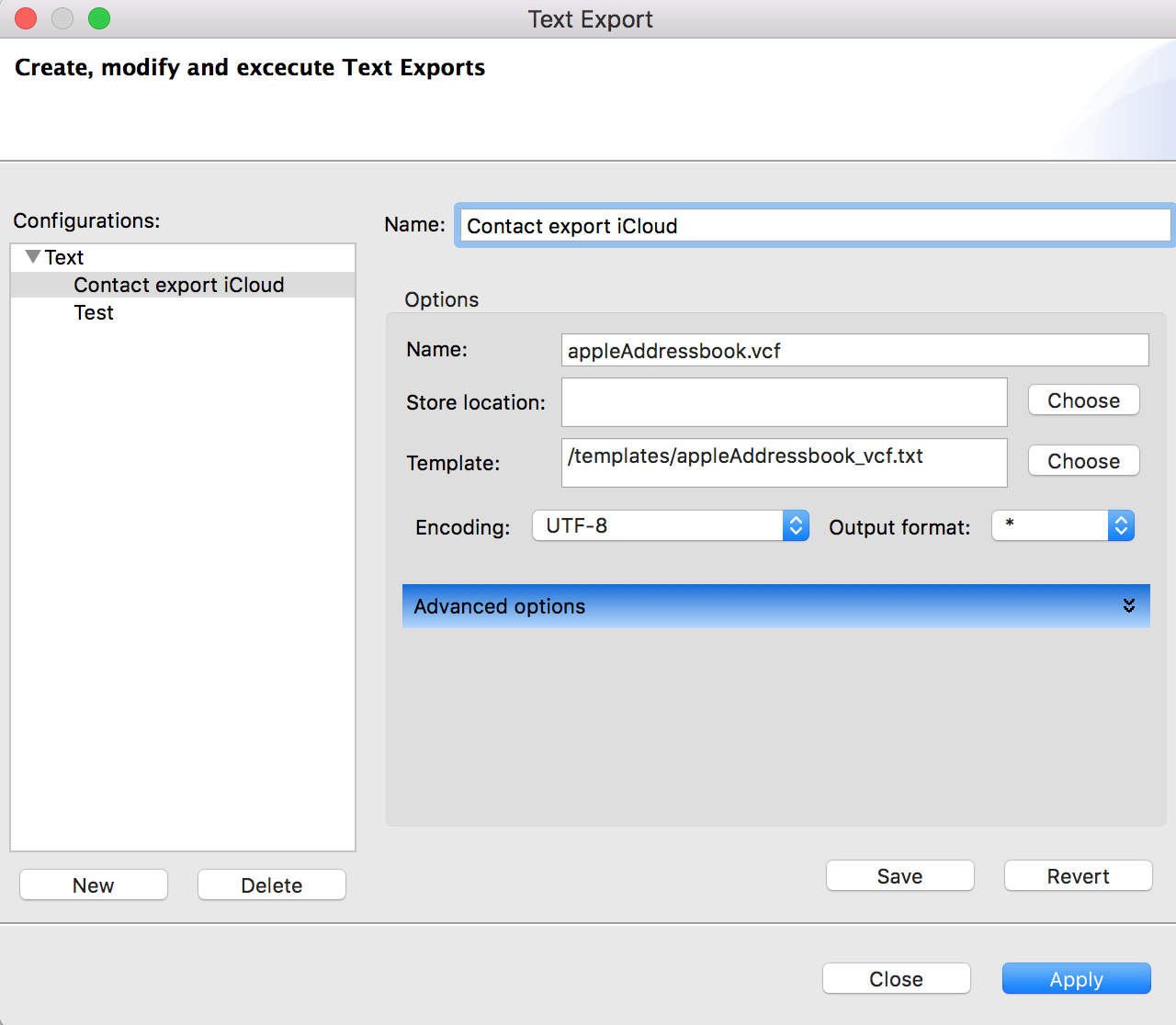
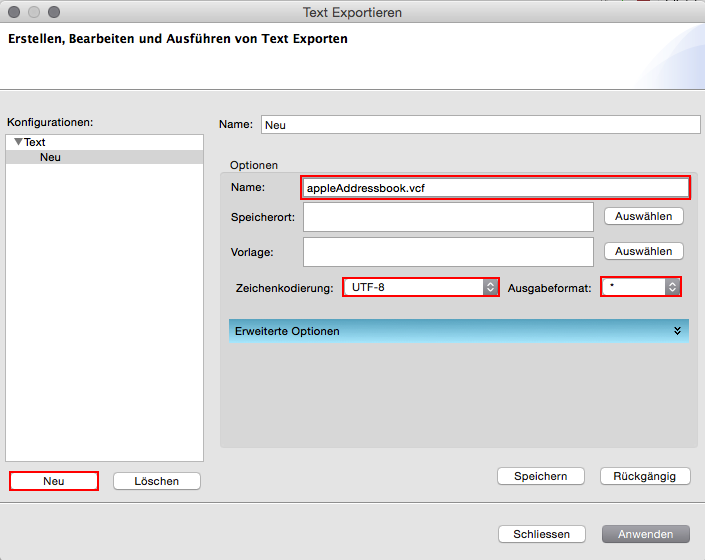
- Export type: Text
- Name: appleAddressbook.vcf
- Encoding: UTF-8
- Output format: *
Procedure
1. Export Contacts from ARTBUTLER
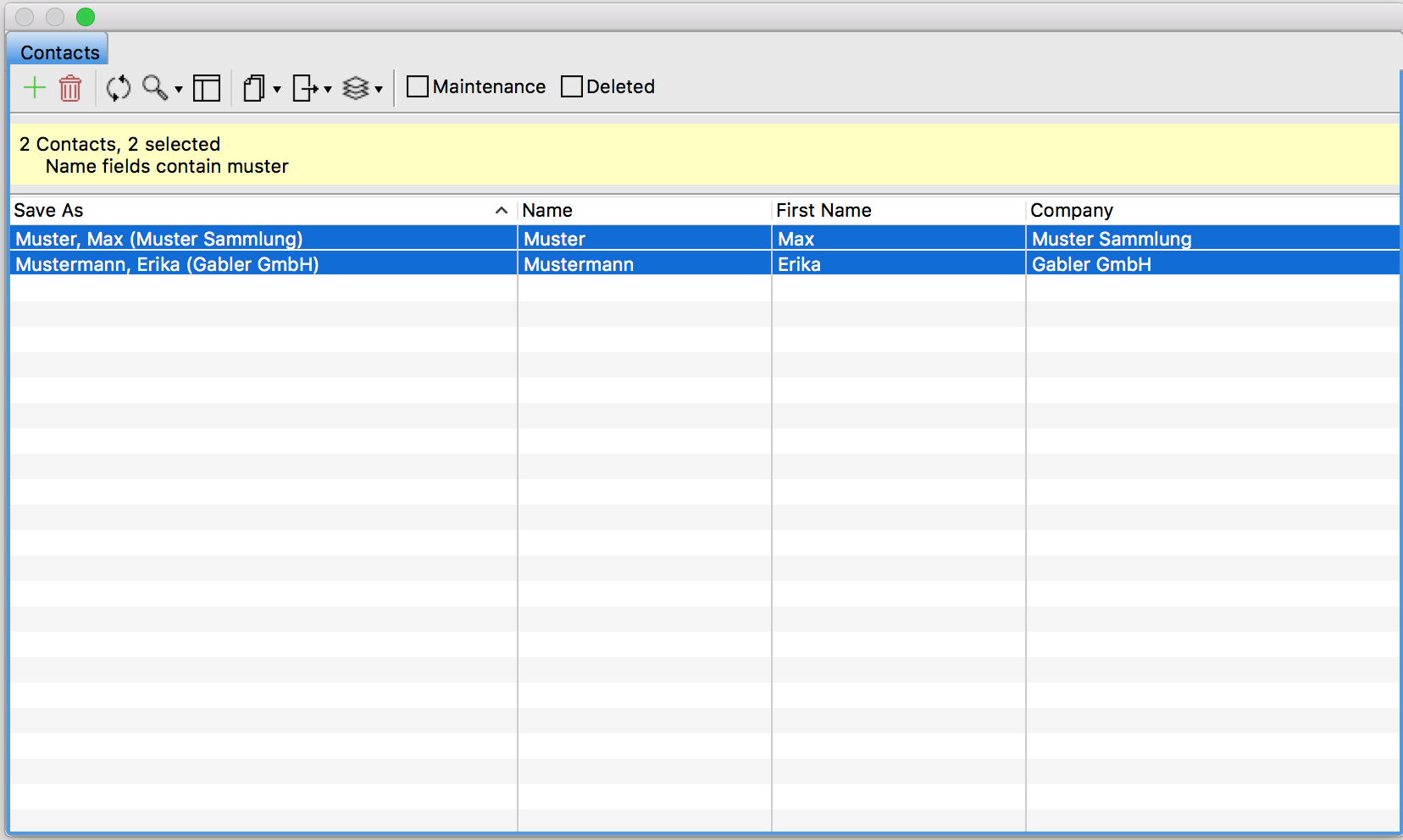
- Go to “Contacts” in ARTBUTLER PRO. From the contact list select all contacts you wish to import.
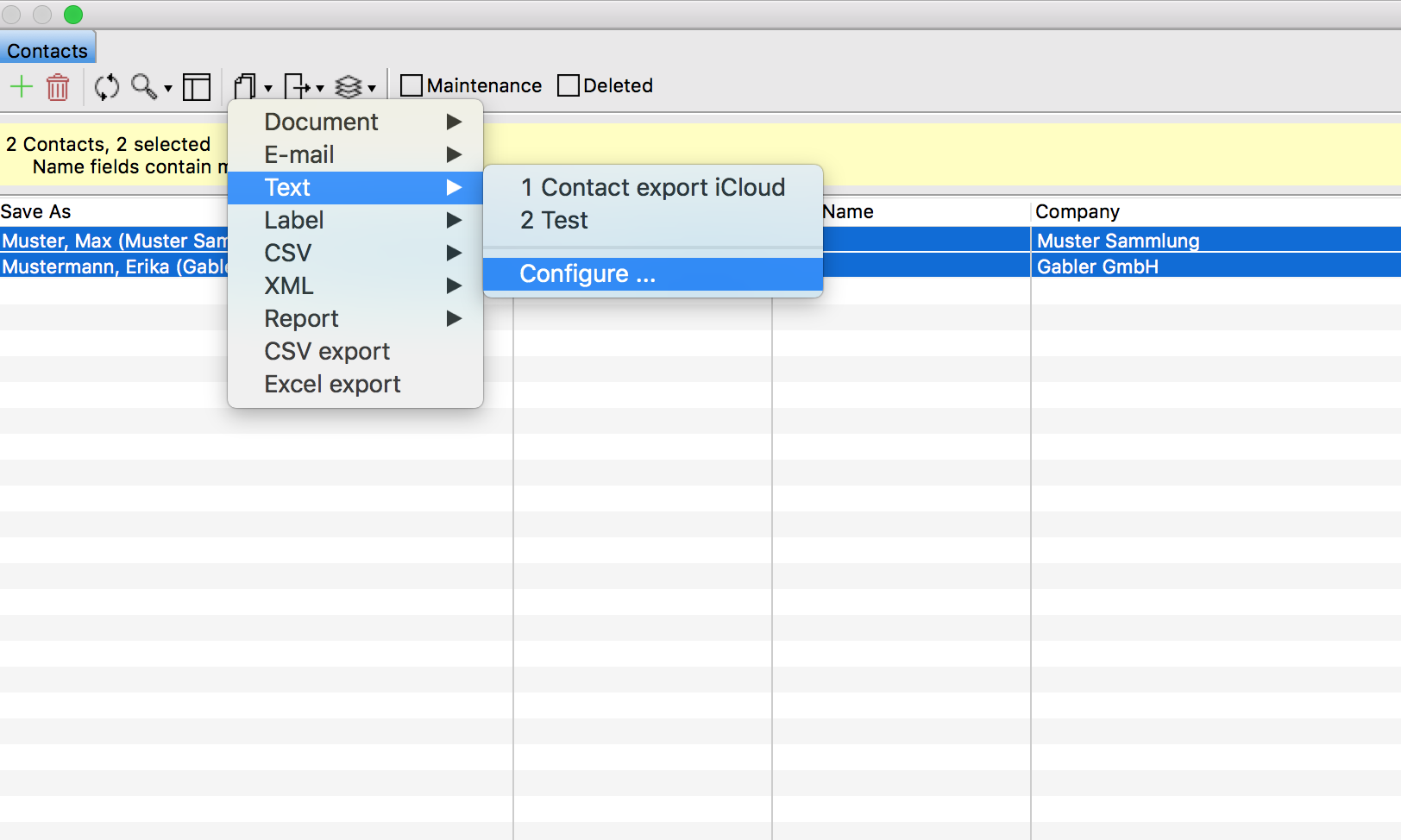
- To use this export template go to Exports > Text > Configure… to open the export dialogue.
- Click “New” to save your options for the new export template in an export configuration and give it a meaningful name, e.g. “Contact export iCloud”. Select the export template and choose the required encoding UTF-8, output format *, and a name for the exported document with a .vcf exention as shown in the screenshot. Next, save your export configuration by clicking “Save”, it will now appear as a new item in the export menu. Once created you can use the menu item to execute the export directly from the menu.
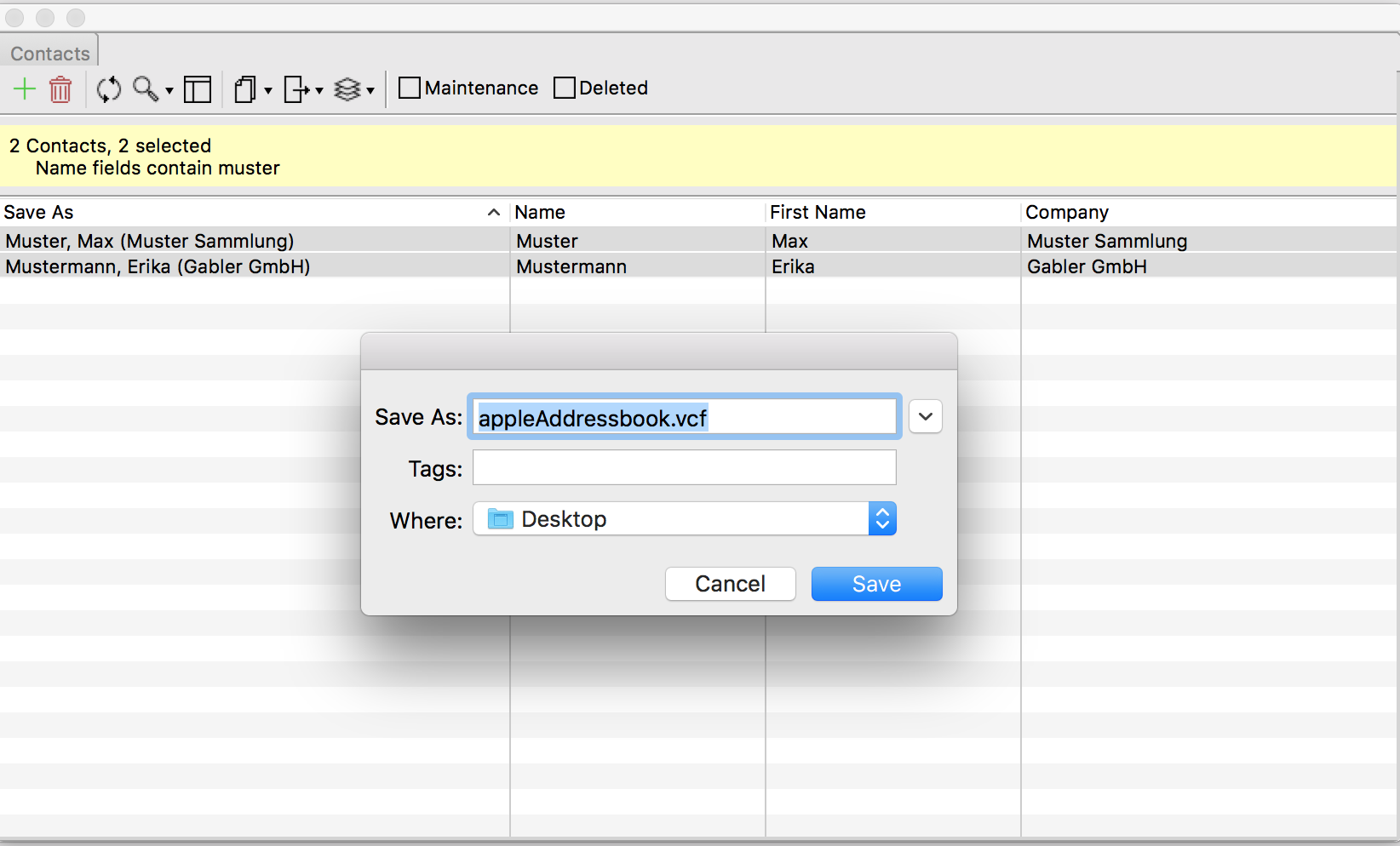
- Click “Apply” to execute the export. In the save dialogue please select a location for the export file and click “Save”. Make sure that the file ends with .vcf.
- A confirmation dialogue will follow. Continue by clicking “OK”.
2. Open iCloud contacts
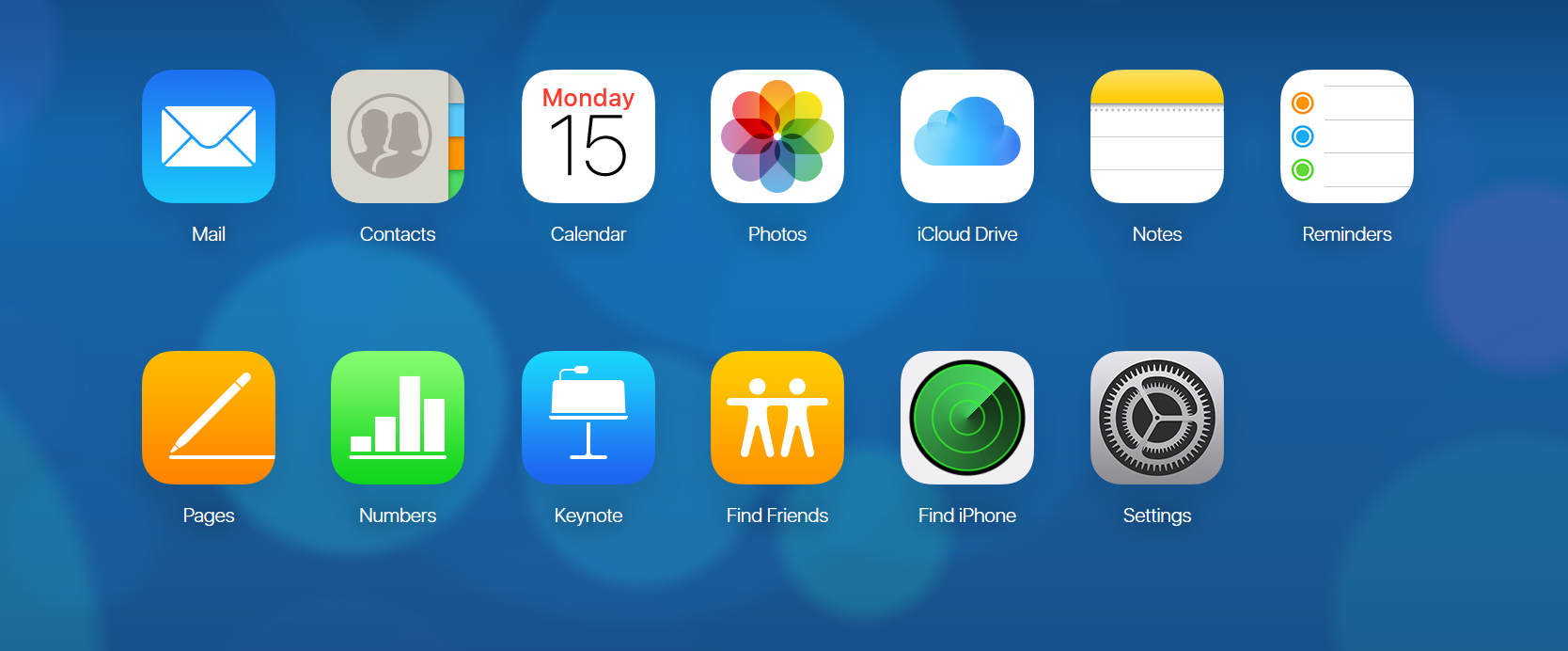
- Go to www.icloud.com in your web browser (Safari, Chrome or Firefox) and log into your iCloud account. Then select the Contacts area.
3. Backup
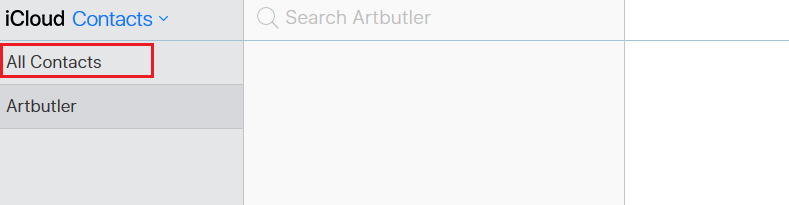
- To ensure that the import does not overwrite your previous contact data in iCloud, make a backup. Select “all contacts” in the upper left column.
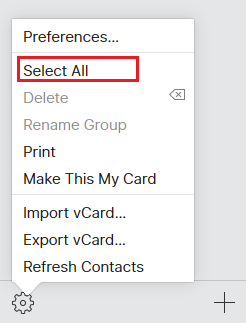
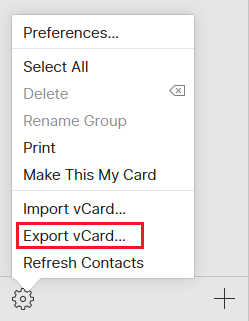
- Then click on the gear in the bottom left corner and go to “Select all”. In the last step, click on the gear again and select “Export vCard …”. The created backup file can now be saved locally.
4. Contact group for new contacts
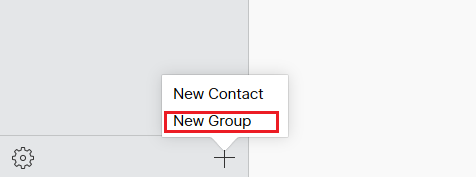
- Before you import the contacts in the next step, create a new group. Call this group “Artbutler”.
5. Import of Contacts
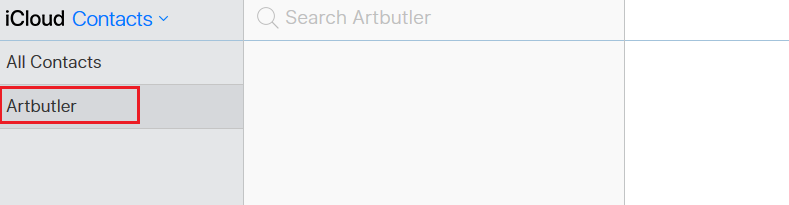
- In the contact area in iCloud, click on the previously created “Artbutler” contact group.
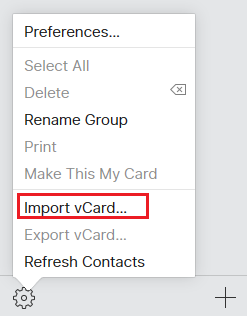
- Then click on the gear in the bottom left corner and go to “Import vCard …”. Now select the file “appleAddressbook.vcf” which was exported from Artbutler before. The contact data will appear in iCloud Contacts and on the synchronized devices after a short time.