

This article will show you how you can adjust prices for owner changes (invoices, credits, purchases) created in ARTBUTLER.
Learn more on how to record purchases and sales in ARTBUTLER and how to create invoices in our article Create Owner Changes.
Price dialogue
You may edit added artworks’ prices without affecting their records. Double click the selected work to open the price dialogue where prices are displayed as net and gross values.
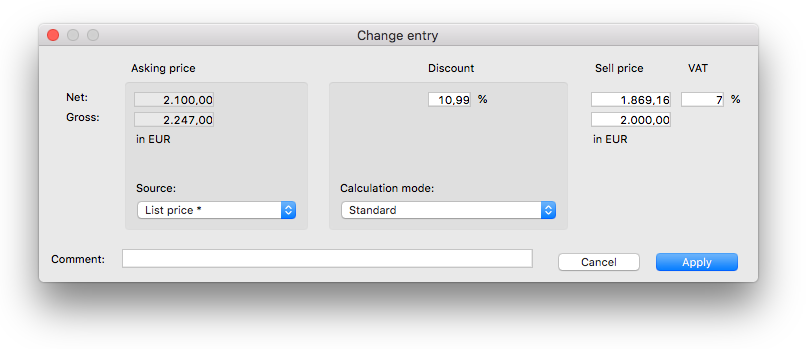
You can view the asking price on your left, pricing options at the centre and the final sell price on your right. Further information such as exchange rates, cost ratio, unit sales or purchase price and profit may be displayed accordingly.
Asking price
All three list prices, the purchase price as well as the final sales price are provided as references. You may alternatively enter any price manually. If the starting price is not displayed in your local currency, you may adjust it at any time. The converted price and the rate from the Management area at the time of adding the work are displayed below.
Calculation options
View different price calculation options at the centre of the price dialogue. You may define a calculation option and, if necessary, enter discounts or commissions.
The following calculation options are available:
- Standard: production costs are not treated separately
- No discount on costs: the cost component is not subject to deductions; discounts apply only to free components; costs are later re-applied in full.
- Exclude costs from calculation: the cost component is permanently excluded from calculation, i.e. fully deducted from the starting price.
Final price
On the right side of the dialogue you can find the invoice’s final price (called Sell price, Buy price or Credit, depending on the invoice type) displayed in the billing currency. If the currency deviates from your local currency, switch the display to your local currency at any time. The system displays the stored exchange rate for the calculated price.
You may modify the final price via discount or enter it manually. The discount will be calculated accordingly.