

If you get the error message ‘Can’t connect online and no offline database available’ or ‘Can’t connect online. Do you want to connect to the offline database?’, ARTBUTLER is not able to connect to your database on the server.
This can happen for a few different reasons, so please check the following things:
- Are you connected to your local network, e.g: do you have internet access and see other network computers in the Finder (Mac) or in START > Computer (Windows)?
- Please make sure your WLAN is turned on or a network cable is connected properly. If using WLAN please check that you are in the correct network. e.g: Not your neighbour’s or your guest network.
- Are ARTBUTLER users on other computers able to connect? If not, is the server computer running?
- Check if your server computer is on. If it’s not, please start the server and try to connect again.
- If the server computer is running, but you still can’t connect:
- Check the settings you are using for the server connection:
- Server: Enter the network name of the ARTBUTLER SERVER computer here. To find out the network name, you can check the ARTBUTLER menu > Preferences… > Database of another ARTBUTLER user or have a look at the server’s system settings:
- on a Mac server: System Preferences > Sharing, e.g: Server.local
- on a Windows server: System Control > Properties, e.g: SERVER
- Note: The names “localhost” or “127.0.0.1” can only be used on the server itself and will not work on other computers, please use the computer’s name instead.
- If you can’t connect after correcting the credentials please check the correct server name resolution: is the server available under the given name in your network?
- Password: the optional password field stays empty in most cases and is usually set only when you connect via internet to a remote ARTBUTLER SERVER outside your local network. In this case the server name is always given with its full internet address, i.e. starts with jdbc:hsqldb:hsqls:// – do not give your own ARTBUTLER password here! You might check the connection password in the ARTBUTLER preferences on the database tab on another user connected to ARTBUTLER as well.
- Server: Enter the network name of the ARTBUTLER SERVER computer here. To find out the network name, you can check the ARTBUTLER menu > Preferences… > Database of another ARTBUTLER user or have a look at the server’s system settings:
- If others can’t connect as well, you should restart your server computer. Please be aware that others might be using it at this time (using shared files etc.), so make sure no one is connected. If not familiar with the server, please contact your admin before you restart it.
- Check the settings you are using for the server connection:
- If the server is up, but you still can’t connect, please check if the ARTBUTLER SERVER program is running on your server computer:
- Instructions for Mac:
- The server is a background service that you can not check directly. On the server computer in the Finder, go to the top menu and choose Go > Go to Folder… and copy the following path into the dialog and click Open: /var/serverhsqldb/databases/
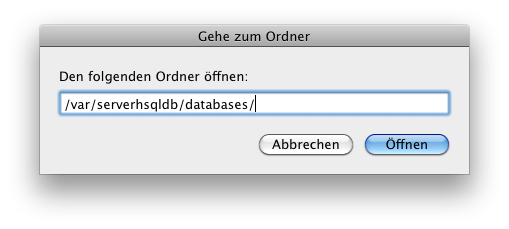
A folder will open, where a number of files all starting with artbutler should be present. If there is no file artbutler.lck, the server is currently not running. - To manually start the server, open a new Finder window and in the top menu select Go > Utilities. Start the Terminal application located in that folder with a double-click. Copy the following command and paste it into the Terminal window and hit enter:
sudo launchctl load /Library/LaunchDaemons/de.teamspring.artbutler.hsql.plist
You will be asked for the administrator password for the computer. Type it and hit return.
- The server is a background service that you can not check directly. On the server computer in the Finder, go to the top menu and choose Go > Go to Folder… and copy the following path into the dialog and click Open: /var/serverhsqldb/databases/
- Instructions for Mac: