Contact Groups can be used to organise groups of contacts, e.g the customers interested in a certain artist, participants of a VIP dinner or a guided tour, or visitors of an exhibition or your booth at a fair. In this article you will learn how to work with Contact Groups in ARTBUTLER (available since version 2.7).
1. Creating a Contact Group
- Select the Contact Groups section in your left hand main navigation.
- Click the green plus
 on top of the list to create a new contact group.
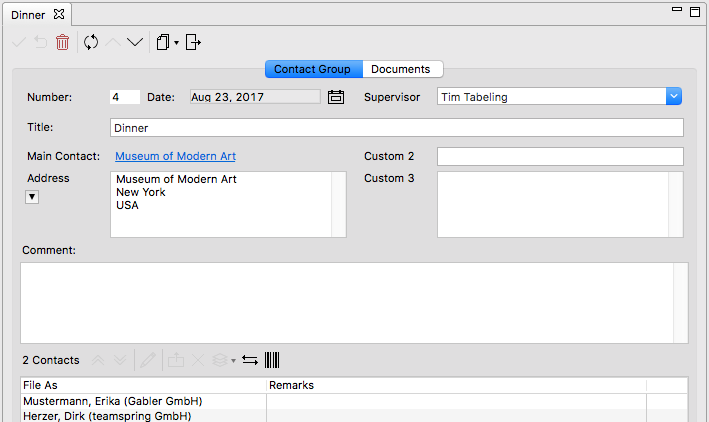
 - Enter information like group title, a comment or a relevant date.
- Optionally you might drag a contact to the yellow field Main Contact to link it to this group: consider the location of an event, the host, or an artist’s contact record.
- Add contacts to the group by dragging one ore more contacts from the list of contacts to the member list in the group record.
You can also select contacts in the contact list and choose Create from contact on top of the contact list to create a new group with the selected contacts or even add them to an existing and currently open group.
 - To leave a comment or remark for a specific contact, e.g. if he or she confirmed to join an event or his/her position within a museum’s advisory board, just doubleclick its entry and enter the text.
- You can export the group info including the member list in the export menu
 , as a starting point we have provided an Contact group export template in the template pool.
2. Tips for extensive use
- Benefit from contact groups to assort contacts interested in specific works by your artists, group members of certain committees, or guests invited to an upcoming event
- You may add comments directly to the contact – comments will show up directly in the contact history
- The data field is particularly suitable for dinners and other events, enabling you to arrange your contact groups featured in the list by date
- Use user defined fields (Custom 1-3) to extend your personal benefit of contact groups
In the example pictured Custom 1 was replaced with “supervisor”. You may opt for the name of one of your employees here.
3. History featured with contact
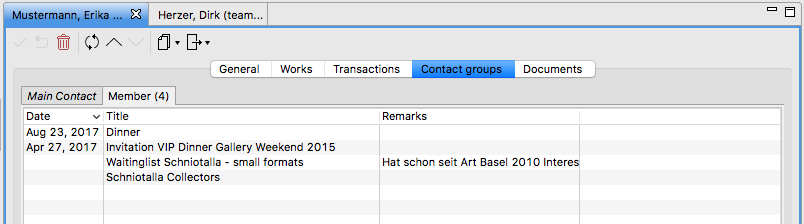
Each contact record features a tab solely for contact groups where you may clearly see which contact group this contact belongs to. All groups are listed that include this contact as well as all groups where the contact was linked as the main contact.
You may also search for groups and contacts within a group by using the filter  menu
menu