

Invoice numbers are the unique code given to each invoice so it can be filed and found in the future.
This article will show you how to create and format them in ARTBUTLER.
1. Overview
The invoice numbers in ARTBUTLER consist of up to three parts:
- A prefix: e.g: For the year, or a code for the accounting area
- A serial number
- An [optional] suffix: e.g: A code for the person responsible, the artist who’s work was sold, or the sales context, etc.
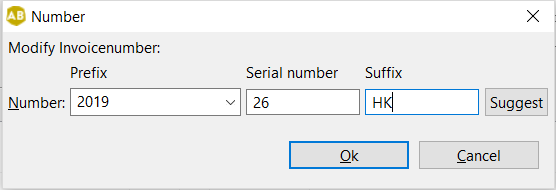
2. Editing the Format of the Invoice Numbers
The display and printing format of the invoice number can be changed to suit you.
- Go to the ARTBUTLER menu and select Preferences.
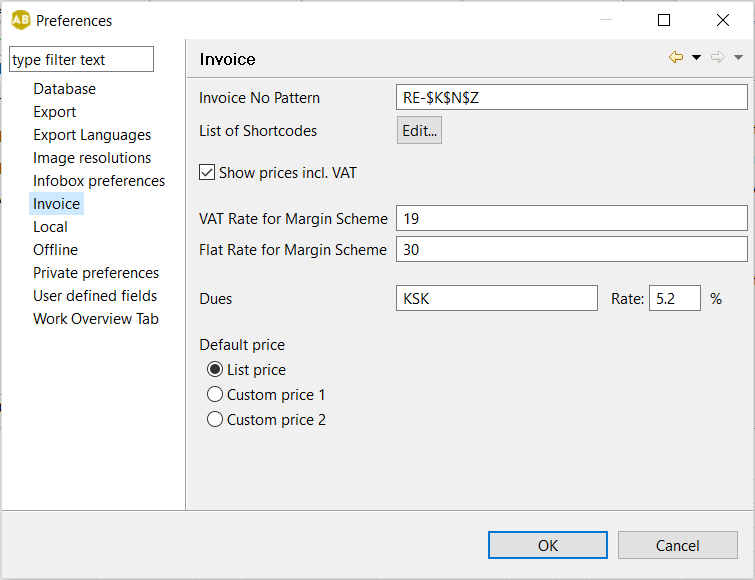
- Go to the Local tab on the left hand side of the window.
- Using the placeholders $K [prefix], $N [serial number], and $Z [suffix] you can change the format of the invoice numbers. e.g: with the pattern $K-$N [$Z] an invoice number with prefix 2014 [the year], serial number 365 and suffix AB [Art Basel] will display as 2014-365 [AB].
3. Creating an Invoice Number
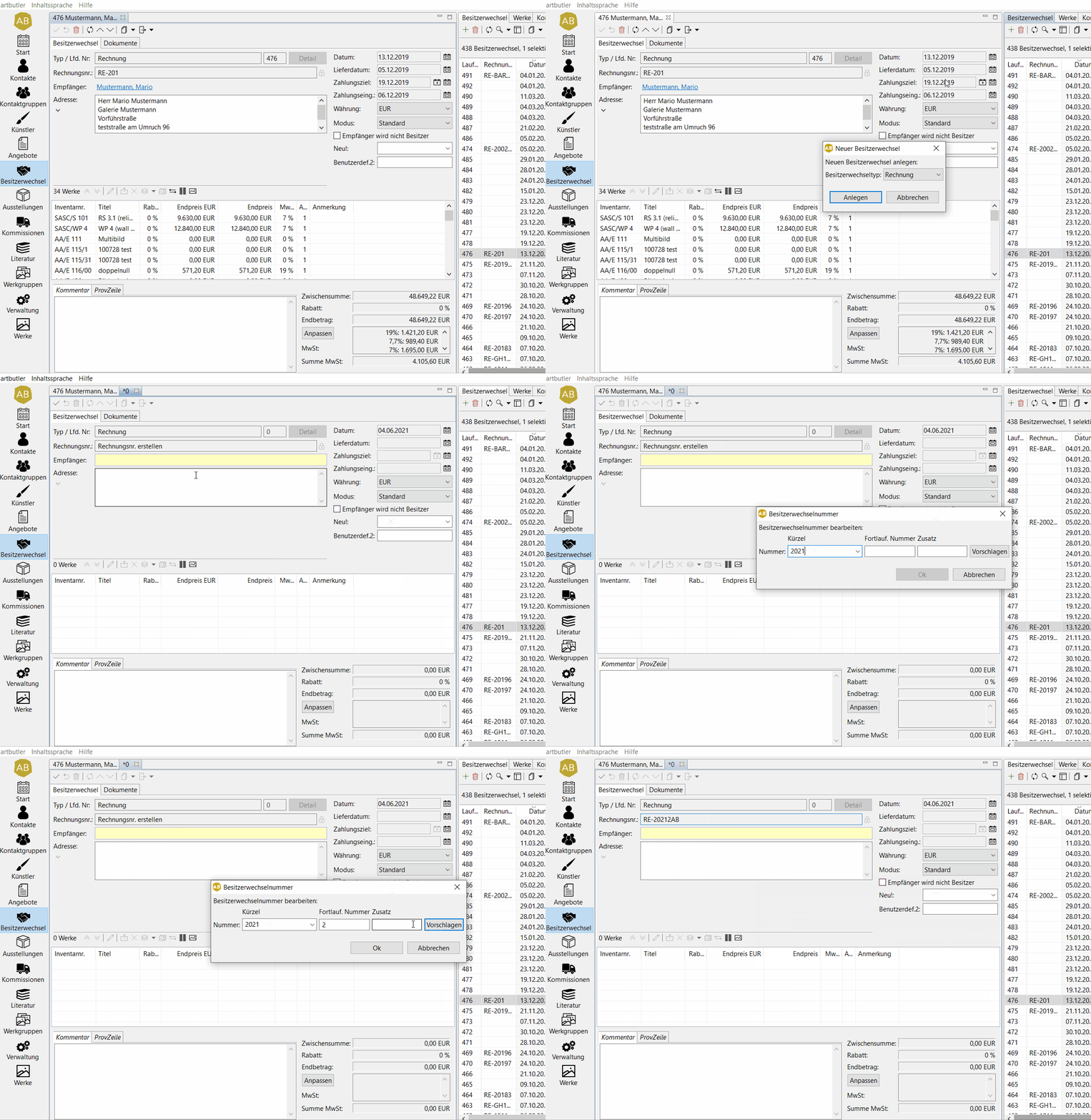
- Go to Invoices in the left hand side menu.
- On the right hand side list, go to the New button and create a new invoice.
- A pop up window will appear, where you need to select the sort of document you would like to create. Leave the owner change type on Invoice and click Create .
- A blank invoice will appear in your detail view in the middle of the screen.
- Click on the Create Invoice Number field.
- A pop up window will appear where you can add the invoice number.
- The Prefix needs to be typed in first.
- Once this is done, you can click Suggest so that ARTBUTLER will give the next number in line for the serial number, otherwise you can give your own number here.
- If you would like, you can manually add a suffix as well before clicking OK .