

Saving the Database
Manual Backup
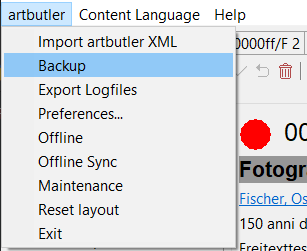
Please go to the menu artbutler -> Backup: ARTBUTLER will create a copy of the database as a ZIP archive. Save this ZIP file on a secure location like an external storage media or a hard drive; by no means save it on the same computer that hosts the database. In a multi-user installation the manual backup can be done on any client computer.
Automated Backup
It is highly recommended to backup the ARTBUTLER database in the course of an automated, general backup procedure as well. The database consists of up to four files in one folder, so please always save the complete database folder.
During the backup process the database should preferably be closed, i.e. the server should have been stopped or the ARTBUTLER program closed in the case of a single-user installation (find instructions in the section “Database locations and commands to start/stop the server” below).
Running automated backups on MacOS computers is particularly easy:
When installing the Artbutler Server on MacOS, you can specify the time at which the server should be automatically stopped briefly and restarted in order to create a backup of the database in the /var/serverhsqldb/databases directory. The server automatically keeps the last 14 backups there and then deletes the oldest one. For an external data backup of these backup files, you can now also use Time Machine, for example, or any other backup solution for files. If your database computer is shut down at night, a backup file is also stored in the same location.
Apple’s “Time Machine” is NOT suitable for backing up the database of a running ARTBUTLER database, as it does not reliably support backing up open files. Therefore, please make sure that backup files are created, e.g. by the automatic process described above, and save them.
Database locations and commands to start/stop the server
Windows
In a single-user installation the database is located in the application folder of ARTBUTLER, usually this is
C:\Programme\artbutler\workspace\databases\ArtbutlerDBHSQL\
In a multi-user installation the database is hosted by a server, you can find the database in the application folder of the server program on the remote computer, usually this is
C:\Programme\artbutler\serverhsqldb\databases
The server is installed as a service and can be stopped for a backup and started again under Windows Control Panel > Administrative Tools > Services > HSQLDBartbutler.
To achieve this in a .BAT batch file use the commands
stop: NET STOP HSQLDBartbutler
start: NET START HSQLDBartbutler
Macintosh
In a single-user installation the database is located in your home folder under
~/Library/Application Support/artbutler/databases/artbutlerDBHSQL/.
In a multi-user installation the database is located on the server computer in the folder
/var/serverhsqldb/databases
The server can be stopped and started with the Terminal program, please enter the following commands:
stop: sudo launchctl unload /Library/LaunchDaemons/de.teamspring.artbutler.hsql.plist
start: sudo launchctl load /Library/LaunchDaemons/de.teamspring.artbutler.hsql.plist
respectively. You will require administration rights and the computer log-in password for this.
NB: If you run into an error message
/Library/LaunchDaemons/de.teamspring.artbutler.hsql.plist: No such file or directory
you are using an outdated server version: please re-install the server with the latest version of the
server installer.
Restoring the database from backup
Restoring the database should be done by ARTBUTLER support or an experienced computer user to avoid any data loss. Please always contact us before you try to restore a server backup that was made while the server was running!