Use this export template to transfer contact information to your Apple Address Book (Mac Contacts App).
Exported contents
- Firstname, Lastname, Company, Position
- Telephone, Telephone2, Telephone other, Mobile
- Fax, Fax private
- E-mail 1, E-mail 2, E-mail 3, Website
- Addresses – Business, Private, Other
- Notes
Configuration in ARTBUTLER
- Export type: Text
- Name: appleAddressbook.vcf
- Encoding: UTF-8
- Output format: *
Procedure
1. Apple Address Book – Backup
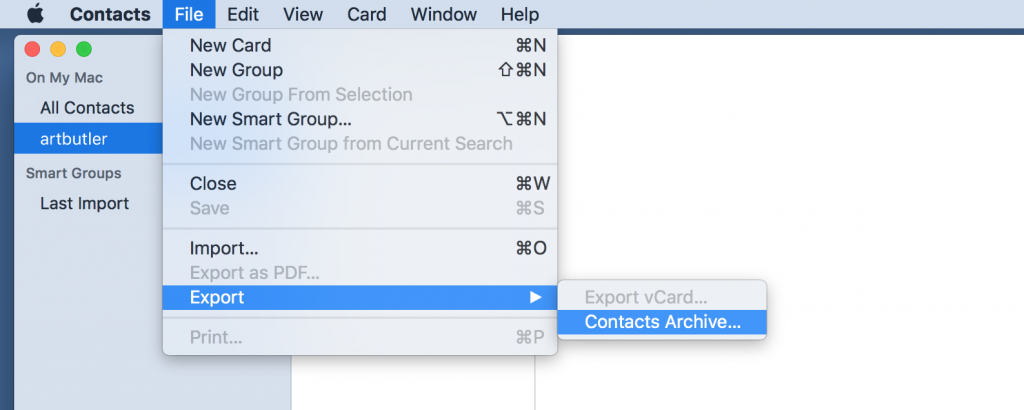
- To ensure that the upcoming import of new contacts will not override existing data in your Mac Contacts, please create a backup by exporting a contact-archive with all currently existing contacts.
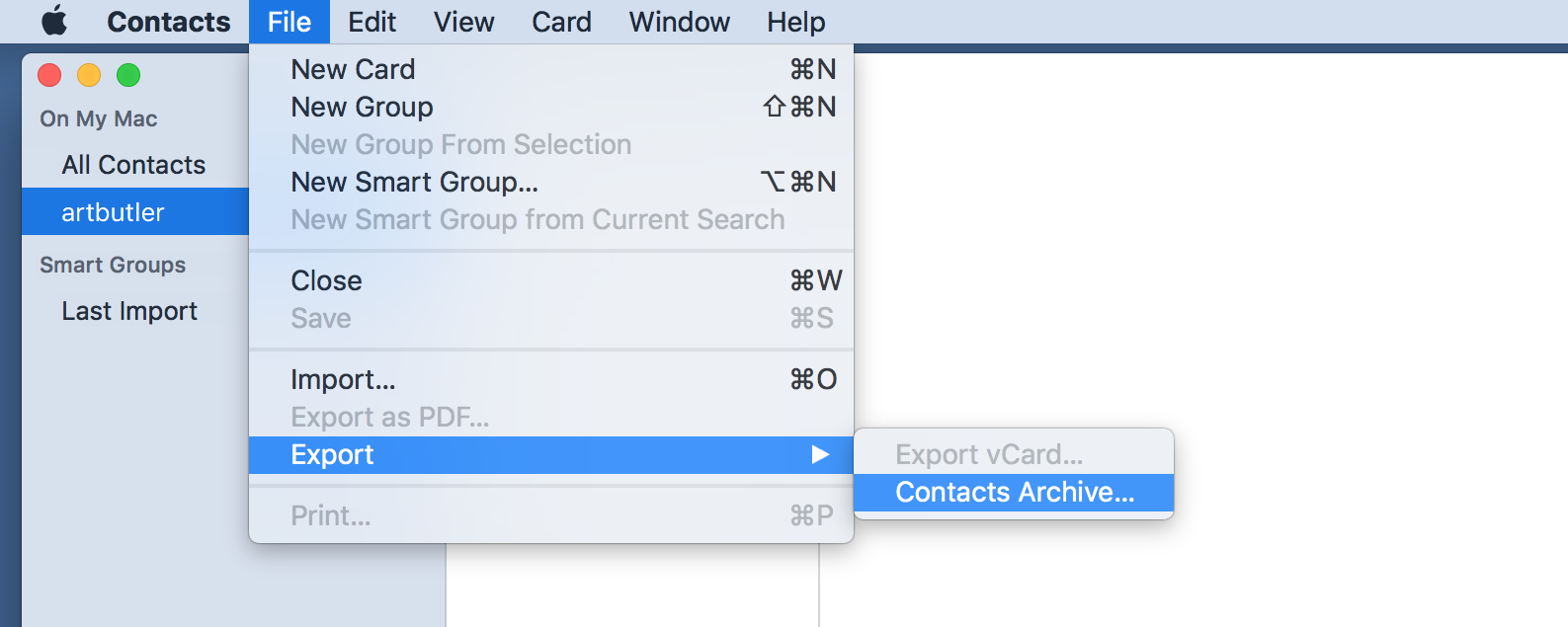
2. Store location for new contacts
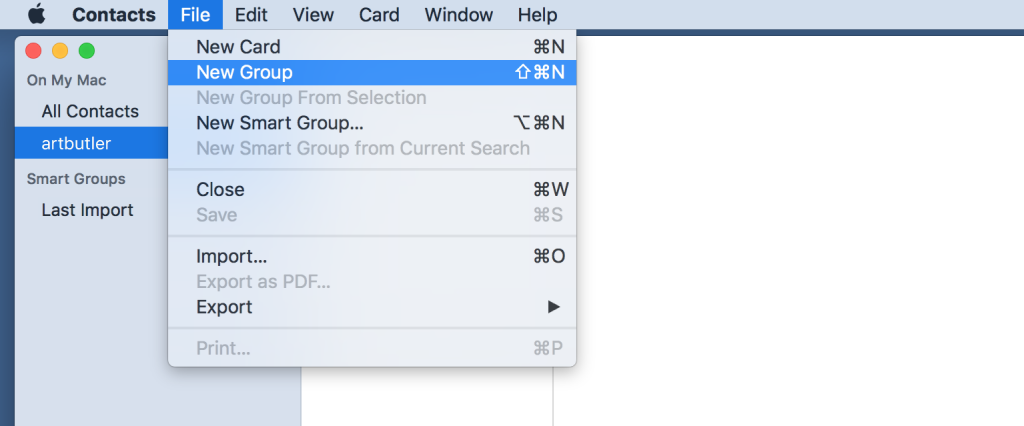
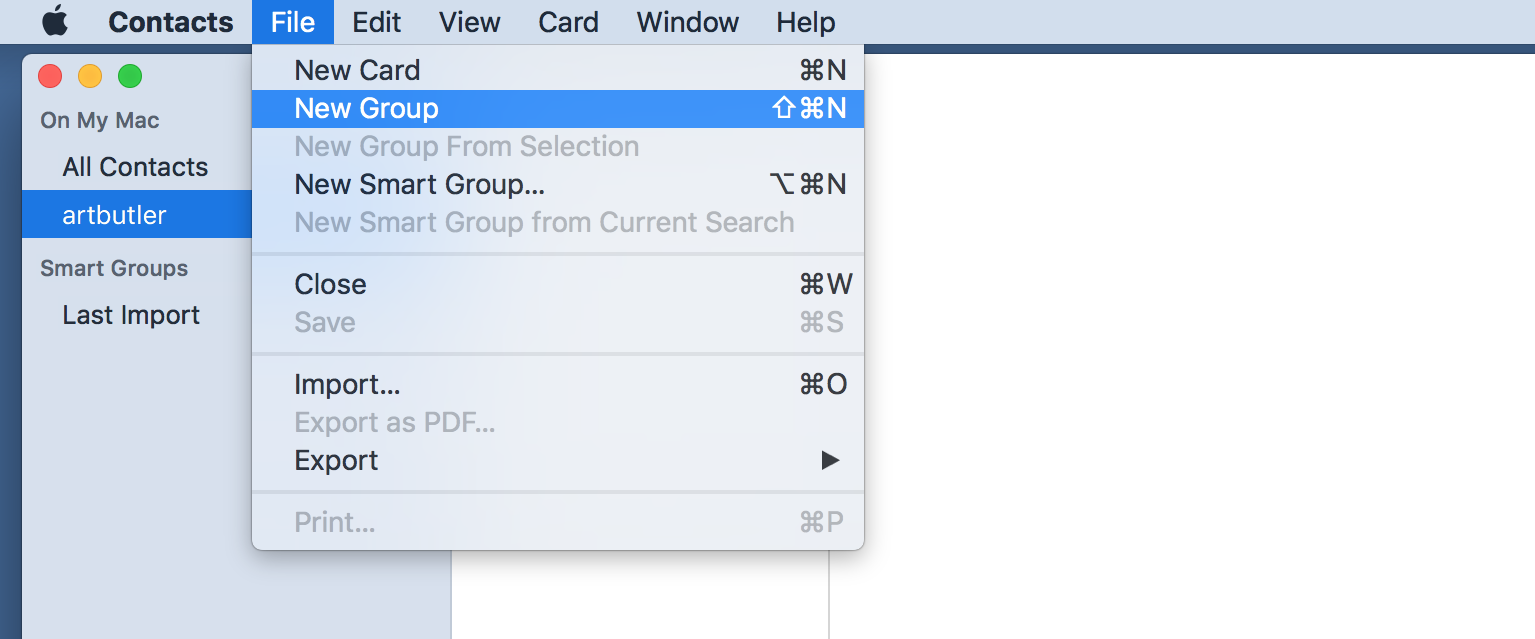
- Before importing contacts in the following step, create a new group titled ARTBUTLER. All contacts from ARTBUTLER PRO will be saved here.
3. Export from ARTBUTLER PRO
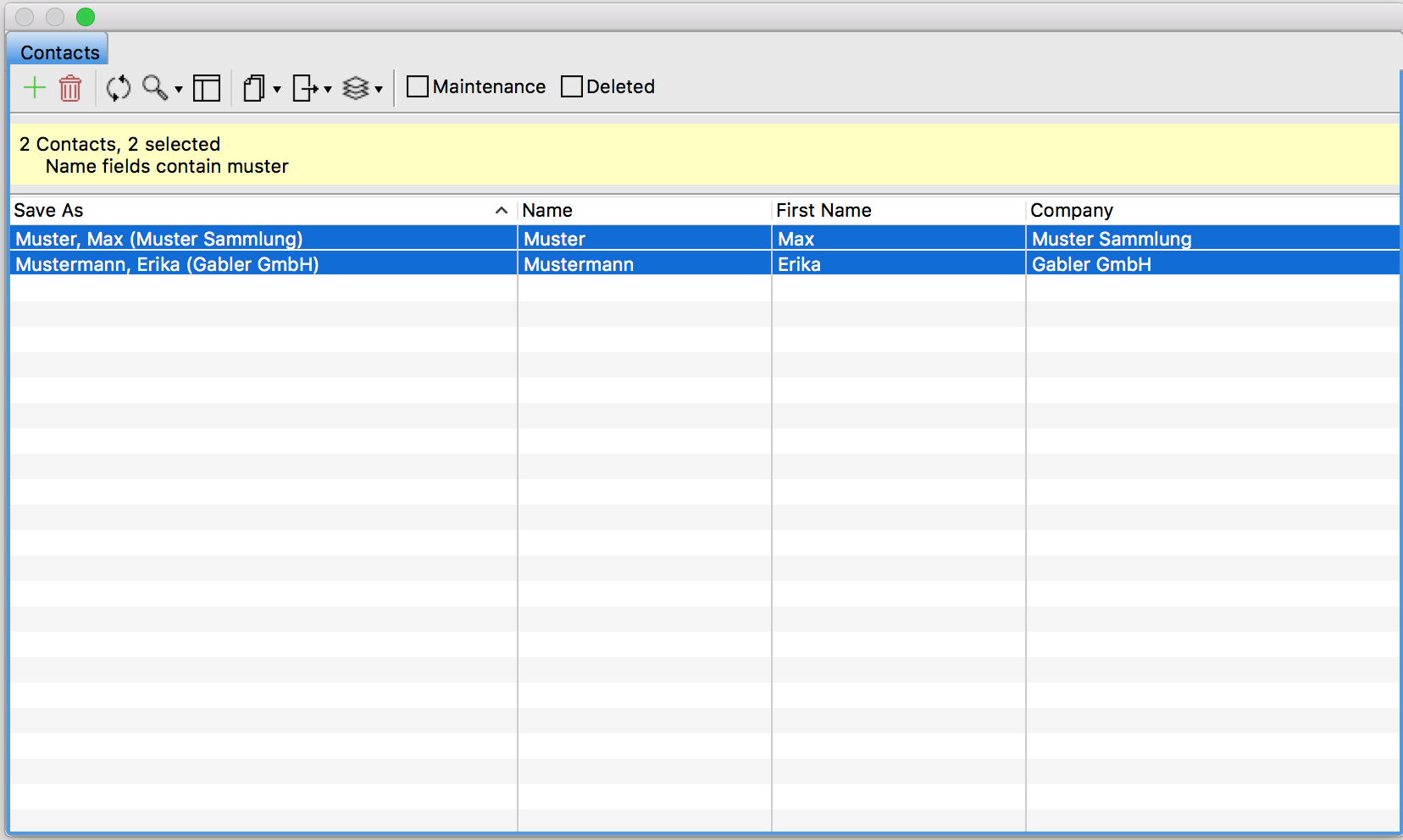
- Go to “Contacts” in ARTBUTLER. From the contact list select all contacts you wish to import.
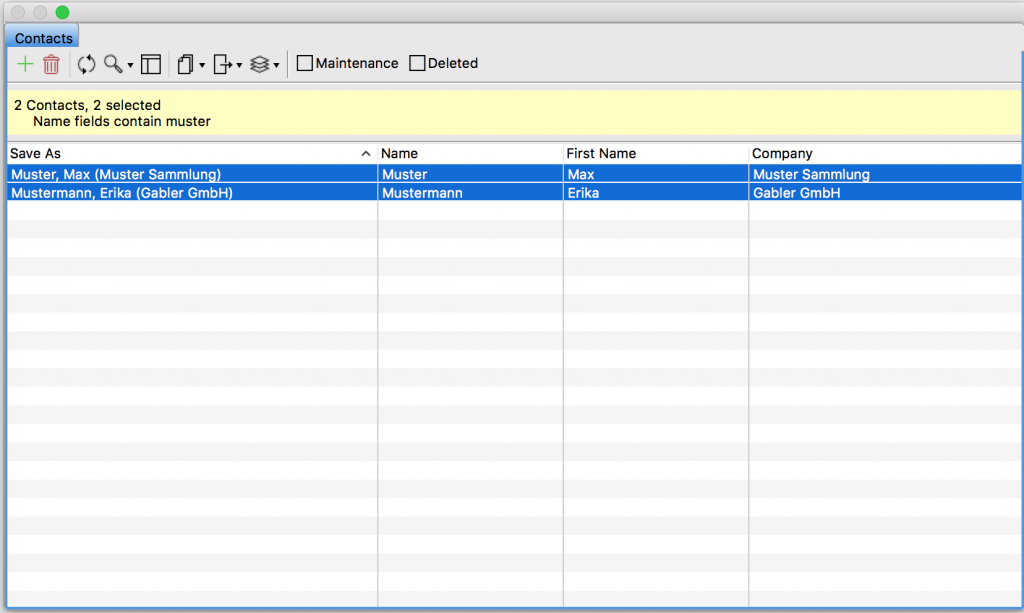
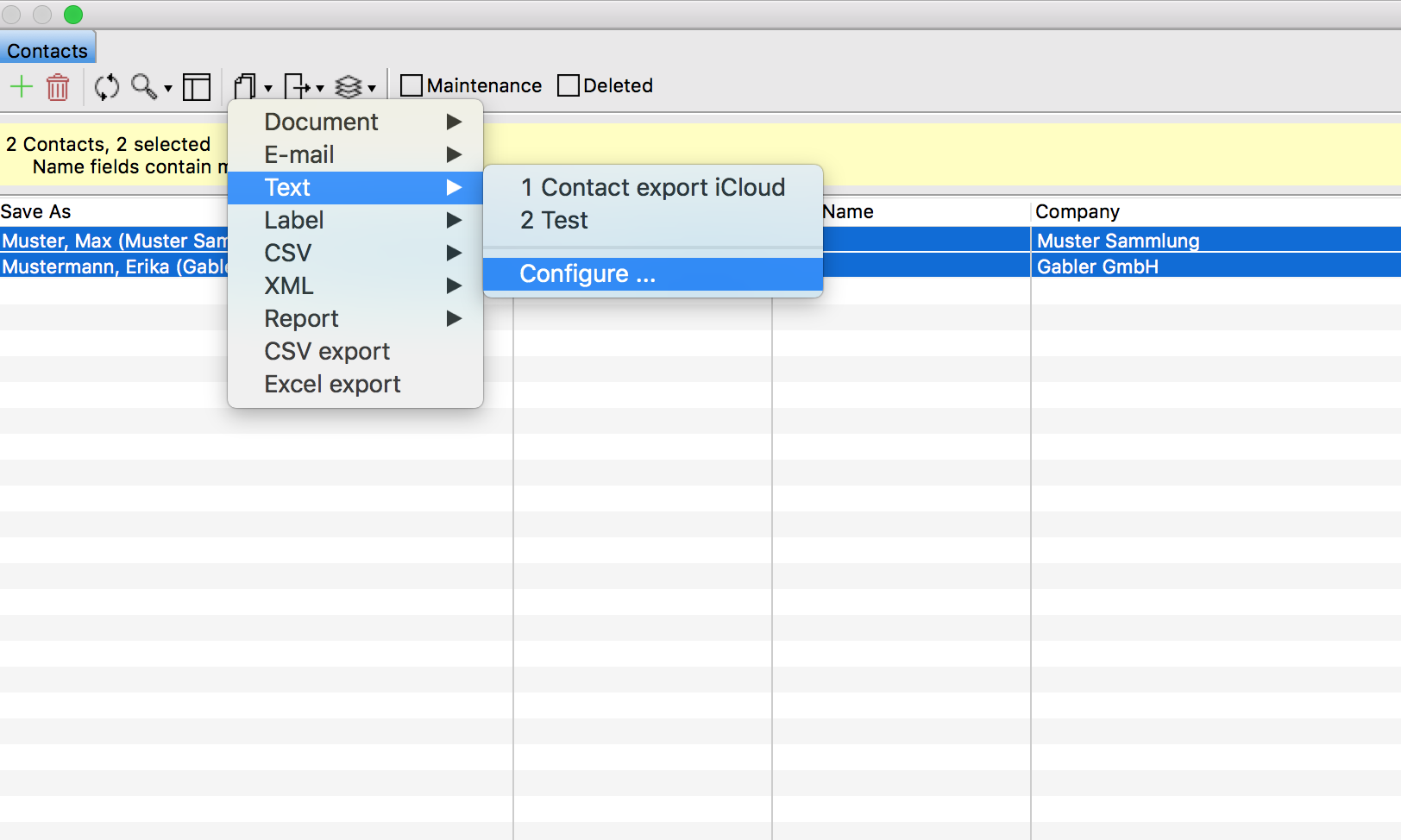
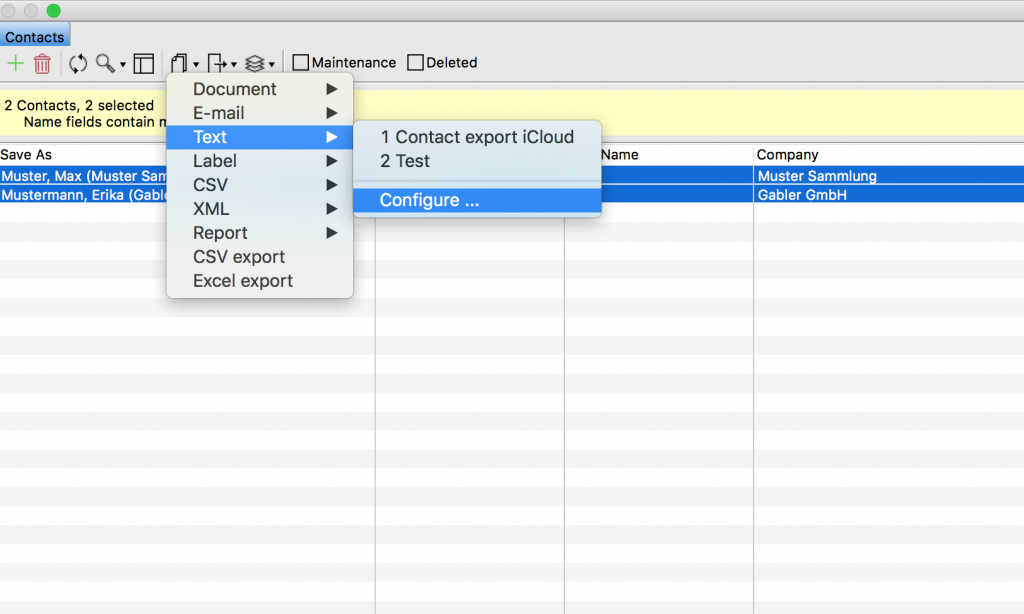
- To use this export template go to Exports > Text > Configure… to open the export dialogue.
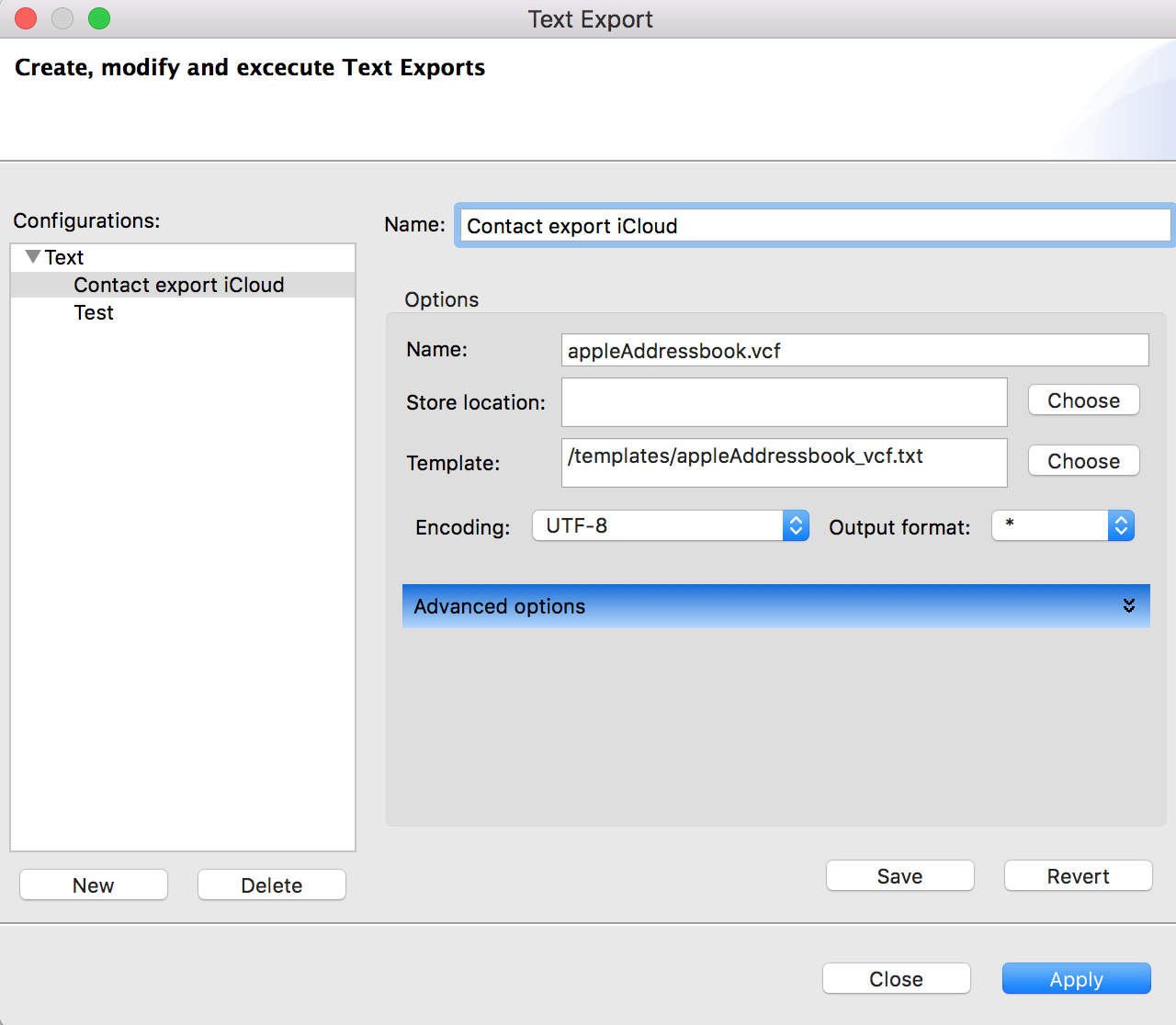
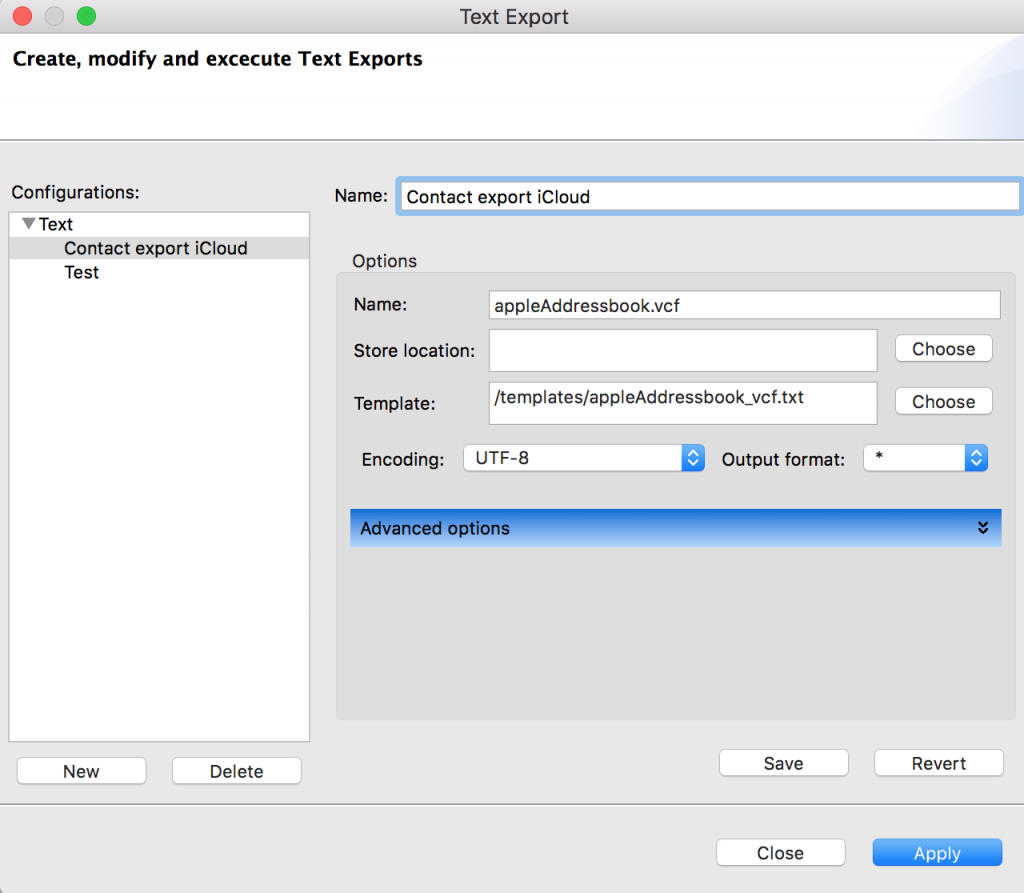
- Click “New” to save your options for the new export template in an export configuration and give it a meaningful name, e.g. “Contact export iCloud”. Select the export template and choose the required encoding UTF-8, output format *, and a name for the exported document with a .vcf exention as shown in the screenshot. Next, save your export configuration by clicking “Save”, it will now appear as a new item in the export menu. Once created you can use the menu item to execute the export directly from the menu.
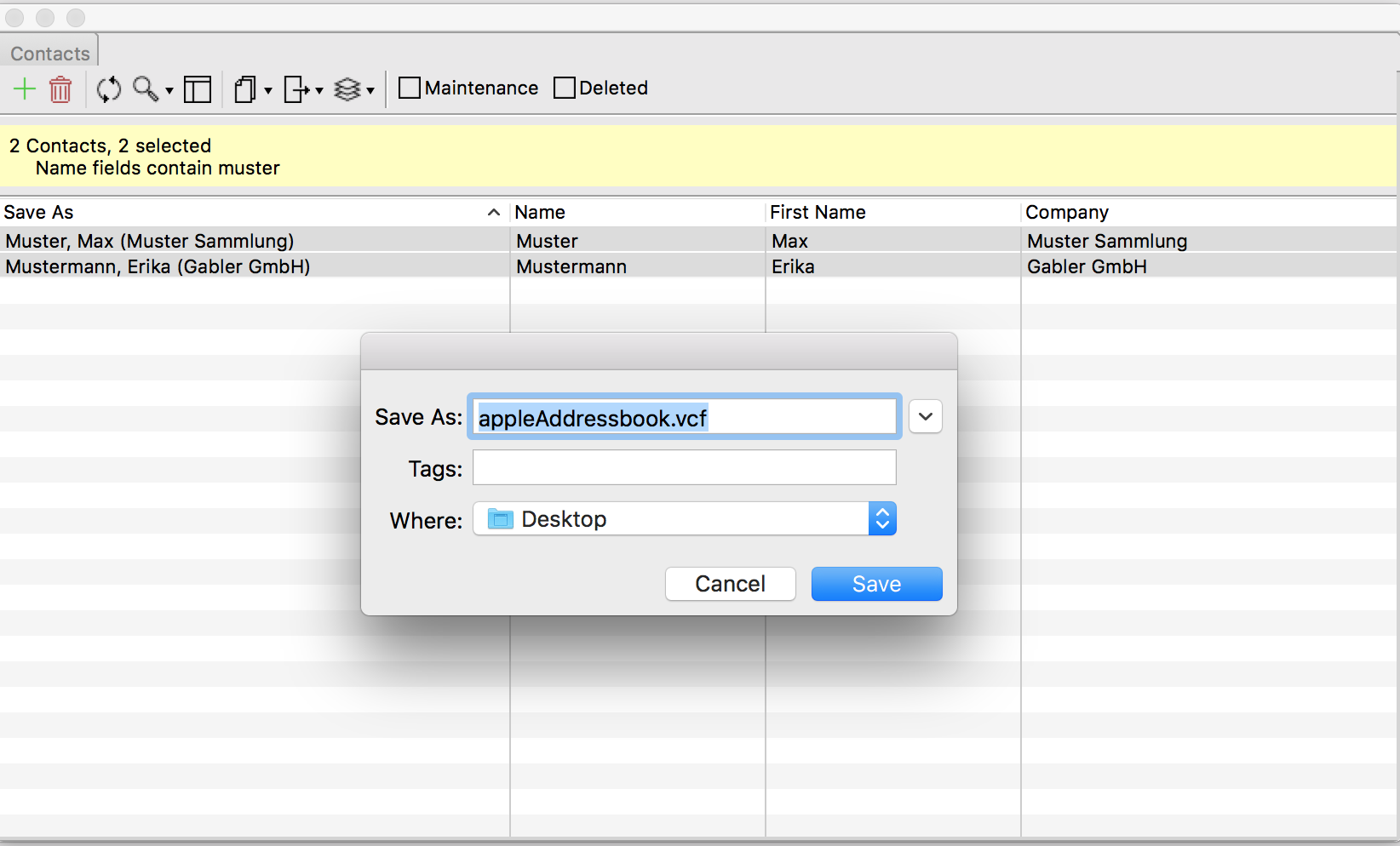
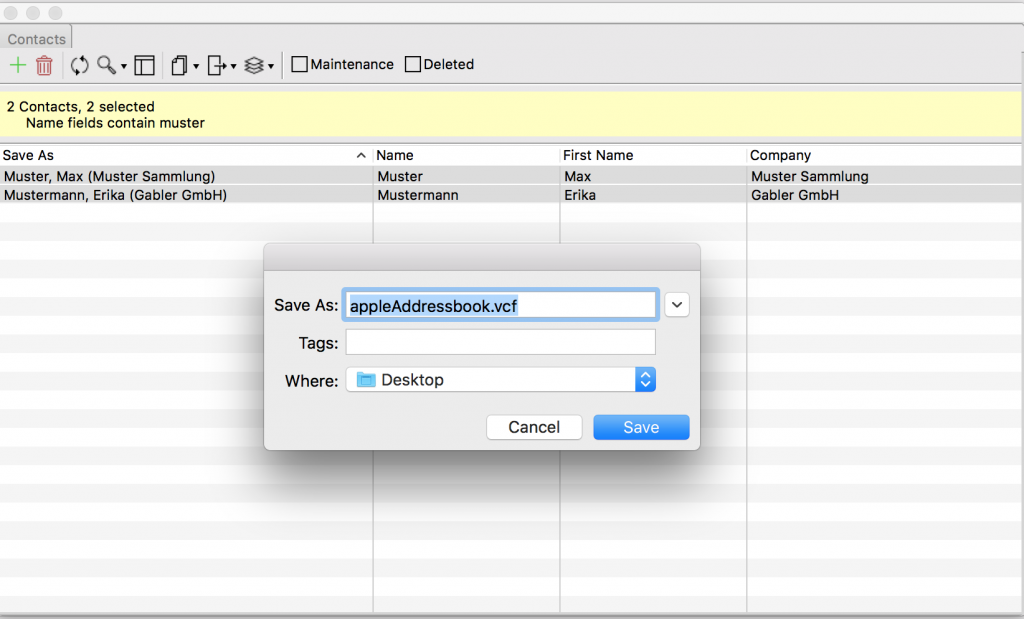
- Click “Apply” to execute the export. In the save dialogue please select a location for the export file and click “Save”.
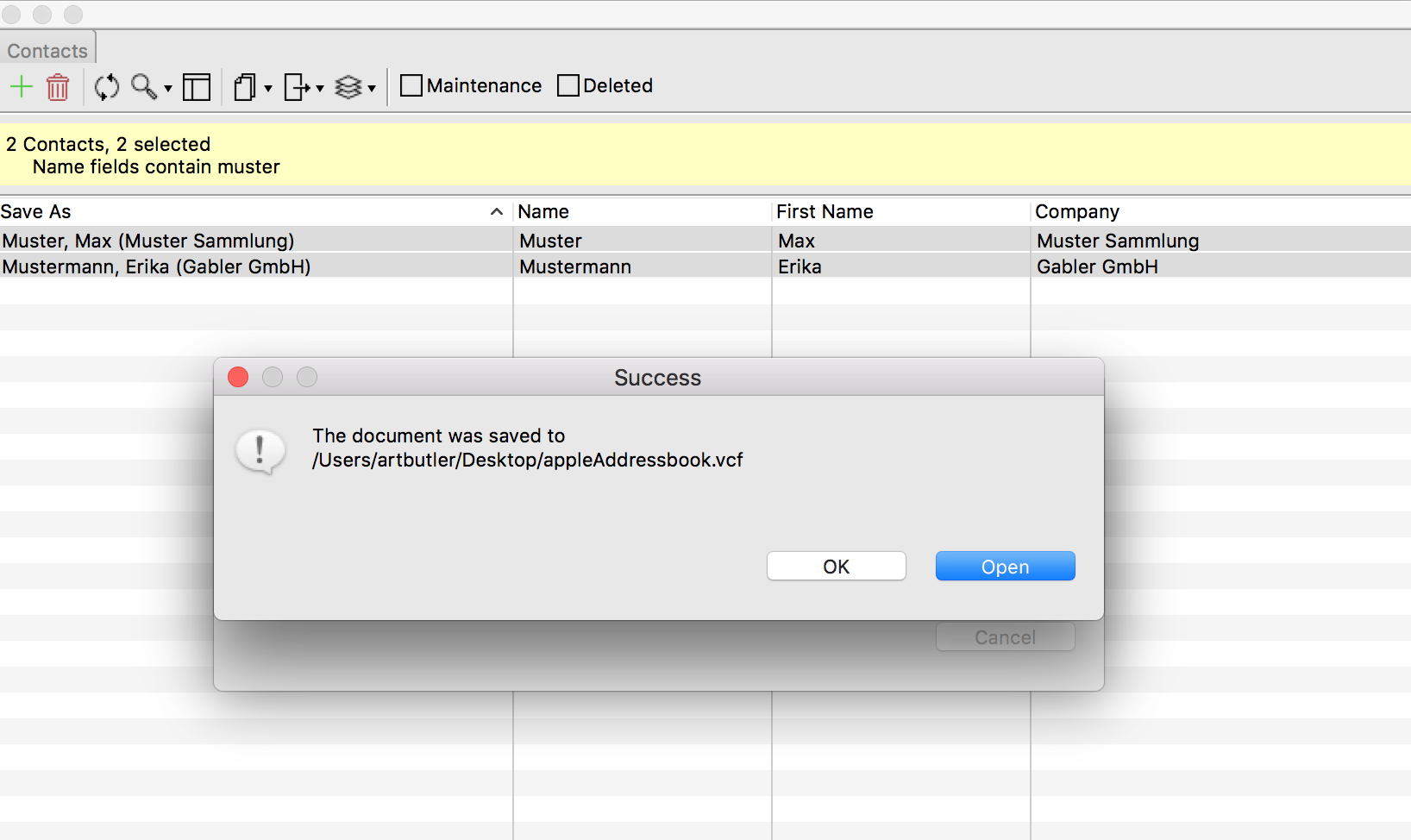
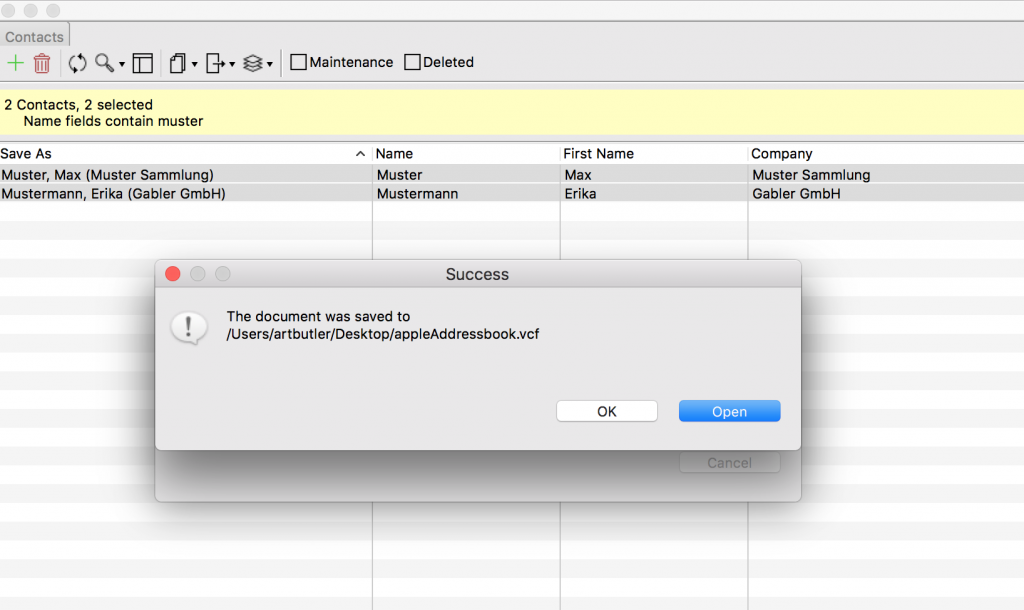
- The confirmation dialogue will follow. Continue by clicking “Open”.
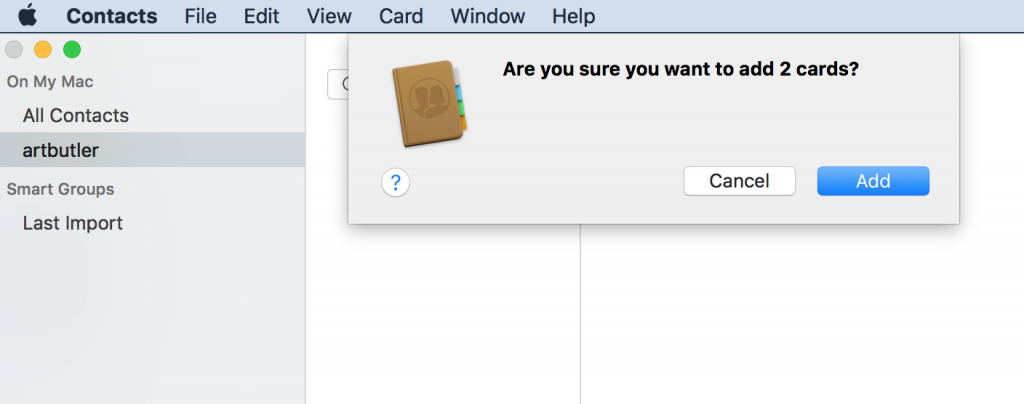
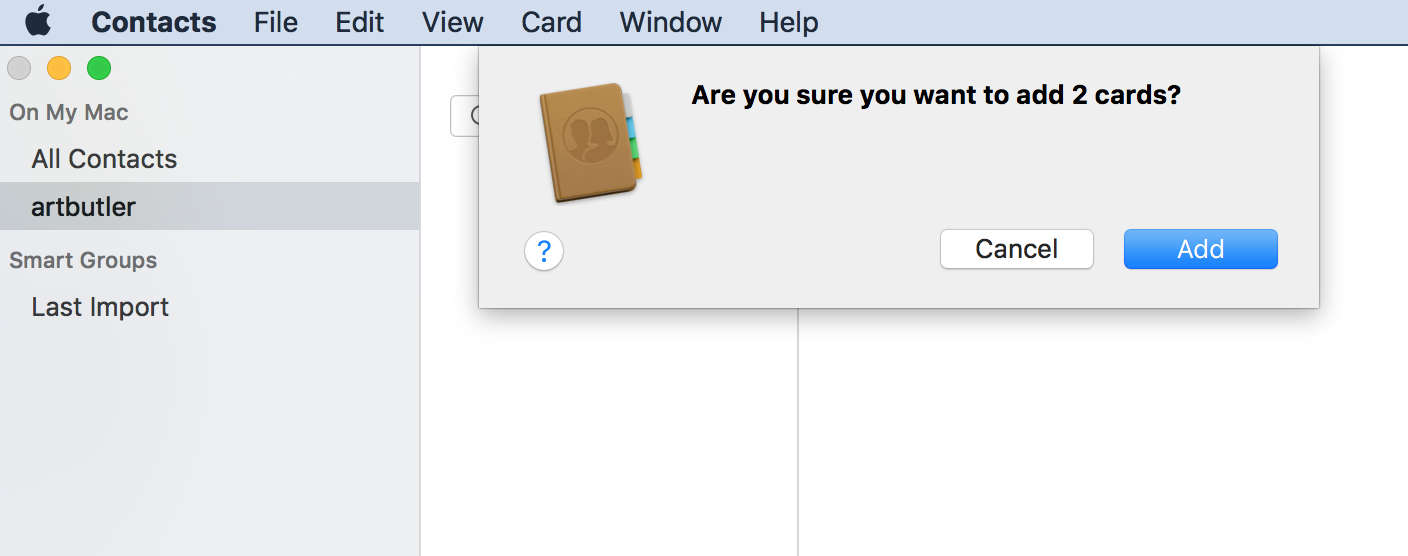
- Your Apple Adress Book will open automatically and will ask you if you wish to import the contacts. Click “Import” to complete the process.