Download for macOS
Important Note: When you start TeamViewer for the first time you will have to give it some access rights, please follow these instructions:
- Click on the Apple icon in the upper left corner of your Mac screen and open the System Preferences.
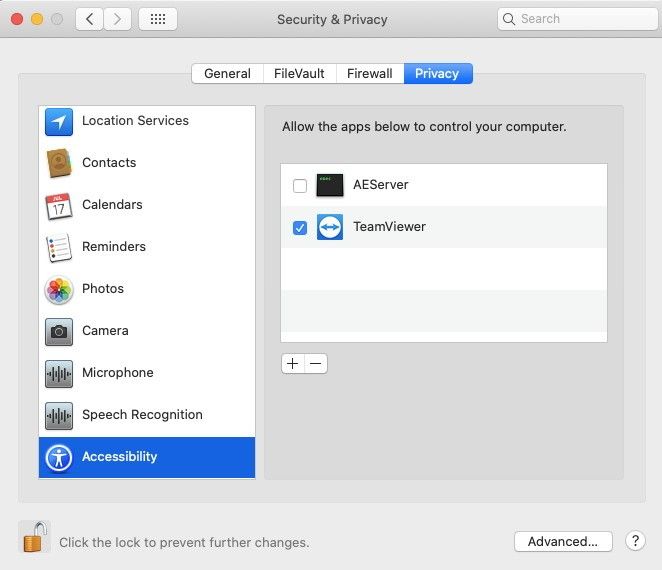
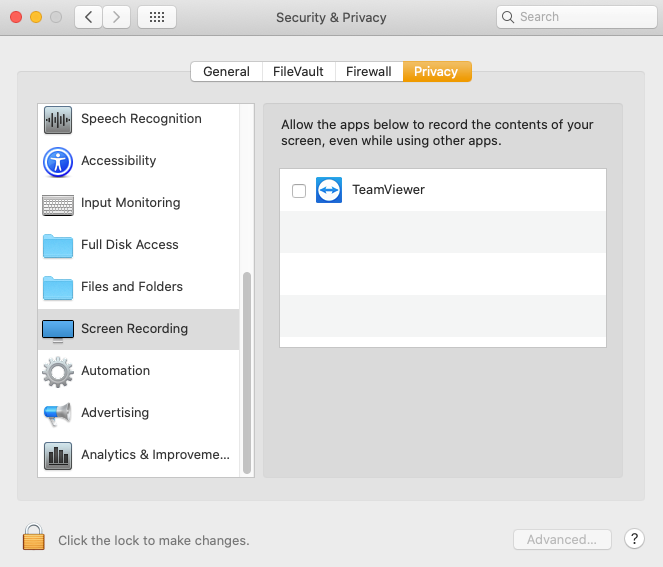
- Now click to the Security item and select the Privacy tab.
- Click on the lock at the bottom left of the window and enter your admin password.
- Locate the Accessibility item in the list and tick TeamViewer QuickSupport on the right, to allow us to use the mouse.
- Locate the Screen Recording item in the list and tick TeamViewer QuickSupport on the right as well, otherwise we won’t be able to see your screen.
- Now everything is ready to assist you.