

Adding a New Artist
- Go to the Artists section in the left hand side menu.
- On the right hand side list, go to the New button and create a new artist profile.
- Add the artist’s name and choose an ID that works for you, or leave the suggested initials. Click Create .
- After adding any further information you would like, save the artist’s profile by clicking the Save button.
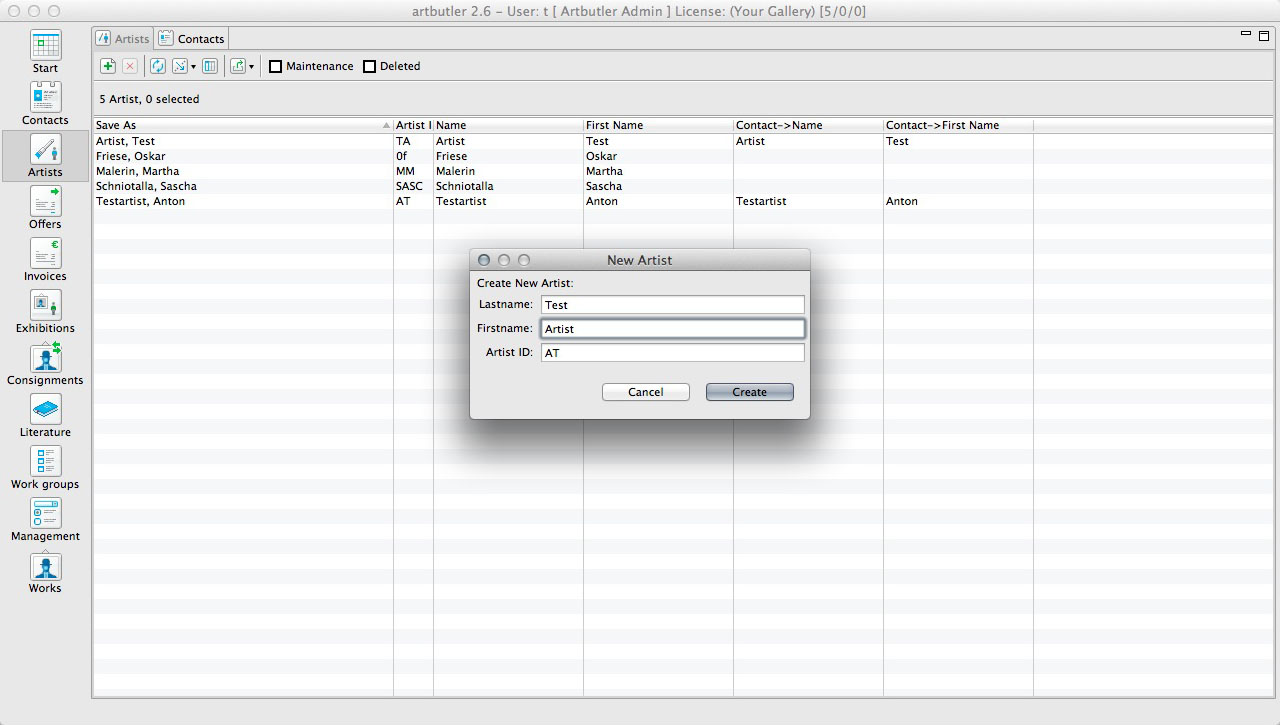
Now when you go to create a work, this artist will be available for you to choose.
3. Work Type
Work Types are the different artwork forms that are given to the various pieces, which help to categorise them within the system [e.g. sculpture, installation, painting, or photography].
There are some examples already in the system when you begin, you can decide if you wish to use them or not.
The work type shortcut may consist of a maximum of three letters, again special characters and the slash cannot be used.
Adding a New Work Type
- Go to the Management section in the left hand side menu.
- Select the Work Type tab at the top of the window.
- Click on the New button to create a new work type.
- Give the name and shortcut in the open fields for the work type you would like to add. Click Create .
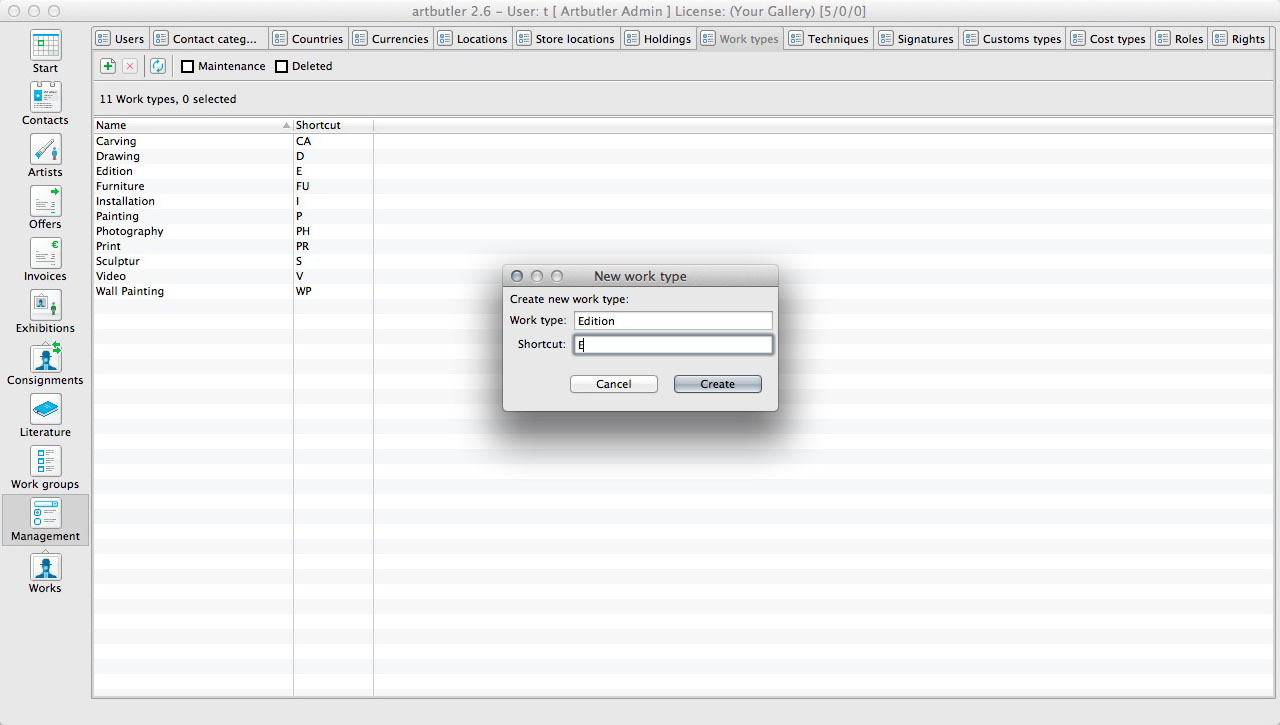 Now when you go to create a work, the new work type will be available for you to choose.
4. Serial Numbers
The serial number is the individual number given to the particular artwork within a particular work type from a particular artist. The inventory number is created from this special combination, so that each individual artwork is categorised uniquely within the system.
- The serial number has to be unique for each combination of Artist ID and Work Type.
- It is usually a straightforward number [starting at 1 being the simplest] and ARTBUTLER will be able to suggest the next available number to you automatically. This is the easiest way to work.
- The serial number must not necessarily be a straight number, nine characters are allowed, including letters, but again without special characters or slashes.
- If you are using your own number system, ARTBUTLER will not be able to suggest the next number to follow, as it can’t suggest numbers based on individual rules. This means the serial numbers will need to be added manually each time.
- No settings are required, but you should use a consistent formula to make works easier to find.
5. Copy Numbers
If the work is an edition, series, or other sort of multiple, the copy number [the second empty field of the serial number] needs to be filled in with the number 1, so the work can be exported as such later. This process is explained in depth in Working with Editions. If the work is an original, this step does not need to be taken.
6. Creating an Inventory Number
- Got to Works in the left hand side menu.
- On the right hand side list, go to the New button and create a new work.
- A pop up window will appear, where you can select the artist who made the work and the work type, as well as where you provide the serial number for the artwork.
- If you click Suggest ARTBUTLER will provide you with the next numerical option [number 1 if it is the first work of its artist and type].
- You can create your own serial number system however, ARTBUTLER will not be able to suggest the next number to follow if it consists of letters or symbols.
- Add the copy number in the second empty field next to the serial number if the work being added is an edition, series or other form of multiple. Add a 1 as copy number if you want to use the edition feature to automatically create the complete edition run out of this base work.
- Once you have added all the information, click Create .
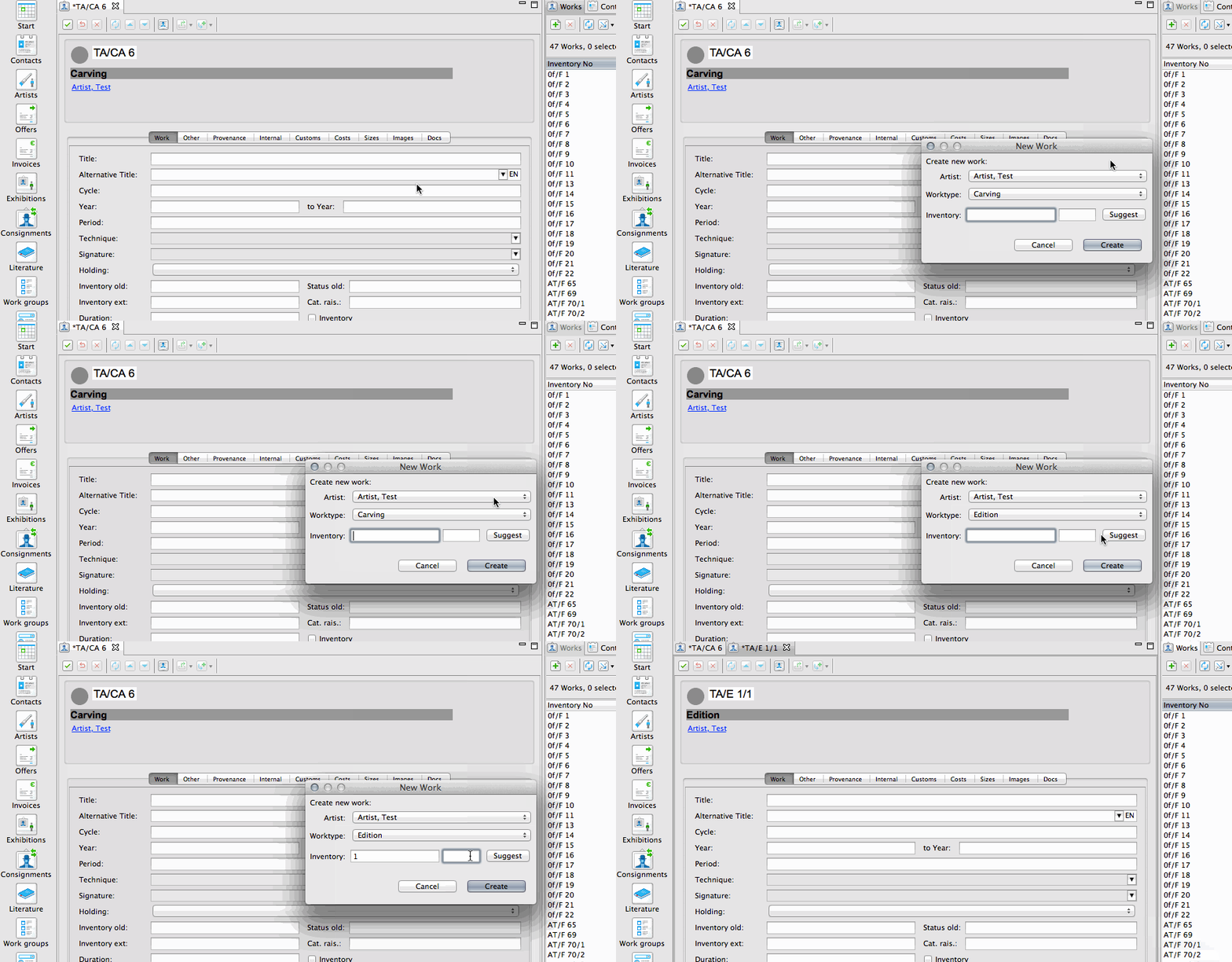 The new work record has now been created with it’s own inventory number and is ready to be filled in.