

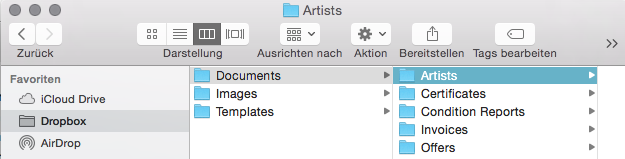
We suggest you create a folder with the title “Artbutler”. Here you may save all your directories. In the image below, a folder named “Artbutler” was created in Dropbox, containing ARTBUTLER’s three directories.

Set Up Document Directory
1. Create a document folder, as demonstrated above, with a clear title, e.g. “documents” for all your documents.
2. Go to artbutler in the ARTBUTLER menu artbutler > Preferences… > local and determine the directory for your documents by clicking Browse…
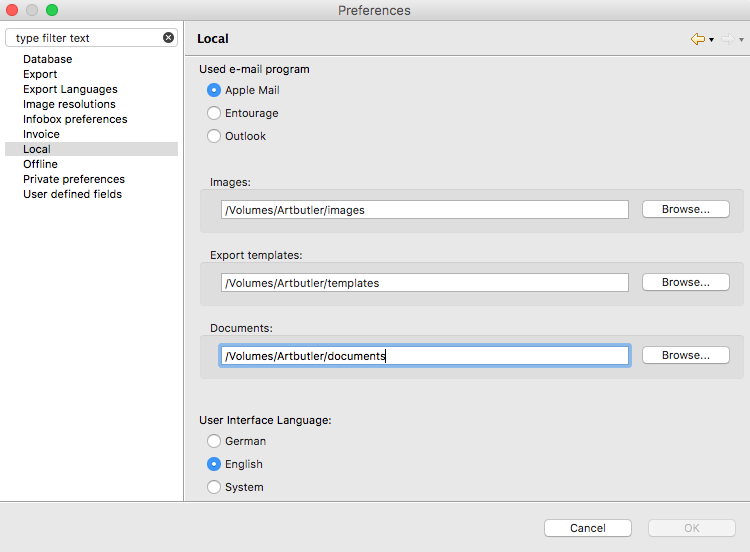
3. ARTBUTLER helps you link all documents and access them anytime. Please make sure to never change the directory name as ARTBUTLER needs it to find your documents stored there. You may now organise your document folder as you wish. Create as many subfolders as you like. The example given shows a basic structure for areas of application in ARTBUTLER.
Find Documents in Records
Each record in ARTBUTLER has a tab for Documents , positioned at the right hand side.
Correct Linking
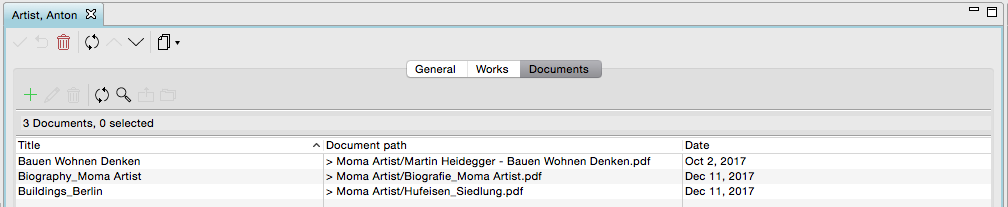
To link files from your document directory with ARTBUTLER and to access them directly, ARTBUTLER must know storage location and file titles. This information is stored in a path. When you have correctly saved your document directory under artbutler > Preferences… > local , you’ll see the path to the linked document in the record starting at the beginning of the document directory
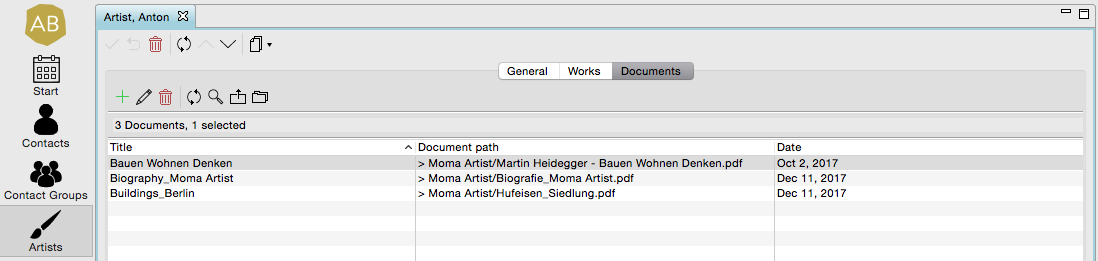
Correctly linked: The link to the document starts with “ > “
Once you have stored the file to your document directory, ARTBUTLER can properly link the file.

Faulty link: The link to the document starts with “ / “
If the file has been stored outside your directory, ARTBUTLER won’t be able to link it to different computers.

Link Documents with ARTBUTLER
Link Existing Documents
You probably have a large number of documents such as your artists’ biographies, certificates, or press releases.
1. Go to the document’s corresponding record in ARTBUTLER. In the example given below: the relevant record for the artist’s biography.
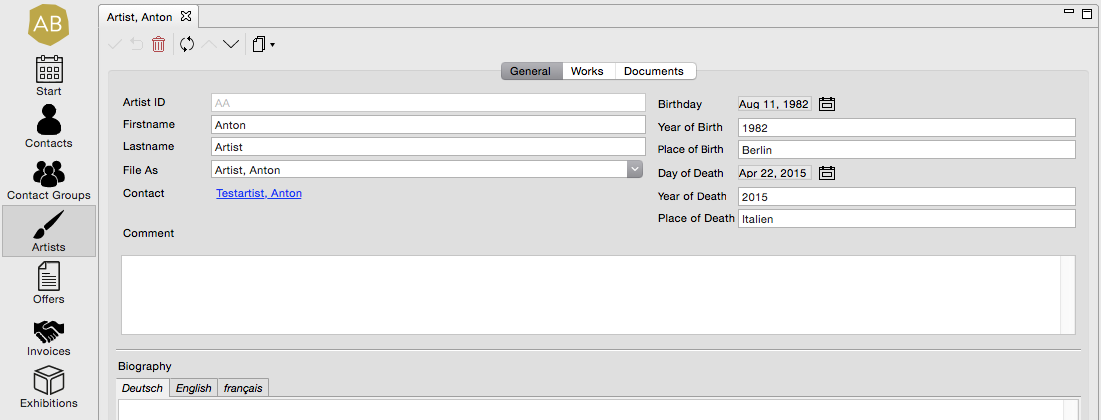
2. Go to the tab Documents and simply drag and drop the document into the list. You may drag and drop several documents into the list at once, and link them to a record. Alternatively, you may create a link to a document using the green plus sign.
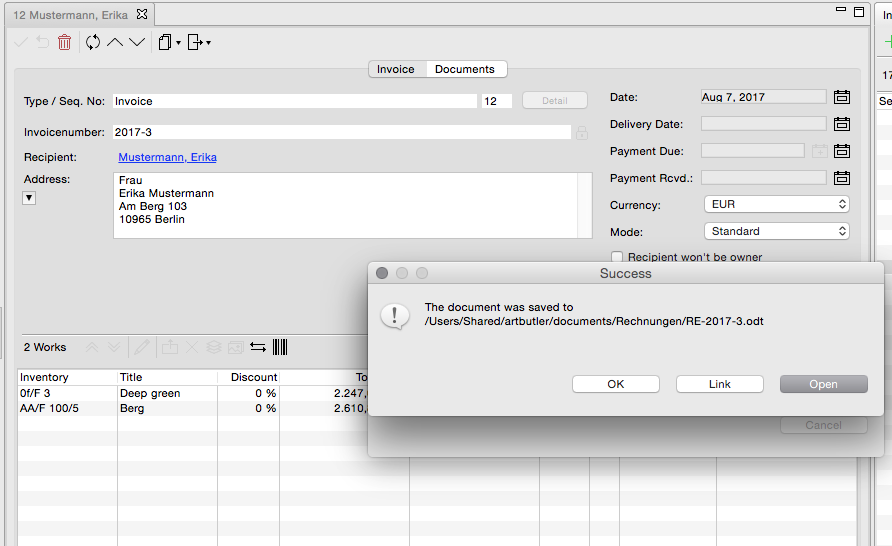
1. Select Link after exporting and ARTBUTLER will Link the exported file to the record.
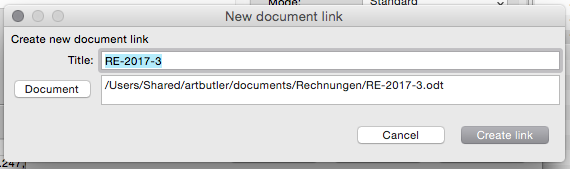
2. Modify the title for your overview in ARTBUTLER, or go directly to Link.
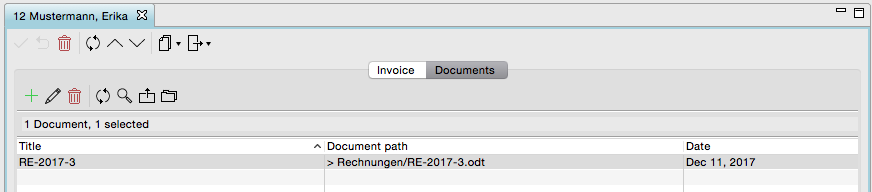
3. You may now find your invoice in the record in the tab Documents. Double-click to open the file.
Faulty Links
If the file linked in ARTBUTLER was renamed or moved, the path will no longer lead you to the file. The link is now faulty but may be repaired. To create a new link, simply drag and drop the file into the document list again. Delete the old faulty link right away.