
Offline mode let’s you work with a read-only copy of your data while you are away from your desk. This article will explain how to set it up and how to use it
1. Overview
- Offline mode is used when you are travelling and away from your desk. e.g: at an art fair or on holiday.
- It is a copy of your data that you can take with you. It is a read only view.
- You can access all your artworks and contacts, export information, review exhibitions and consignments etc.
- Offline mode only needs to be set-up once and simply updated each time you need to use it again.
The offline mode is intended for accessing your data only. Any changes you make during offline mode will not be synced with your server and will not be updated once you finish using the mode. Any documents and changes in ARTBUTLER created while offline, should be saved and added back to your server database later.
2. Setting-up Offline Mode
The offline mode is needed when you use ARTBUTLER on more than one computer and you use an ARTBUTLER server.
If you only use ARTBUTLER with one computer and your database is stored on that computer, you don’t need the offline mode.
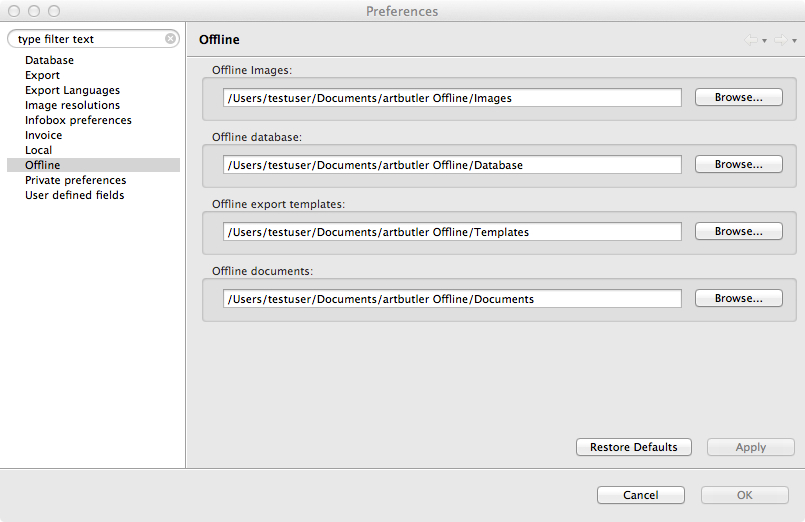
- Set-up the folders on your laptop you will be using offline. It’s a good idea to use an easy central location such as in Documents [if using a Mac] or My Documents [on Windows computers]. Make a folder in your chosen location and call it ARTBUTLER Offline. Create four sub-folders within it: Database; Documents; Images; and Templates.
- In ARTBUTLER go to artbutler > Preferences… > Offline and select each folder using the browse buttons next to the related fields, before selecting OK.
3. Syncing Data
While you are travelling your computer won’t be able to connect to your ARTBUTLER server at home, so you need to sync the information. Syncing will copy the database and the required files to your laptop.
Important
Please remember to sync your data each time before using the offline mode.
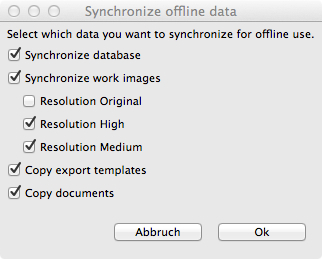
Go to artbutler > Offline Sync at the top of your screen to start the sync. A pop-up window will appear where you can choose which information you would like to take with you.
- It is recommended to only sync medium and high resolution images, as the original files are rarely used and take up a lot of space.
- if you want to export anything from ARTBUTLER while you are offline, you will need to sync the export templates.
- if you need access to any documents linked to ARTBUTLER, you will need to sync these too.
Note: Syncing for the first time will take longer than usual, as it needs to copy everything. Any future syncing should be much faster as it will only be making updates.
4. Using Offline Mode
Usually offline mode is automatically activated once the server is not available and you are starting ARTBUTLER.
As it may take a while for your computer to check for server availability, you might want to activate it manually before you leave.
- Go to artbutler > Offline at the top of your screen. A pop-up window will appear asking if you want to restart ARTBUTLER in the offline mode. Click OK to confirm.
- ARTBUTLER will then disconnect from the server and restart using your local copy of the database. You can now use ARTBUTLER anywhere.
Note: The word OFFLINE will appear at the top of your ARTBUTLER and above your records and lists, to remind you that all changes made will be lost when reconnecting to the server.
- To connect back to the server database, start ARTBUTLER and click on the Online button on your ARTBUTLER login screen once your back to the same network as your server, or go to artbutler > ✓ Offline at the top of your screen to end the offline mode.

