
With the Artsy Bulk Import Artsy allows to import up to 100 works quickly and easily.
The required import files can be exported directly from Artbutler PRO.
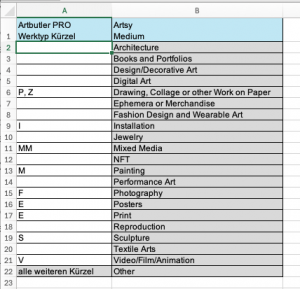 Send us the completed Excel spreadsheet to support@artbutler.com and we will create a template for you with the correct assignment of Artbutler PRO work types to Artsy media.
All export steps from Artbutler PRO to Artsy
In the second part of this article, we will show you how to set up the ‘Artsy ZIP’ export in Artbutler PRO once. When this setup is complete, you can transfer your works in just a few steps.Select works
Use your established filters or filters created specifically for this purpose in Artbutler PRO to find exactly the right works for your Artsy listing. Assign a work category such as ‘on Artsy’ and remove it again after a sale. This allows you to keep track of which works are currently being offered on Artsy in Artbutler PRO at all times.Export works
Use the ‘Artsy ZIP’ export function and save the generated ZIP file on your computer. Unzip the file – in the folder you will find:- a CSV file with all artwork data for Artsy
- an image folder with all associated artwork images
Importing works into Artsy
Upload the CSV file to Artsy and then follow the dialogue box that appears: https://support.artsy.net/s/article/bulk-import#Import-spreadsheet Assign the images from the previously exported image folder to the works imported into Artsy. (Unfortunately, Artsy does not offer automatic import including images.)One-time setup of the export
Download export template
Download our ABArtsyWorks export template and save it in your Artbutler PRO templates folder.Create export configuration
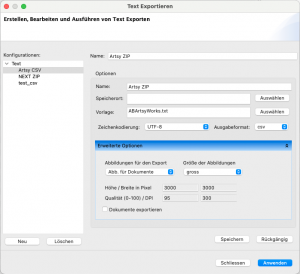
Create the new ‘Artsy ZIP’ export as a text export in Artbutler PRO as described in this article. We recommend the following name: Artsy ZIP Encoding: UTF-8 Output format: csv In the ‘Advanced options’, select which (standard) images you would like to export in ‘large’ size for Artsy.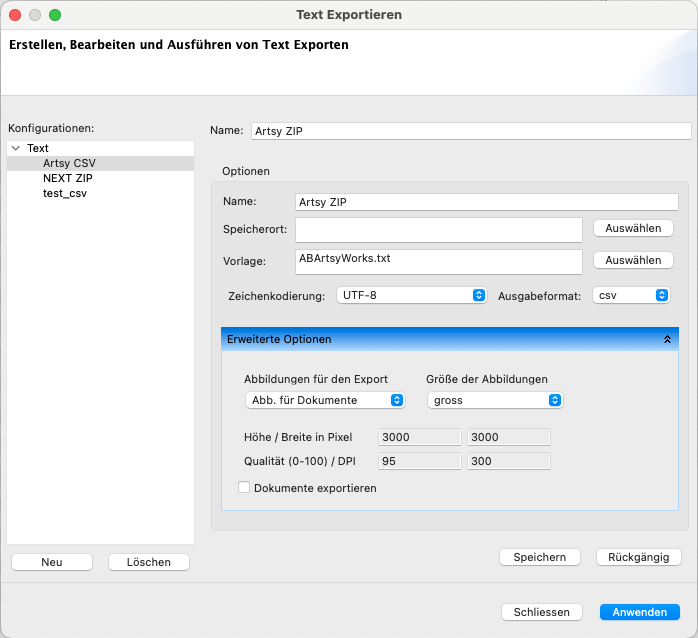
Configuration details
The export template provided complies with the specifications defined by Artsy. Below you will find details about the standard template provided, as well as instructions on how to create a template tailored to your ArtButler PRO work types.Standard configuration
Artsy provides fixed value lists for the three fields Medium (work type), Signature and Classification (edition), meaning that free text entries are not possible. Artsy also has an extra field for the location of the signature. The net list price is transferred as the ‘Price’. Currency information and tax rates cannot be imported into Artsy. The following assignments are therefore made in the Artbutler PRO export template. Artbutler PRO ‘Work type’ to Artsy ‘Medium’:- E -> Print
- F -> Photography
- I -> Installation
- M -> Painting
- P -> Drawing, Collage or other Work on Paper
- S -> Sculpture
- V -> Video/Film/Animation
- all others -> Other
- contains “signed” or “signature” -> “Hand-signed by artist”
- all others -> “”
- contains “front” or “recto” -> “front”
- or contains “back” or “reverse” -> “back”
- all others -> “”
- Unique, unique, Unikat, unikat -> “Unique”
- contains “/” -> “Limited Edition”
- all othersn -> “”
Custom configuration
Download our Artbutler PRO Artsy assignments and enter your individual Artbutler PRO work types. Please only edit the unlocked cells.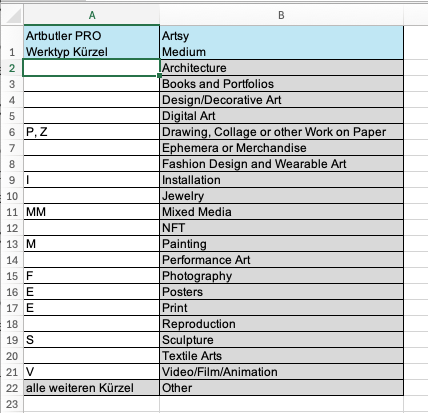 Send us the completed Excel spreadsheet to support@artbutler.com and we will create a template for you with the correct assignment of Artbutler PRO work types to Artsy media.