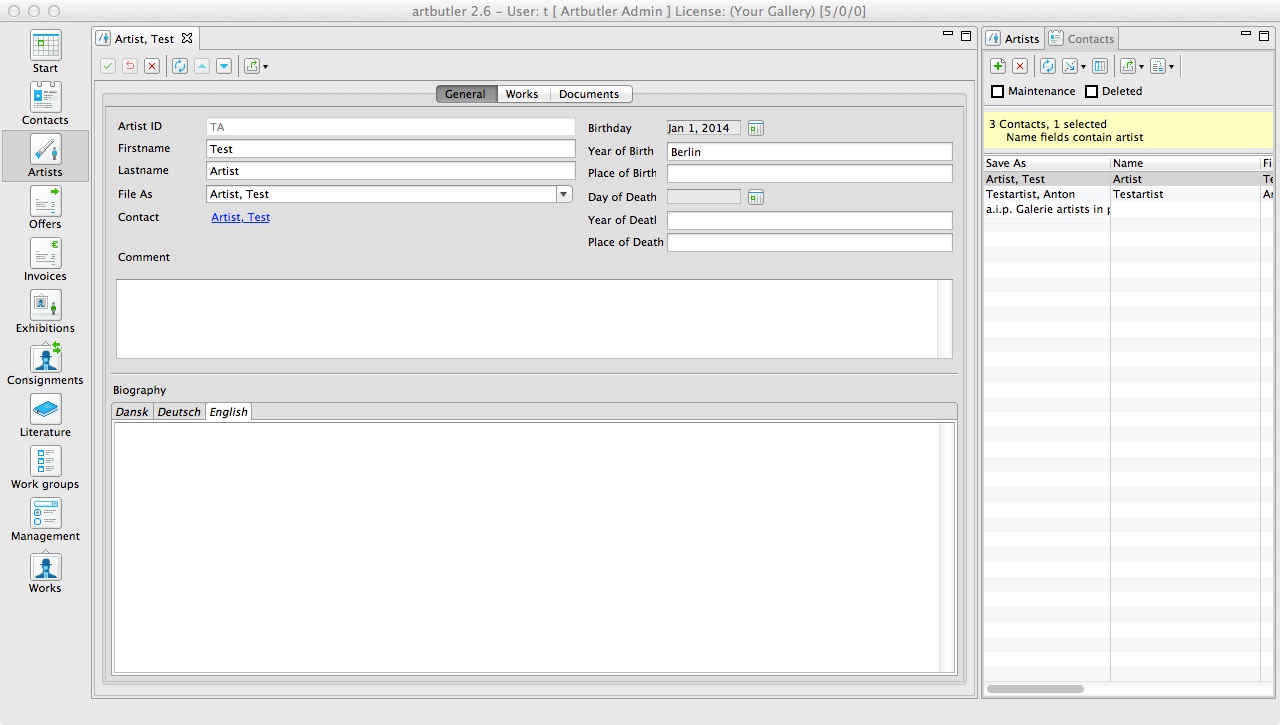
This article will show you how to add an artist to ARTBUTLER and link it to a contact.
Adding an Artist
- Go to Artists in your left hand side navigation.
- Select the New button at the top of your right hand side list view.
- A pop-up window will appear, where you give the artist’s name and decide on their artist ID.
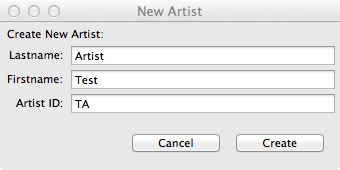
- Once you have given the artist’s name and ID, click Create.
- You can add the artist’s biography in any of the languages you have chosen. Review the Language Settings article for more information on this.
- Once you have added all the information, click Save. Now you can add your first work from this artist. The artist’s works will then be listed automatically under the Works tab of this artist record.
Linking to a Contact
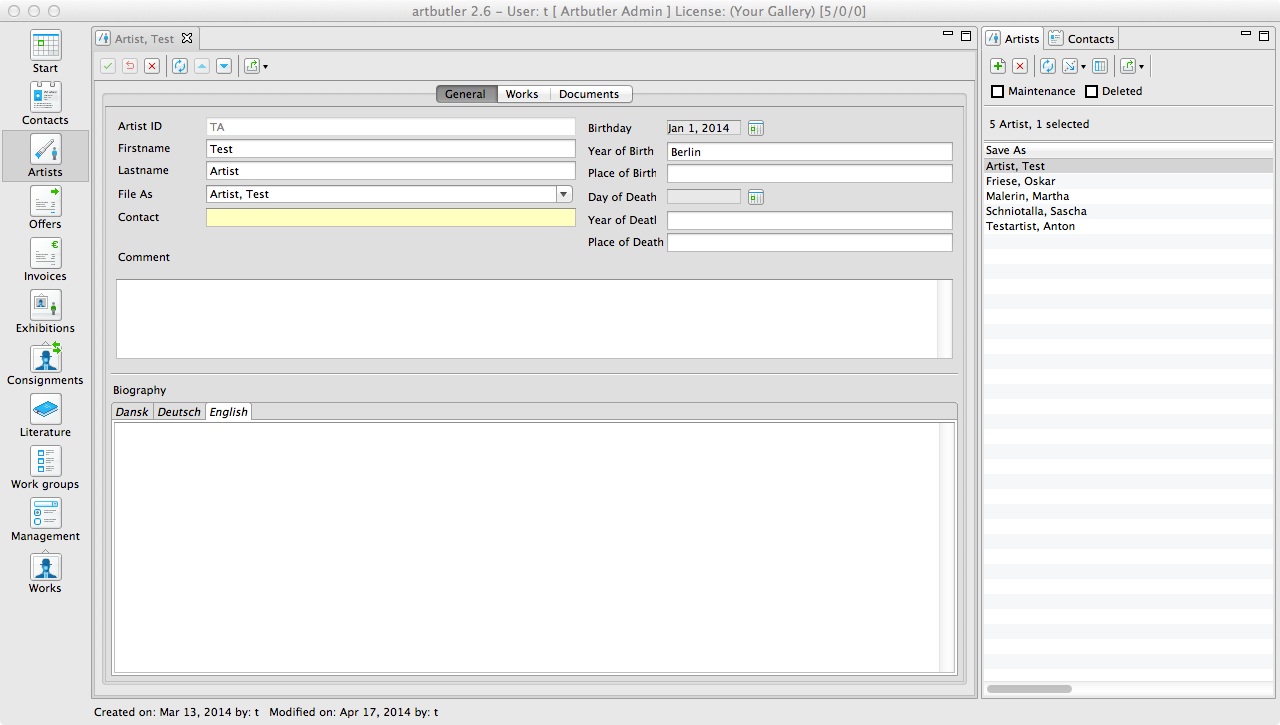
You can link an artist’s profile to their contact profile, which is useful for things like invoices and credit notes.
- First make sure that both the artist’s profile and their contact profile have been made and saved. View Adding a Contact if you need more information on his.
- When you are in the artist’s profile, go to your right hand side list view and click the Contacts tab at the top.
- Click the Search
 button to open the quick filter pop-up window. Search for the artist’s contact.
 - Once found, select it, and drag it over the yellow contact field in the artist’s profile and drop it there.
- Click Save. Now the artist’s profile is linked to their contact profile. If you click on the blue underlined name in either the artist or contact profile, it will take you to the connected contact.