

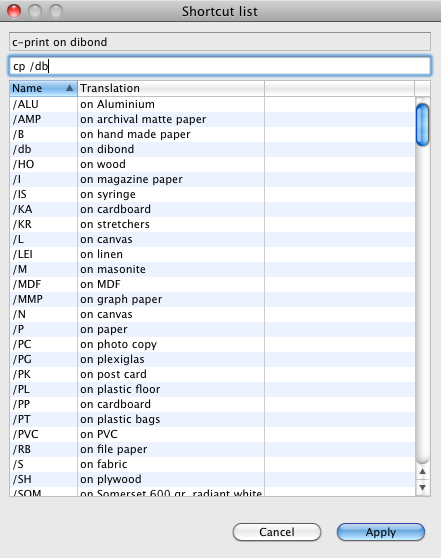
Technique Dialogue (click to enlarge)
Work techniques and signatures are entered on the first main tab of the work records.
- Click the small triangle on the right side of the field to edit.
- Start typing into the input field to search the list of available translations below.
- Double-click the matching result in the list of translations and the shortcut will be added to your input field, its translation will appear on top of your input field.
- You can also enter shortcuts you already know like “a” for “acrylic” directly and don’t have to search for them first.
- Text that is not (yet) related to any shortcut will be applied as it is and is displayed in red to indicate that it cannot be expanded or translated automatically. This is useful e.g. for individual text in the signature field.
- If a translation is missing, you can easily add your own to the list. See below.
View a short animation to see how to input a technique description

Adding new techniques and signatures
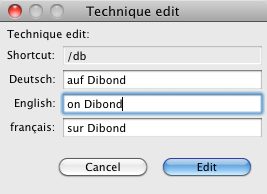
If you need a translation that is not already in your list, you can define your own including translations in different languages easily. Go to Management > Techniques or Management > Signatures. Click the green plus  to add new translations, double-click existing ones in the list to edit.
It’s a good idea to use only a few meaningful letters as shortcode and to enter translations in multiple languages, if you plan to export in more then just one language. See details below.
Using multiple languages
If you plan to use exports in different languages, we recommend to add translations for each of those languages, this way you don’t have to look them up each time you need them and you make your descriptions more consistent.
Just activate your languages under Artbutler Menu > Preferences > Export Languages and these languages will available in the Edit dialogue to enter translations in multiple languages.
How to prevent the expansion of shortcuts in exports
As of ARTBUTLER Version 2.16, it is possible to export individual technique and signature shortcuts without resolving the abbreviation and translating it into the corresponding text.
An example:
sig. Sig. Freud > signed signed Freud
This can be prevented by inserting the caret character ^ before the shortcut “Sig. Freud”. It will be removed later in the export and the shortcut text will be output untranslated:
sig. ^Sig. Freud > signed Sig. Freud