
This article explains how to filter your contacts by multiple criteria.
As an example: you would like to send a newsletter to all of your contacts resident in Berlin. At the same time your press contacts are not supposed to receive that newsletter.
- First, go to the Management area, go to the tab Contact categories and create a new temporary category called “temp”.
- Now filter
 your contacts by city, in our case “Berlin” and set them to the category “temp”. To do so select all resulting contacts from the filtering, click on the icon “bulk change multiple contacts”
 , select add categories and choose “temp”.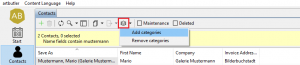
- The next step is to sort out the contacts that are not supposed to receive the newsletter. In our example it concerns all contacts with the category “press”. As done before, start by filtering all contacts with this category.
- Now remove the category “temp” by selecting the filtered contacts, further clicking on the icon “bulk change multiple contacts”, selecting remove categories and choosing “temp”.
- By filtering the contact category “temp”, now only contacts resident in “Berlin” and without the category “Press” will appear. You can repeat this filter process for any other kinds of criteria. Keep in mind to search for the “positive” criteria first. Then give the resulting contacts the marking “temp” category and finally remove the marking category from the contacts with the excluding category.

Important: Remember to clean all contacts of the “temp” category after you finish.