All lists can be filtered and searched according to your requirements. For example, show purchase invoices only in the Invoices section, search for a specific invoice, or filter the work list to show only available works.
Searching and Filtering
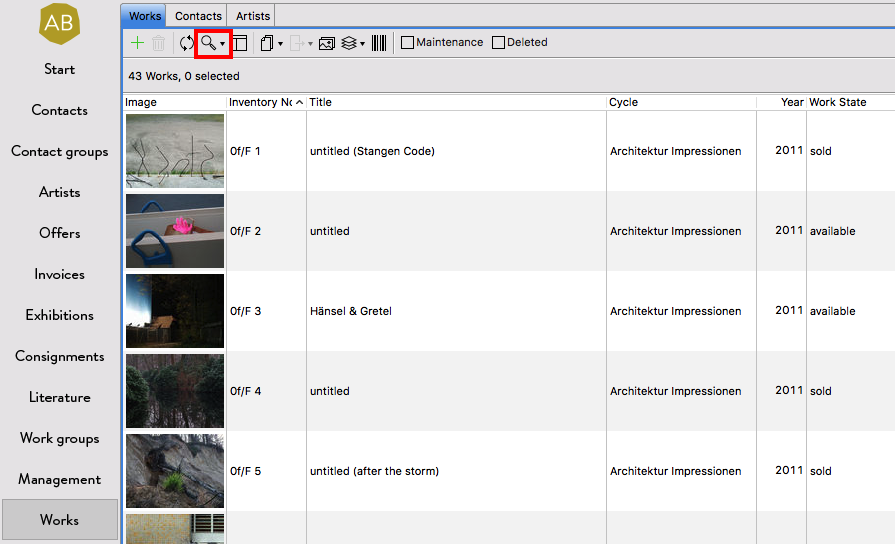
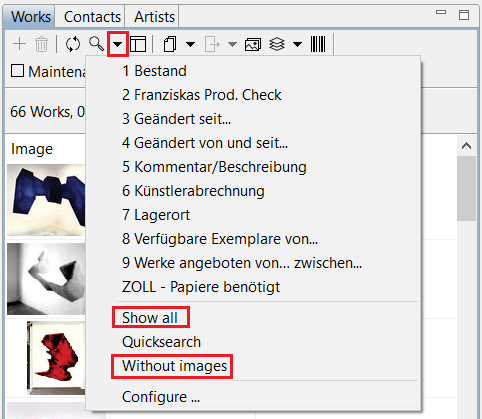
You can open the Quickfilter with the Search button  on top of all lists, for quick access try the keyboard shortcuts Strg+F (PC) or Cmd+F (Mac) respectively. The small triangle next to the Search button opens the Search menu with more fine grained filter options and configurations.
Quickfilter
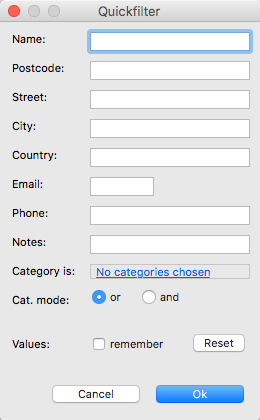
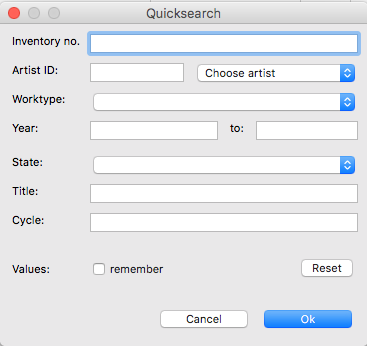
For contacts and works ARTBUTLER provides a Quickfilter who gives easy access to the most common fields: Click the Search button on top of the list, enter one or more search terms and hit “Ok”.
Reset a Filter
To see all records again after filtering a list, click the small triangle next to the the Search button and choose Show all from the Search menu, again a shortcut is available for this with Strg+J (PC) or Cmd+J (Mac). Additionally you can reset the filter with a right-click anywhere in the filtered list and choose Show all from the context menu.
Search Menu and Configurations
In the Search menu you can access and manage your pre-defined search configurations with often used filter options and enter more complex criteria for you search. Just choose a configuration directly from the menu to start a pre-defined search.
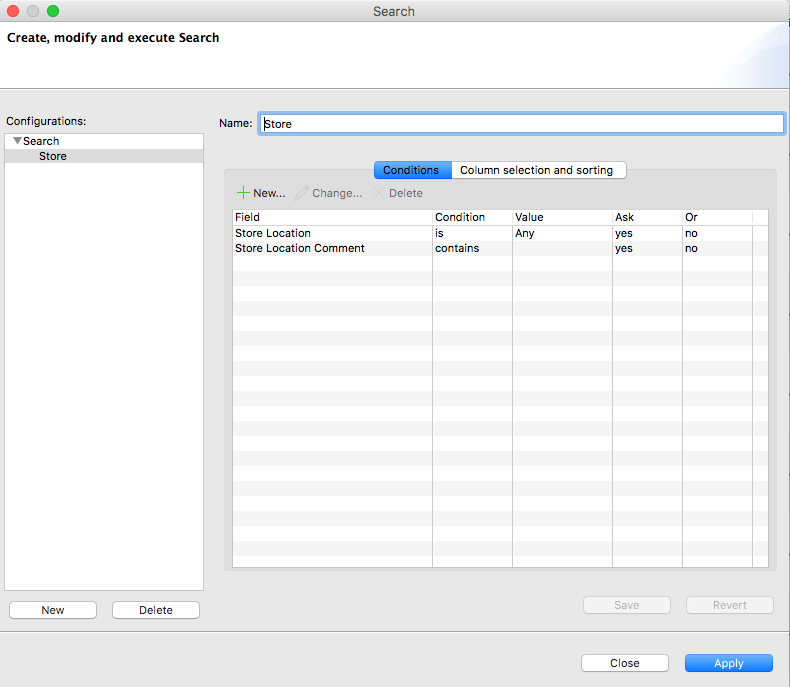
With Search … at the end of the menu you can open the Search dialogue to manage the configurations or enter your current search criteria. In the Search dialogue you will find the configurations in the list on the left and the filter options on the right side. For a onetime search just enter the search terms on the Conditions tab and optionally set the list display options on the Columns … tab.
If you would like to save your search criteria as a search configuration for later use, please hit New unter the list of configurations before you start entering your conditions. Then enter a name for this configuration for the menu and set up the conditions. To change an existing configuration select it in the list and edit to options on the right as desired.
How to Enter Search Conditions
- On the right side of the Search dialogue click on New …
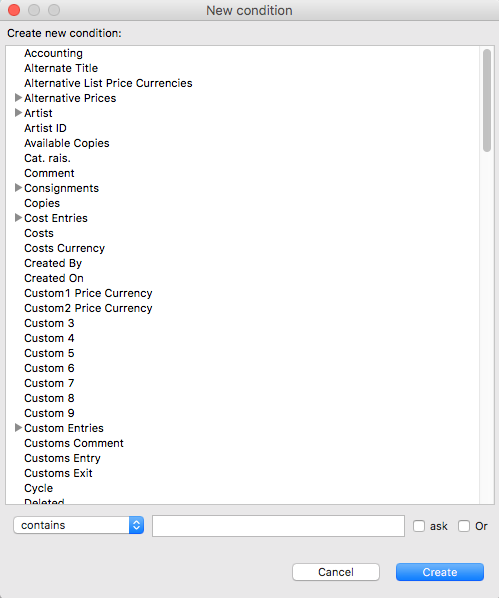
 to add a new search condition: Select the related field from the list of available fields and choose a condition like contains, starts with, etc.
 - Enter the search term into the text field or tick the checkbox Ask to have this term requested everytime the filter is used.
- Click on Create to finish this condition.
- If you want to search for multiple conditions repeat this step and add criteria as required.
- Multiple criteria are combined with AND by default, they all have to match at the same time. For alternative criteria please check the Or checkbox in the related conditions: Just one of the conditions marked with OR has to match plus all others without OR. An example: find works of an artist (AND) that are sold (OR) or reserved (OR).