
- Save the ZIP file on your computer.
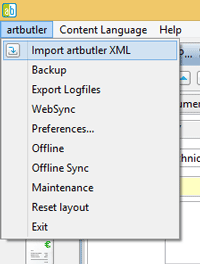
- Go to artbutler menue > Import artbutler XML in your artbutler and choose the ZIP file for import
- Now you might have to resolve some possible conflicts:
the artist IDs and the work-type abbreviations may be different in both databases and have to be mapped between them. For already existing inventory numbers it must be checked whether the related works are identical (e.g. created manually or by a precedent import) or not, in the latter case a new number must be assigned to the imported work. The inventory number from the export database is always imported to the “Inv. old” field on the first work tab.These questions will be cleared in different dialogues as needed.If works could be identified automatically (by their internal unique ID) or manually, there are three options how to deal with them:- Ignore: the import data will be discarded, the existing works in the importing database will not be changed.
- Replace: the import data replaces the data of existing works, deleting all existing data before.
- Update: the import data replaces the data of existing works, but empty fields or not
transmitted data will not delete any data in the target works.
In all cases links to other records (e.g. invoices, exhibitions, etc.) will be preserved.
