
Overview
All works of a limited edition can be recorded as individual works and thus processed independently in data records such as exhibitions or invoices.
If you want to register an edition with a very large number of copies in ARTBUTLER, use the stock-feature instead. Many of our customers also use this feature to manage their catalog sales, for example. More information can be found in our article Stock management.
1. Creating a work as an edition
- Create a new work by clicking on the symbol with the green plus
 on the list of works.
 - Enter the artist / work type / inventory number and an additional 1 in the field on the right. This makes it the 1st work of this edition.
- Click on Create.
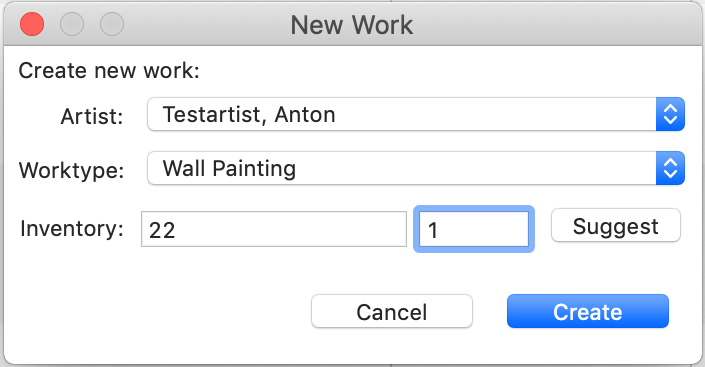
2. Creating all works of the edition
This process copies all work information to the works now created in the following. It is therefore recommended to enter title, dimensions, technique etc. beforehand.
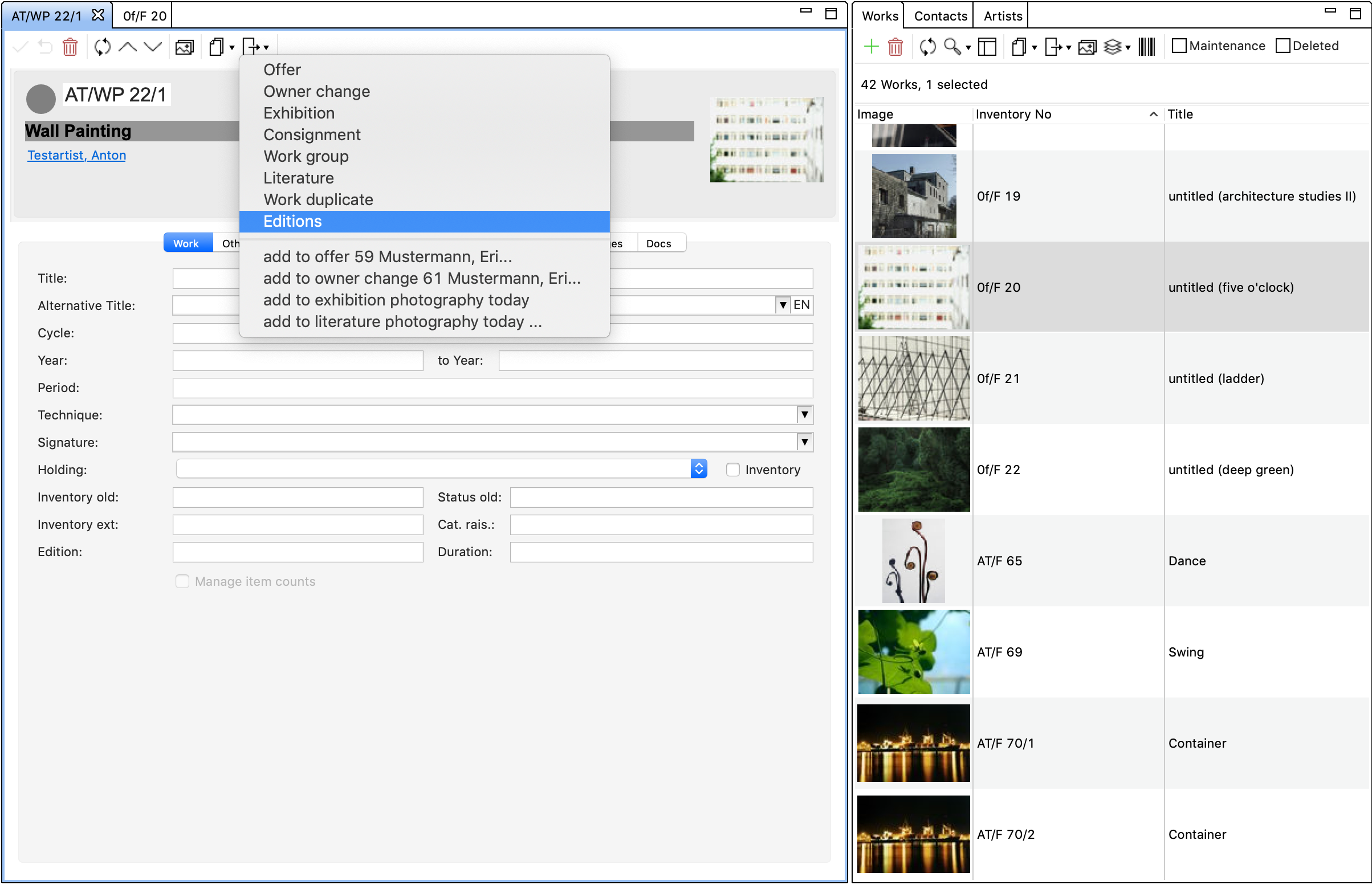
1. Open the record of the previously created work. Select the Create-button  and click on Editions.
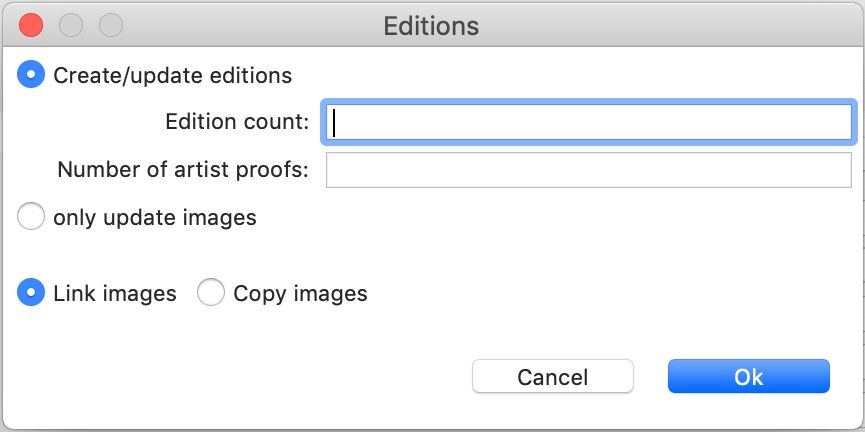
2. A new window will open. Here you can define the size of the edition and thus the number of new works. If you want to use the same images for all copies, select Link images, if you need individual images (prints in different colours or conditions) click on Copy images. Confirm with Ok.
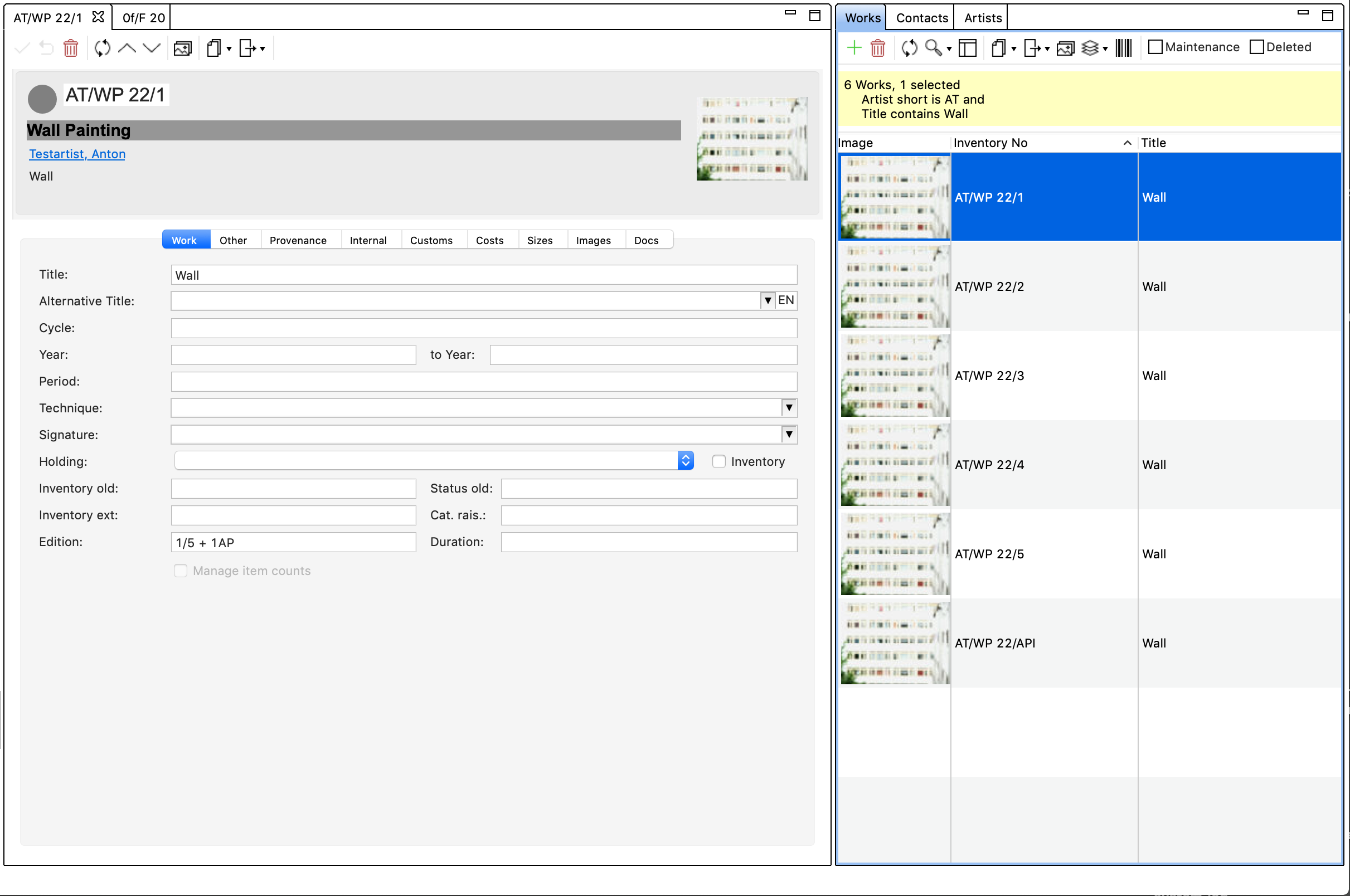
3. The edition has now been created and the new works can be found in your list of works. You can see at a glance from the inventory number that this is an editon. The number behind the / shows you the respective copy number and in the record of the work in the field Edition you will find the information on the total number of copies.
Use the search function  to display the edition. Enter the name of the artist, the title and if necessary the technique. The work list will then show you the complete edition.
3. Editing the entire edition
If you want to edit the data of several work records, you can do this using the bulk-feature.
- Select all works in the work list that should receive the same information.
- Click on the button Change multiple works in one step
 above the work list.
 - Select the content which you want to change.
Read more about this feature in the article Edit works simultaneously.
If you want to edit images of an edition, you can change and save the images of the 1st work of the edition and then transfer them to the other works of this edition via the edition function with the option only update Images; existing images will be removed, but the remaining data will not be changed.
If you want to edit the number of editions, repeat all steps of “2. Creating all works from the edition” and enter the new number.
4. Provenance for editions
For editions there is the possibility to access the provenance of all works of this edition in the work data record under the data provenance . Mark simply the check box under incl. Edition. In case that this box stays unchecked only the provenance of the chosen work will be visible.