
When switching to remote server hosting, your database is made available on our servers. However, the directories linked to ARTBUTLER – including images, export templates and documents – are not provided. All computers using ARTBUTLER need access to these file directories.
About file hosting
- The ARTBUTLER data must be made available either locally, on a local file server or computer, or as an alternative with a file hosting service. The latter option ensures that all computers access the same data regardless of where they are used, and that the data remains continuously synchronized.
- All users should use the same file hosting account to access the same data.
- With large amounts of data, there is a risk that the local storage space will not be sufficient. In this case, the directories can be stored either on an external hard disk or on an SD card (up to a maximum of 256 GB), depending on its size. As an alternative Dropbox Smart Sync or a comparable solution can be used. With Smart Sync, files and folders are only stored online but still visible on your computer. As a result only a fraction of the storage space is needed.
Initial setup using dropbox
The data is stored via the file hosting service either directly on each computer (mobile workstation – option 1) or on a central file server (several computers in the local network – option 2). A combination of both options is also possible.
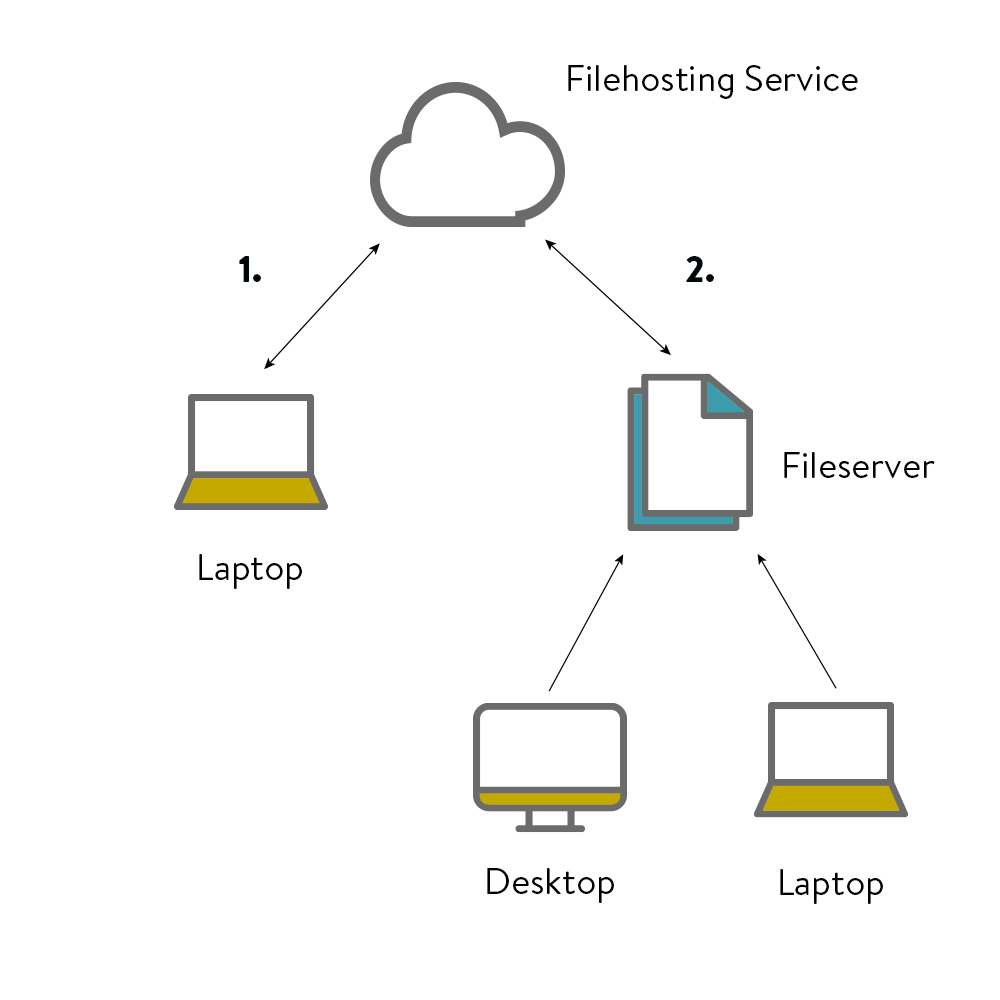
Instructions for new customers
- Go to the dropbox website and create a dropbox account.
- Download and install the dropbox client directly onto your computer/laptop (option 1) or the local fileserver (option 2). Dropbox will then create a local dropbox folder.
- In the local dropbox folder, create a folder called Artbutler with the subfolders Images, Templates and Documents.
- Make sure that the path of the directory for images, templates and documents is adjusted in ARTBUTLER.
- Go to artbutler > Preferences > local and click Browse to select the specific folder.