

This article is about your files and how to store them in directories. Find out how to set up directories and how ARTBUTLER helps you organise and apply files.
Overview
ARTBUTLER PRO divides accessed files, such as images and documents, into three directories: images, export templates, and documents.
1. Images
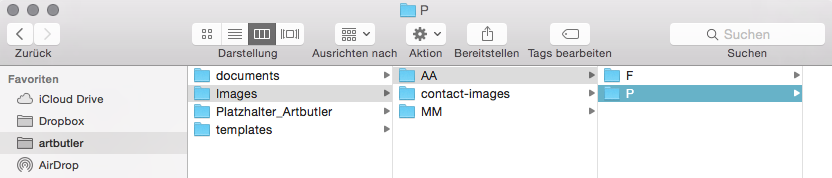
This directory will organise all image files from ARTBUTLER PRO for you. When you add an image to ARTBUTLER, ARTBUTLER will automatically create a folder for all your contacts records’ contact-images and a separate folder for each artist (Artist ID) containing subfolders for different worktypes.
In the example given, you can see the folder for your contacts’ images and folders for two artists with the initials AA and MM. The first folder contains all of the artist’s art work images. P stands for the worktype photography.
ARTBUTLER will save 5 versions of each art work image 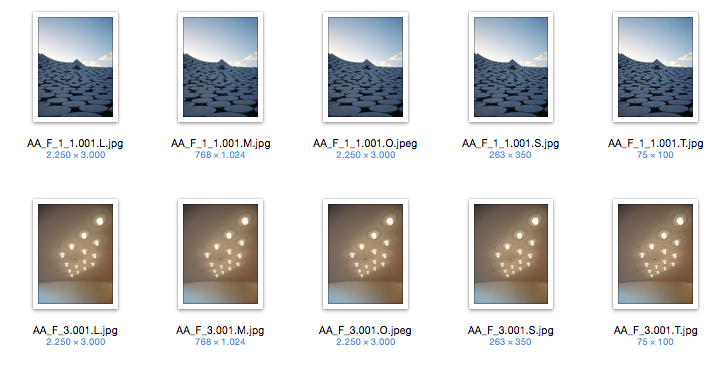
in different sizes. You may use the images for
various applications in ARTBUTLER.
O – Original
L – Large
M – Medium
S – Small
T – Thumbnail
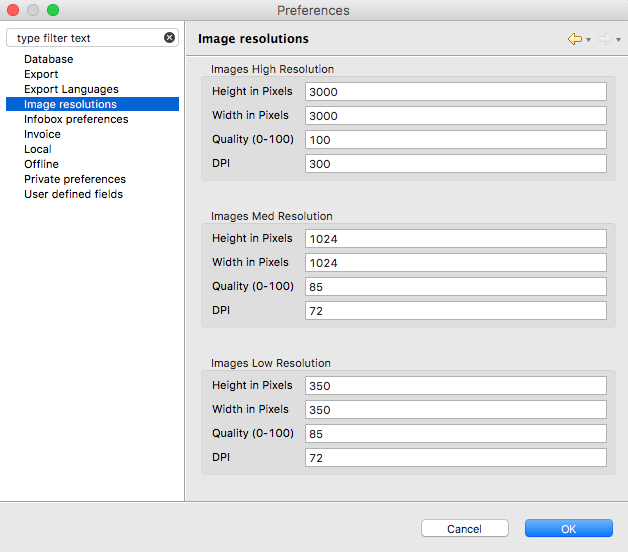
If needed, you may customise settings for sizes L/M/S.
For settings, go to the ARTBUTLER menu in artbutler > Preferences > Image resolutions
2. Export Templates
Export templates are used to generate documents from ARTBUTLER. File all export templates in one folder, your export template directory.
To find out more about templates, click here.
3. Documents
Gain an overview and direct access to your documents in ARTBUTLER by going to a record’s Documents tab. In this way, you and your team will keep an overview of which documents have already been created. ARTBUTLER will remember your files’ storage location and title, and can retrieve them directly when necessary. You’ll no longer need to search through each folder to find a document.
Find out more about the document directory here.
Set Up Directories
1. Set up directory folder
We recommend you create a folder with the title “Artbutler”. Here you may save all your directories.

Access from One Computer
If you’re using ARTBUTLER from a single computer, you may save all files locally on your computer.
Access from Several Computers
If you’re using ARTBUTLER from several computers, you’ll need to create a directory folder, which may be accessed from all computers. You might want to use Dropbox or a server for this, allowing several computers to access the same files. Your directories (images, export templates, documents) will be moved to a joint directory folder and must be linked on all computers using default settings in ARTBUTLER. Access from an additional computer via a joint directory folder is now easily possible.
2. Link Directories in ARTBUTLER
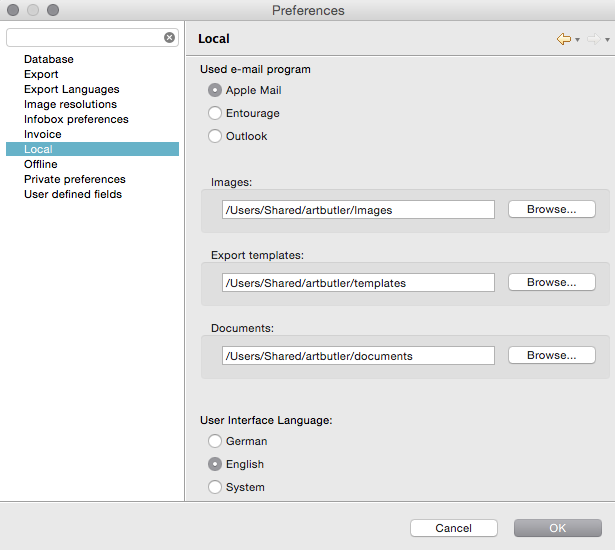
In the next step you’ll be setting up the directories’ location in ARTBUTLER.
Go to artbutler > Preferences > local and click Browse to select a folder.
If you’re using ARTBUTLER from several computers, you’ll need to perform this setting on each computer.
User Benefits
If you use directories following our instructions, ARTBUTLER will know where to find specific files and can provide them for practical applications.
Here you can find an application overview:
Organised Filing
Your files are systematically filed into directories, enabling you to always keep an overview.
Offline Mode
This mode allows you to use your files and data from anywhere even without internet access. If needed, you may transfer your images, export templates, or documents to your notebook, accessing files and data via ARTBUTLER-Offline. Find out more about the offline mode here.
Relocate Local Database
If you’d like to use ARTBUTLER on a new computer, you may simply copy the directories and proceed to work as usual. Find out more about relocating the local database here.