Overview
The user interface is designed to give you a strong overview of all current activties, enable quick data input and to link different types of records. This article shows you how to make the most of it.
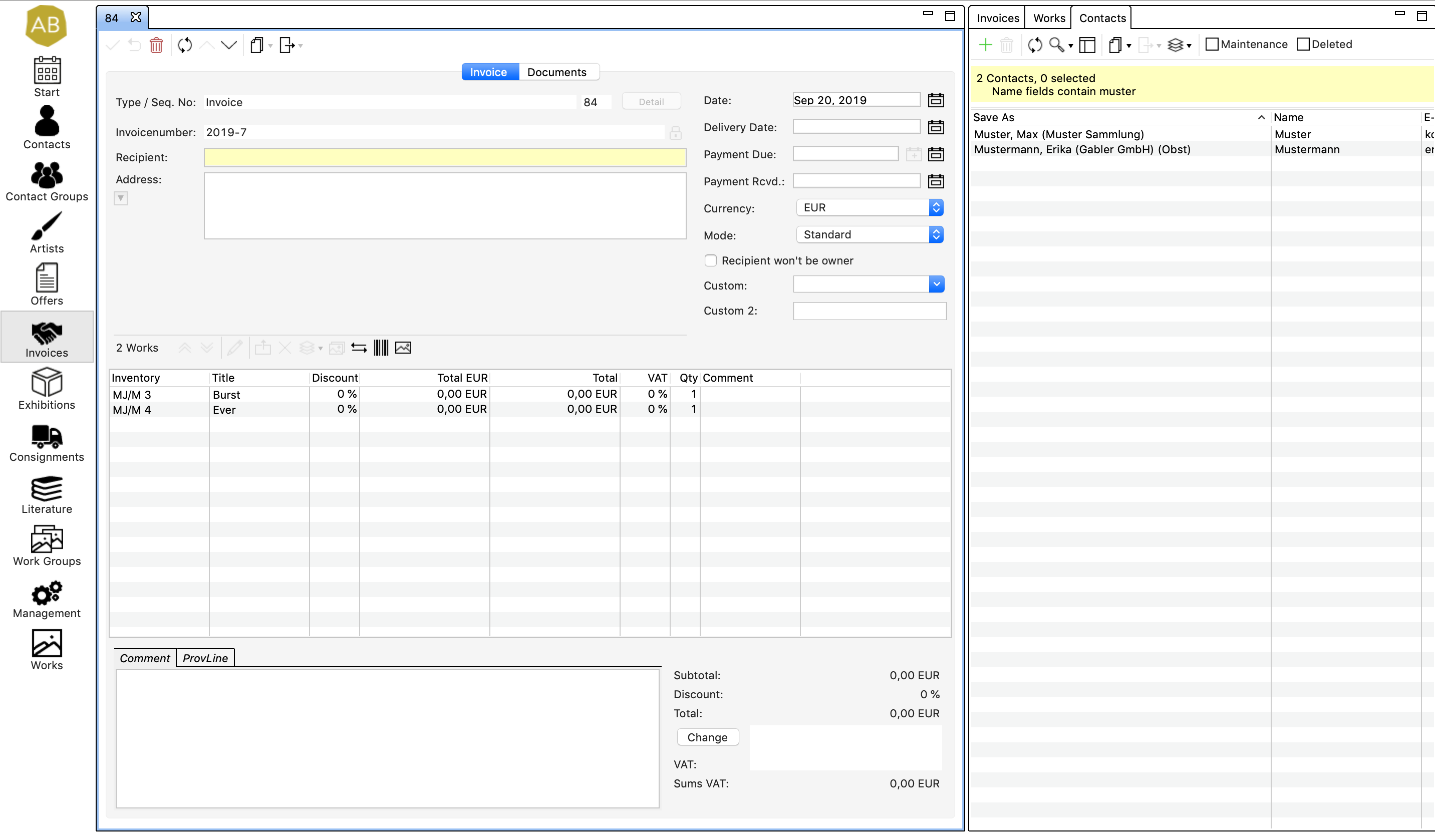
The following illustration shows the three main areas of the user interface: main menu (1), detail view (2) and list view (3).
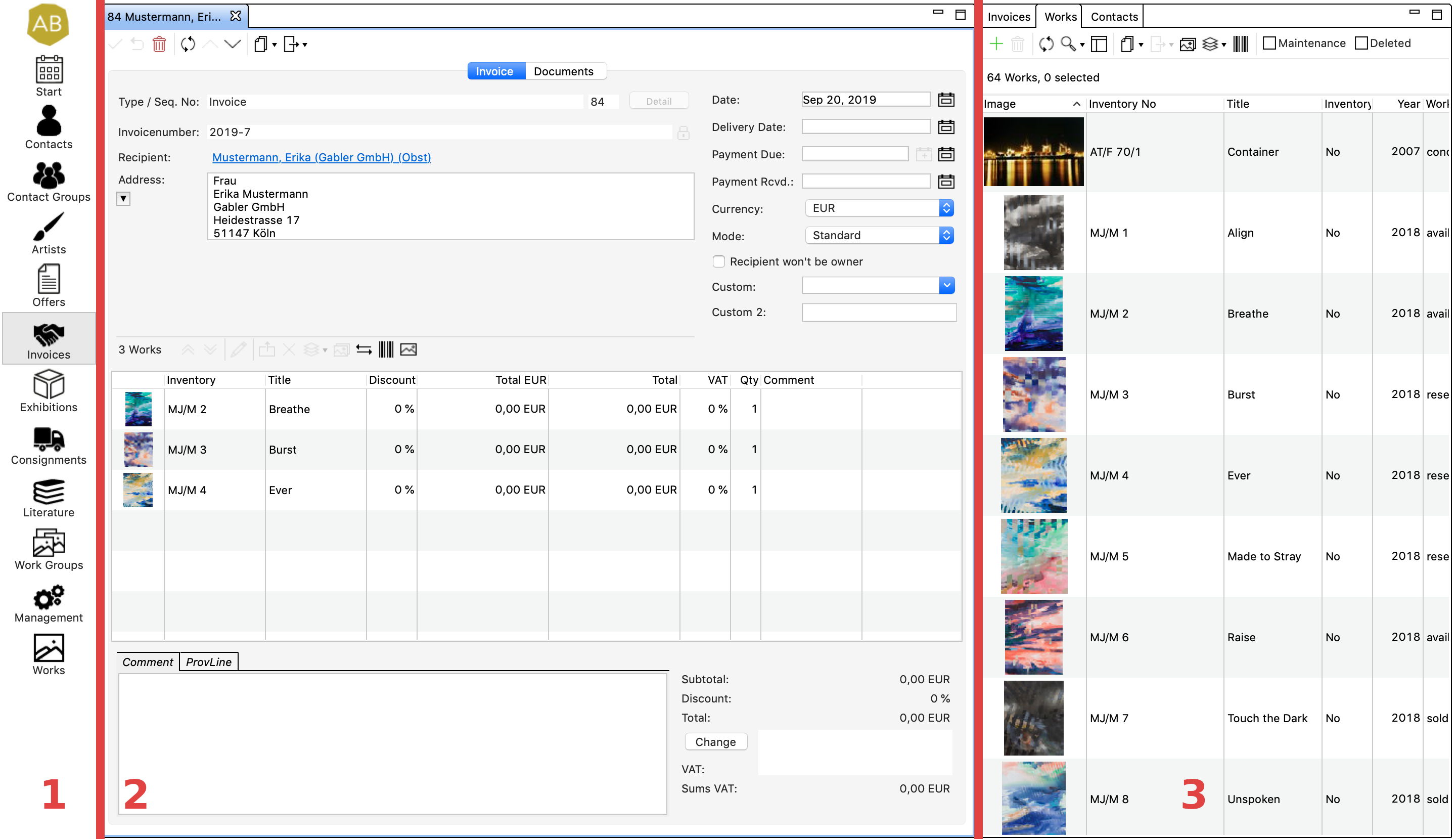

On the left side you can view an icon bar that acts as the main menu. The grey highlighted marking indicates the section you are currently working in. To change the section, simply click on the desired section icon.
2. Detail view
In this area you can view the details of a record. For example, a work, a contact etc. If there is more than one record open at once you can switch between these using the tabs provided on top of the record. If you have not yet opened a record in this section then you will see the lists view instead. Make a right click on the section icon and select Reset to close all open records in detail view.
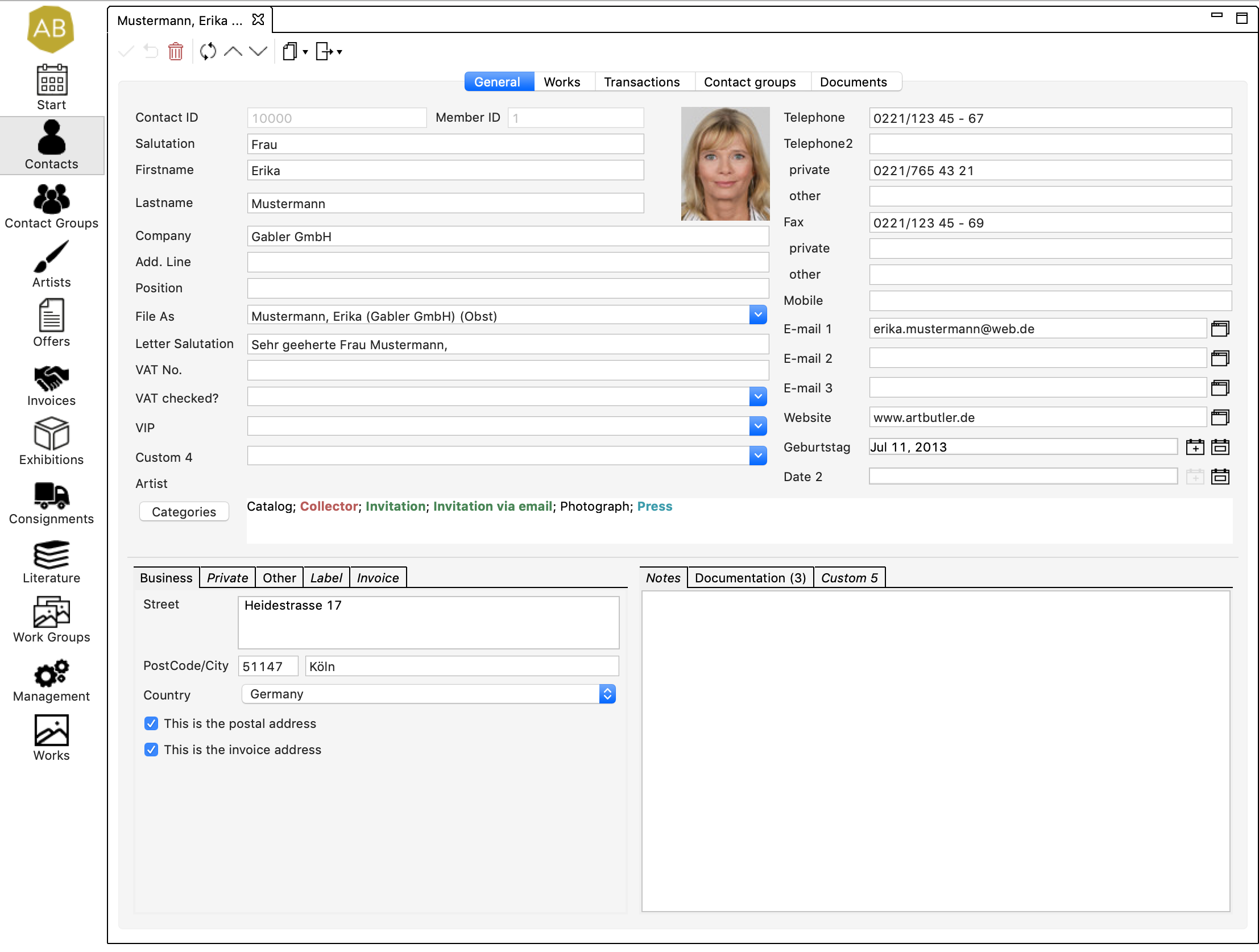
Records of the sections contacts, artists and works
Records of contacts, artists and works are the basis of your database. These records are combined and linked to in all other sections.
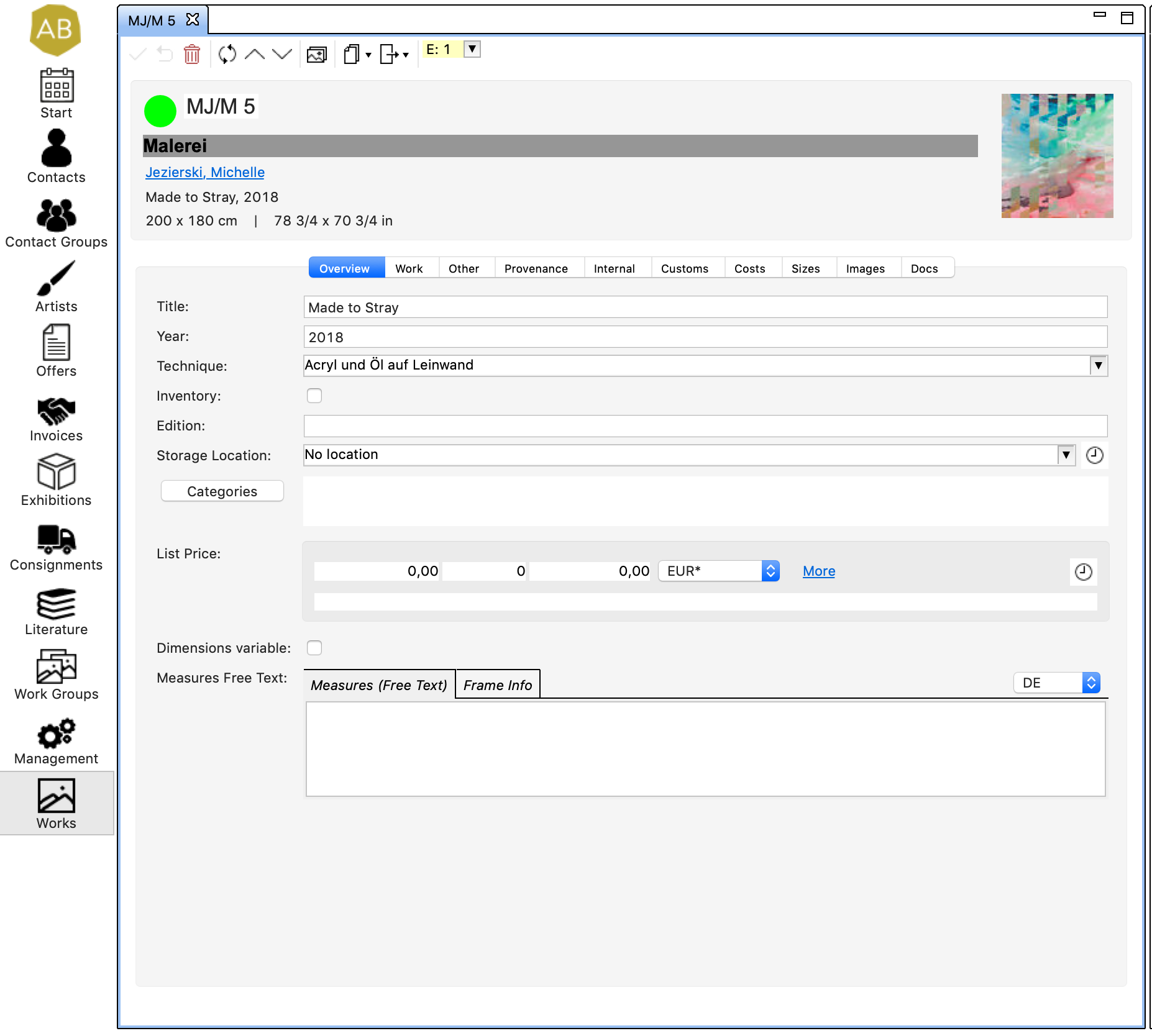
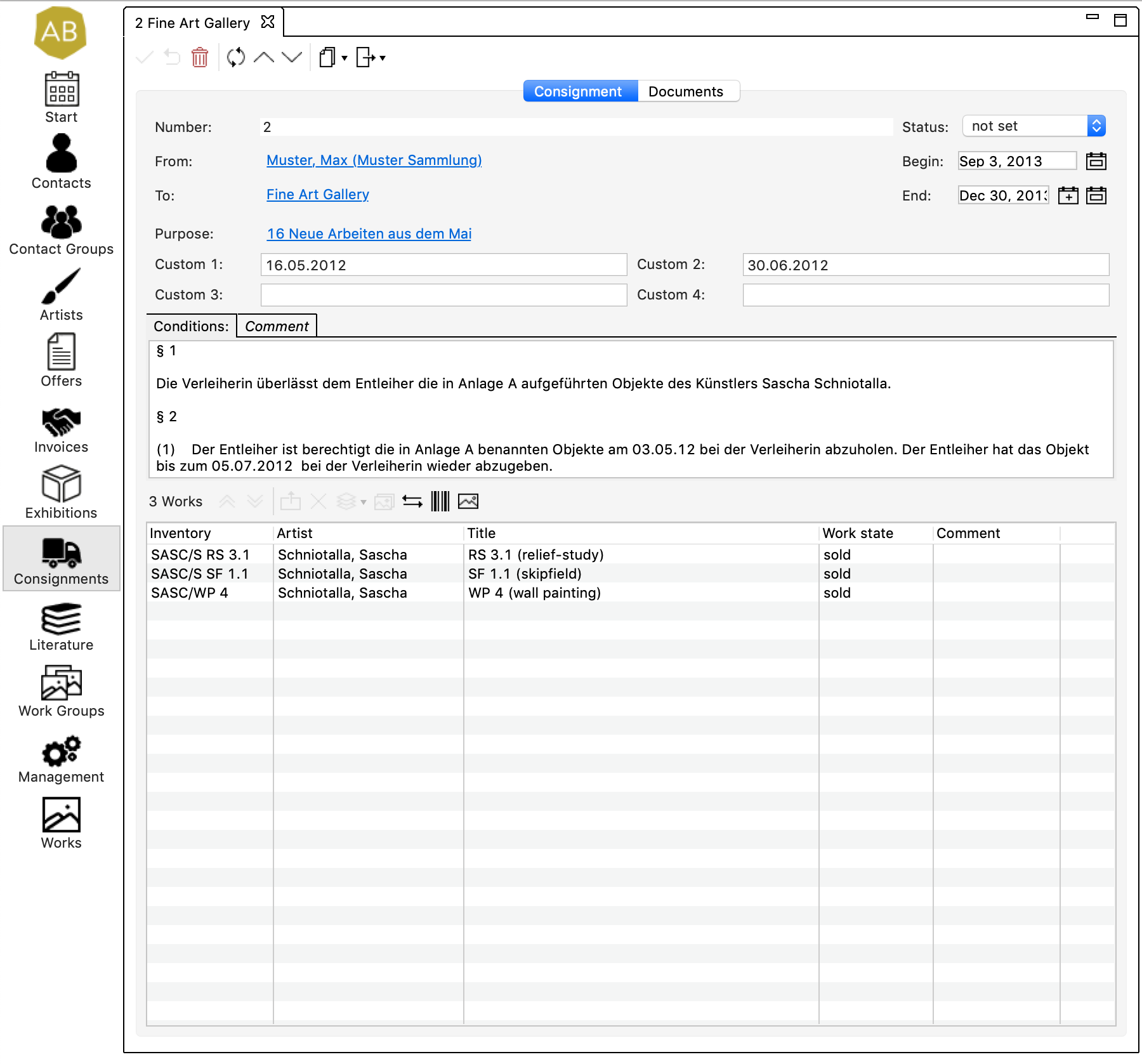
Records of the sections contact groups, offers, invoices, exhibitions, commissions, literature and work groups
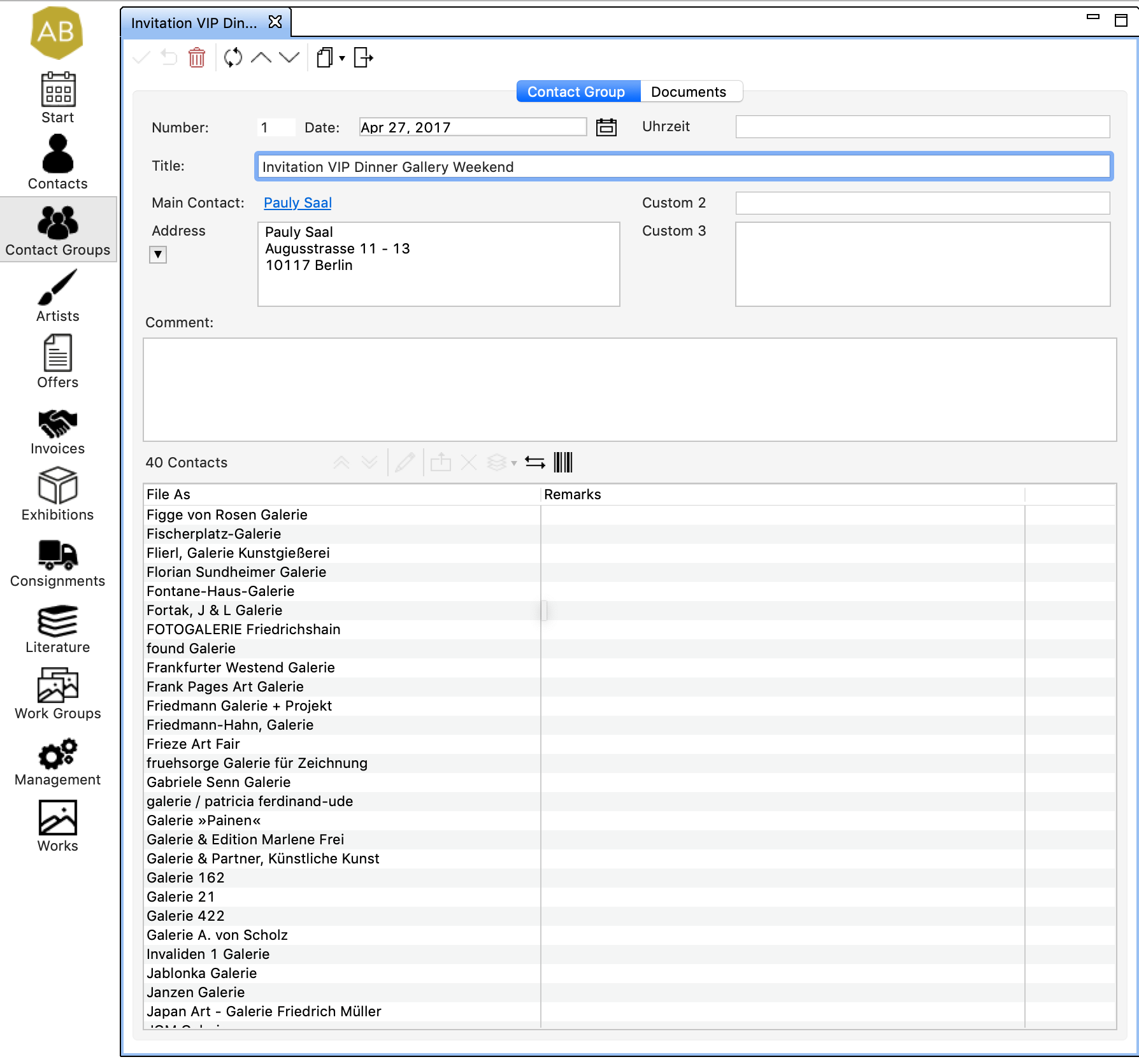
General information is shown on the upper half and a list of linked works on the lower half (except contact groups: they do not show a list of works, but contacts).

3. List view
On the right side you can see a list overview of all entries in the chosen section. In some sections you will also see contacts and works lists. In these cases you can switch between the lists using the tabs provided. The entries in the list can be linked to an open record using drag & drop. All active links to records from other sections are shown in the Transactions or Provenance tab of the record. For more details, please read our article View a Contact’s Invoices and Other Actions.
3.1 Yellow highlighted fields
The yellow highlighted fields indicate that you can link contacts or other types of records in some cases. More information can be found in our article Yellow highlighted fields.
3.2 Link several works simultaneously to a record
Select several works and transfer them to the open record on the left using drag & drop.