This article will explain the benefits of the start page and how to use it.
Overview
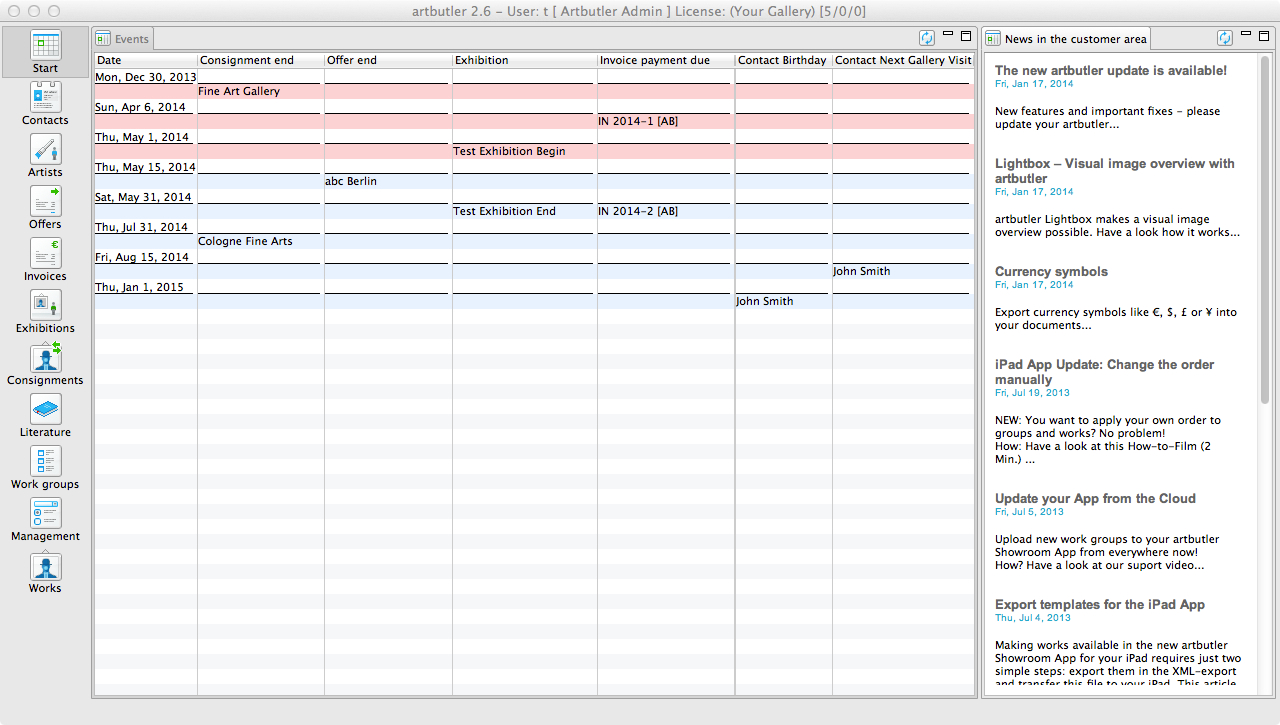
The Start page or the calendar gives you an overview of your appointments and deadlines within ARTBUTLER. You can easily see if and when invoices are overdue, when consignments are to begin and end, as well as exhibitions and art fairs etc. You can also add custom fields such as clients’ birthdays or other reminder dates, so you can have an overview of anything you need.
On the right hand side list view, there is a list of news updates, so you can keep track of any changes and updates and any new information about the software.
Customising Your Calendar
-
Adding an Appointment to your Calendar
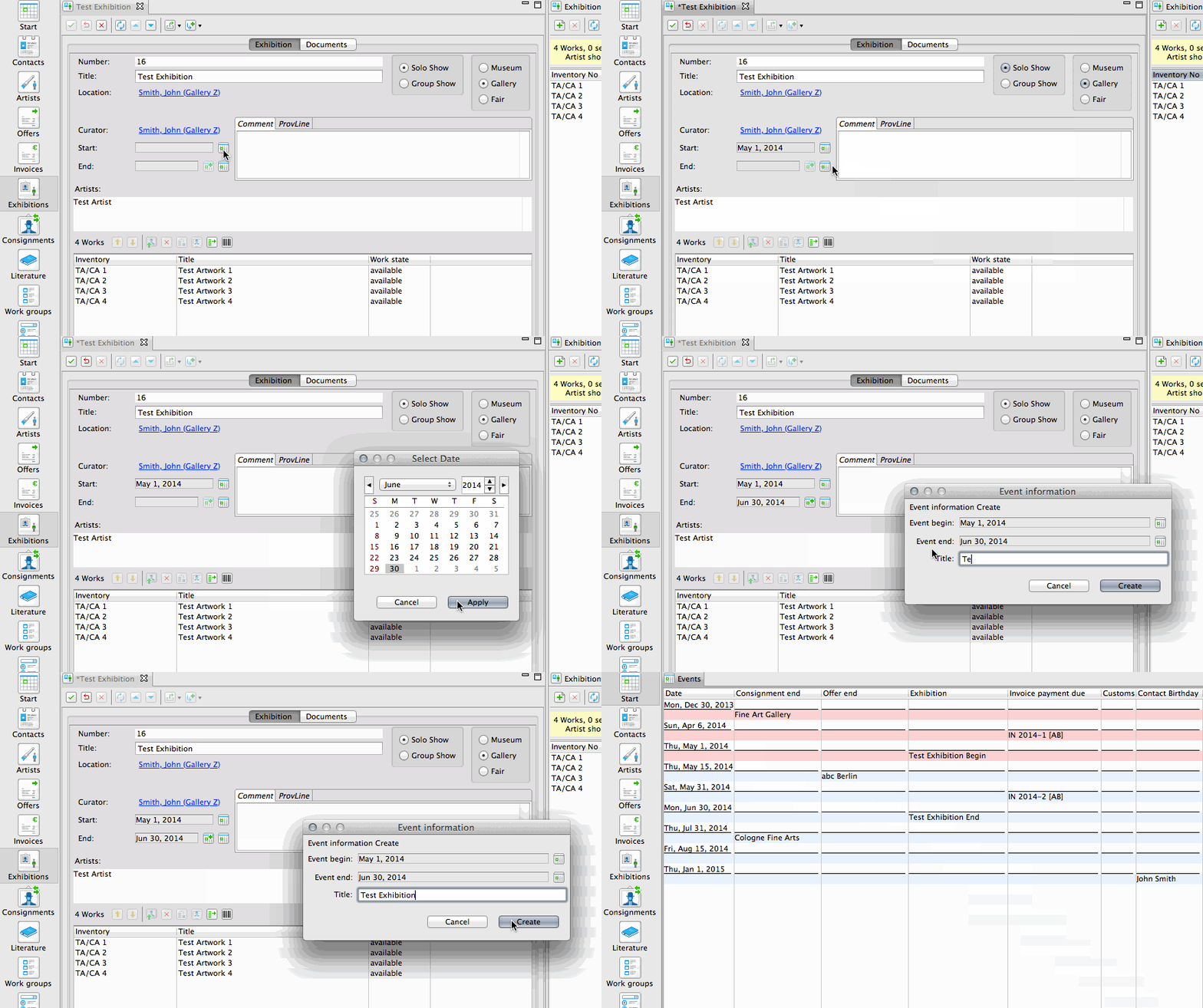
- There are certain fields in ARTBUTLER where you can add a date. e.g: in an invoice or an exhibition.
- This is done by clicking on the calendar icon
 next to the date field and selecting the date you would like from the calendar pop-up window, before clicking Apply.
 - Some of these fields have a second icon
 , which when clicked, allows you to add the appointment to your calendar.
-
Customising the Days that are Viewed
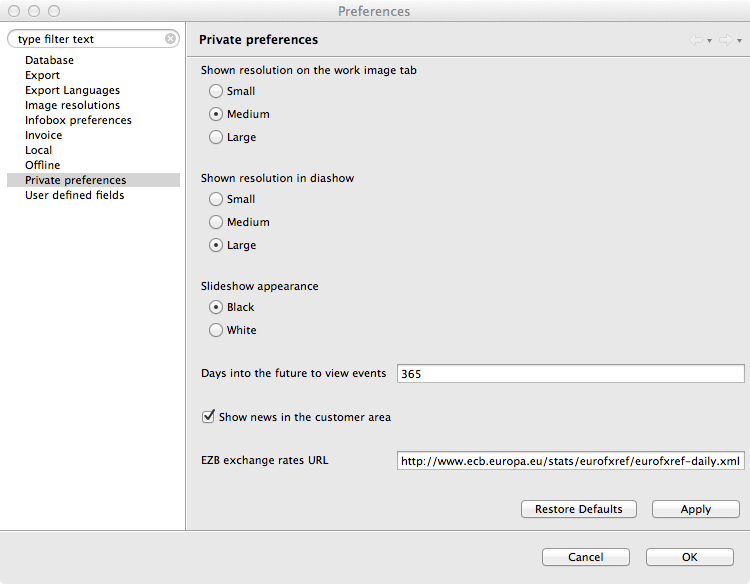
- To edit how many days are viewed at a time in your calendar, go to the ARTBUTLER drop down menu at the top of your screen, then Preferences… > Private Preferences
- In the open field next to Days into the future to view events fill in the number of days you would like an overview of: e.g: 31 to see a month at a time, or 365 to see an entire year.
-
Adding and Renaming Customised Dates
- There are two custom dates you can add to your calendar that relate to contacts. e.g: You may want to add a contact’s birthday, or you may want to add temporary appointments such as when they will next visit your gallery.
- You can add and change the dates within your contact’s profile. View Adding a Contact to learn more about how to add contacts to ARTBUTLER.
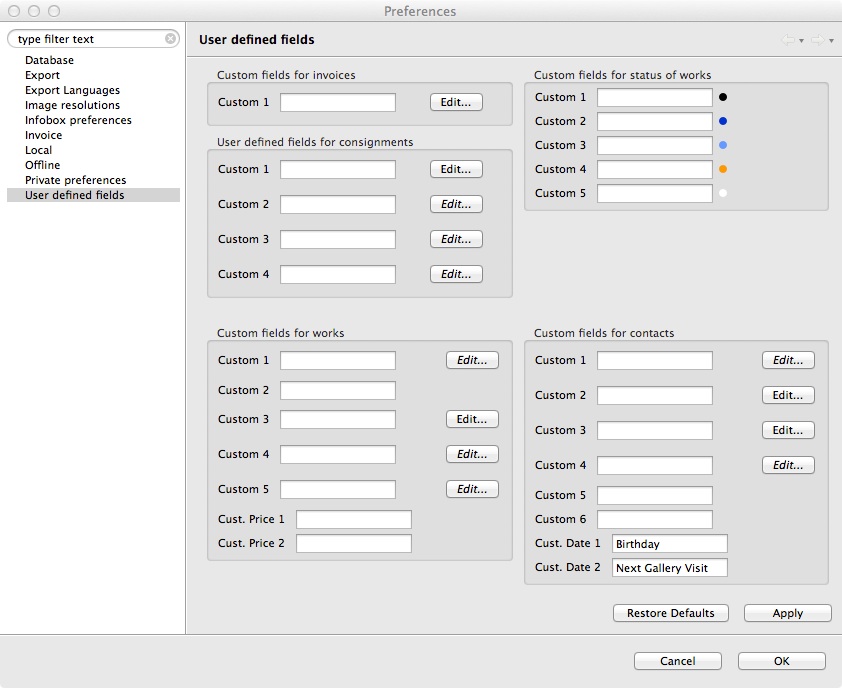
- To rename these fields [so you know what the dates relate to], go to the ARTBUTLER drop down menu at the top of the screen, then Preferences.. > User Defined Fields.
- At the bottom right hand corner in the open fields next to Cust. Date 1 and Cust. Date 2 you can fill in what the dates are. Once completed, click OK.
- These titles will now appear within your contact profiles and in your calendar.