

For TEXT and EMAIL exports you will need plain text templates and not the usual ones in OpenOffice format. Nevertheless you can edit these text templates with OpenOffice as well, but you have to keep a few things in mind to not change the required file format by chance.
Using OpenOffice with Text Templates
To open and edit a text template with a “.txt” extension with OpenOffice you can
- drag it onto the program icon,
- right-click the template and choose ‘Open with … > OpenOffice’ from the context menu or
- select the file in OpenOffice via the ‘File > Open …’ menu item.
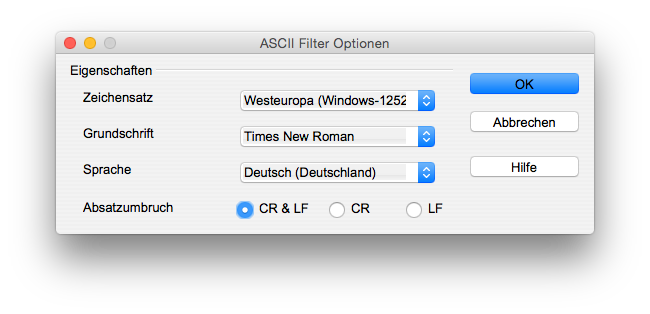
OpenOffice will ask about some details of the file that it can’t detect on its own, namely the encoding (how special characters are saved) and line endings:
Please choose Westeurope (Windows-1252/WinLatin 1) as encoding and CR & LF as line breaks.
NB: if your templates have a .html file extension, please rename to .txt, before you start editing them!
When you are done and save the file, please always stay with your current text format and do not choose the offered odt format instead, exports with text templates (i.e. text and email exports) will not work with odt-templates.
Editing Text Templates
Text templates differ from standard document templates because in plain text files no formatting is supported: no bold text, no italics, no tables and images (except in HTML templates). This makes it easy to write them: Just use the placeholders to compile a simple text with the desired information.
On the other hand text templates do support conditions what makes them quite flexible, e.g. print the lines for edition or signature only if related information is really available. The syntax is not complicated: Place the conditional part inside a pair of [#if] and [/#if] tags and define the condition in the start tag, e.g. w.edition != "". The != stands for “is not”, the two quotes "" are an empty text and w.edition gives the field that you want to test, use the same code as the related bookmark but without the dollar sign and the curly brackets. So this example condition translates to: print the enclosed text if the edition field is not an empty text. Here is a real life example, note that the line break before edition is inside the conditional part:
${w.ArtistFirstLast}
${w.Title}, ${w.Year}
${w.Technique}
${w.ExtendedSize}[#if w.edition != ""]
Ed. ${w.Edition}[/#if]
|
First Last Work Title, Year Technique Dimensions Ed. 1/3 (only if edition is available) |
It’s even possible to define an alternative text with [#else] that is printed if the condition does not match, for example, print the edition info if available, otherwise the word ‘unique’:
${w.ArtistFirstLast}
${w.Title}, ${w.Year}
${w.Technique}
${w.ExtendedSize}[#if w.edition != ""]
Ed. ${w.Edition}[#else]unique[/#if]
|
First Last Work Title, Year Technique Dimensions unique (no edition given) |
Text Templates for HTML Emails or the Lightbox Feature
HTML templates are normal text templates, however, since in these templates not only the content but also the formatting is part of the template codes it is a little bit trickier to write them. Have a look to the source code of our HTML email templates: the relevant part is in most cases between the WORK INFO START and END marks:
<!-- WORK INFO START --> <p><b>${w.ArtistFirstLast}</b><br /> <!– WORK INFO END –> |
First Last |
The part inside will look quite familiar to you with same placeholders as above, but some basic HTML formatting is written along with the placeholders:
- a paragraph, i.e. a block of text with a small margin below, is marked with
<p>at the start and</p>where it ends. - line breaks must be written explicitly in HTML, just add a
<br />where a forced line break is needed. All line breaks in the template will be ignored in the exported mail, they are only there to make the code more readable for you. - basic formatting is easy too: for bold text use
<b>bold text</b>, for italics enclose the text with<i>this is text in italics</i>, both can be combined if needed.
If you are not familiar with HTML please do not edit other parts of the template since this might easily break the format.