
The creation of price lists and offers in other currencies, e. g. for art fairs abroad, can be quite complex, because generally crooked amounts arise during the currency conversion, which must first be corrected repeatedly to smooth prices.
In ARTBUTLER PRO you can therefore define rounding rules for work prices in other currencies under Administration > Currencies. These rules will automatically output smooth final amounts of prices either in exports or in invoices and offers. This feature will help you to reduce the effort of creating offers, invoices and exports, especially during the stressful day to day business of an art fair.
At the individual work, all automatically rounded prices can still be postprocessed and, if necessary, overwritten by any other fixed values.
How to use rounding rules
Activating rounding rules
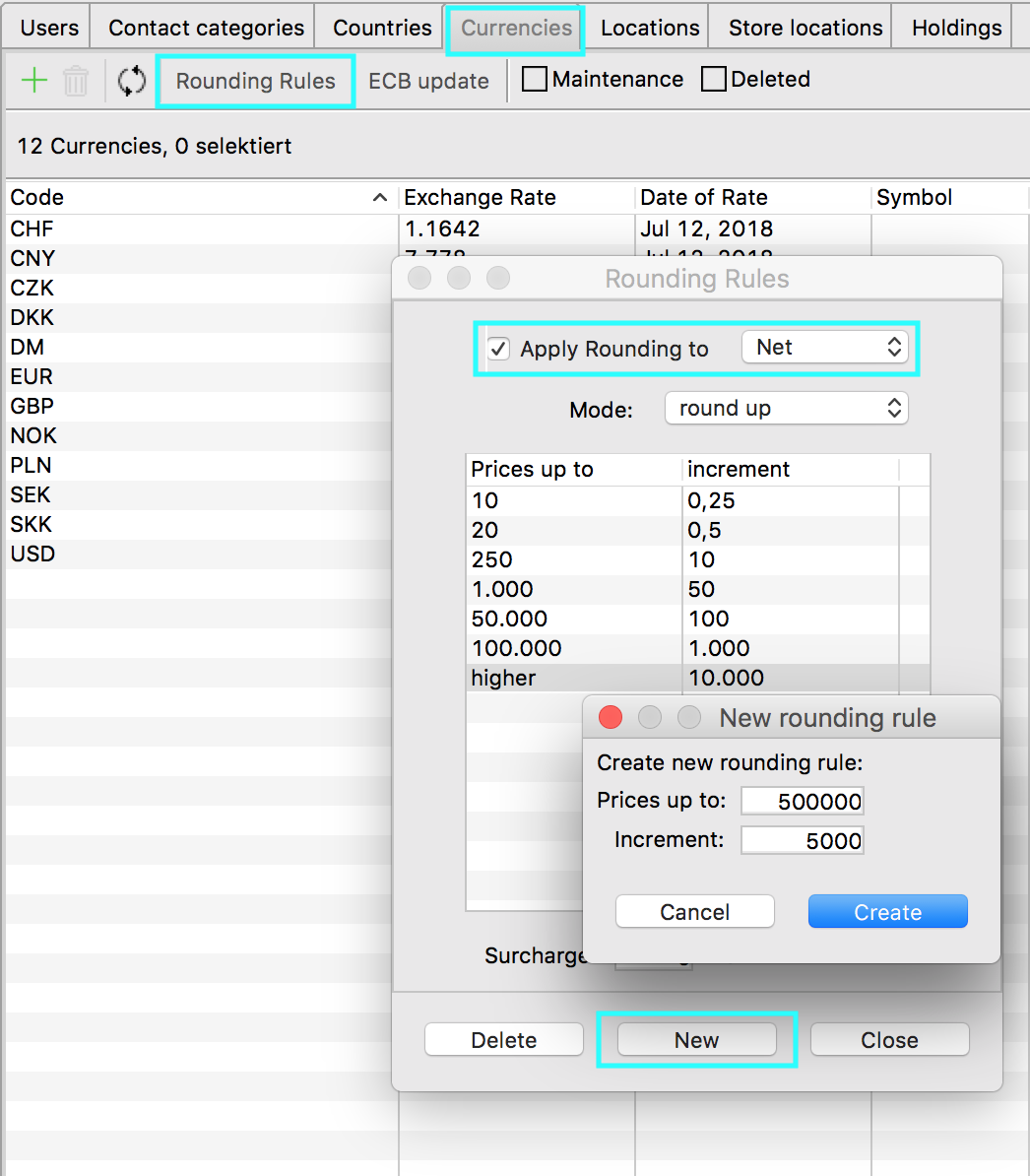
To use rounding for prices in other currencies, you must first activate it under Management > Currencies: Open the dialog with the rounding rules and set a check mark for apply rounding.
In the drop-down menu behind it, you can specify whether the gross or net price has to be rounded to smooth values, depending on the price you want to export in your documents
Define rounding rules
You can define different rounding rules for different price ranges: For example, low prices of up to USD 10 can be rounded to an even 50 cents, prices of up to USD 100 can be rounded to an even USD 5, and everything above this can be rounded in USD 10 steps. Any number of gradations are possible.
Create a new rounding rule by clicking New at the bottom of the dialog. Now you can specify up to which amount of a price this rule should apply and to which increment it should be rounded. All rules can be edited at any time by double-clicking and removed again by pressing the Delete key. 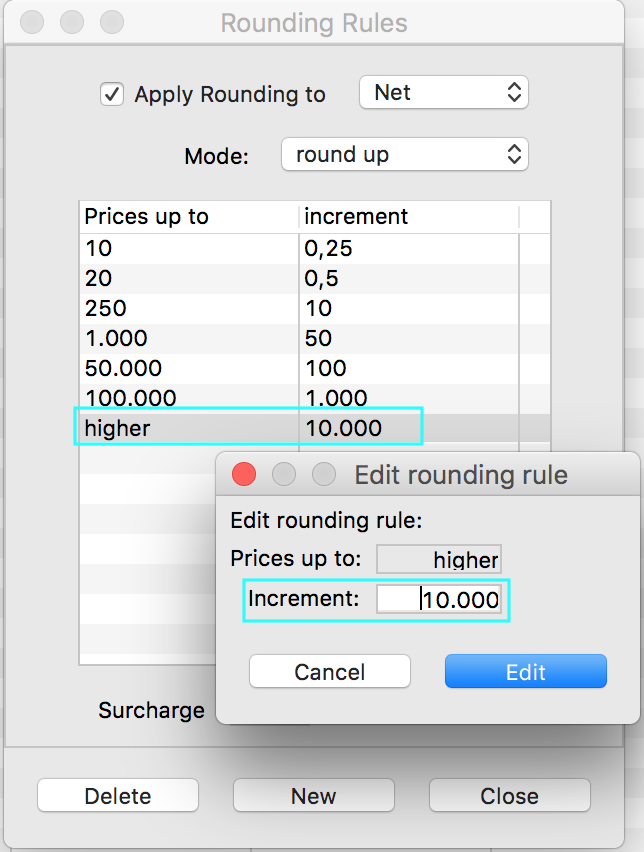
There is also a pre-existing line higherfor prices that would exceed the highest price limit of your rounding rules: Double-click on the line higher and enter the required increment. This entry cannot be deleted, only edited.
Set mode:
Rounding up, rounding down and commercial rounding
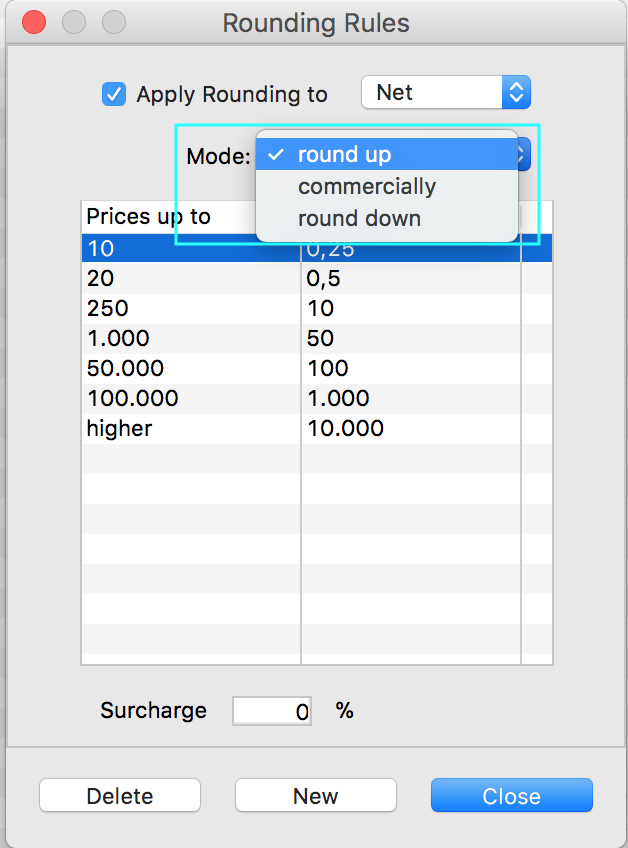 Here you define the rounding mode. You can choose between
- round up: the price is always rounded up to the next higher step
- round commercially: the price is always rounded to the nearest step
- round down: the price is always rounded down to the previous lower step
In the table below you can see various examples of how the prices are rounded at an increment of 50.
| Mode | Price | Rounded Price |
| round up | 452,80 | 500,- |
| round up | 488,60 | 500,- |
| round down | 452,80 | 450,- |
| round down | 488,60 | 450,- |
| round commercially | 452,80 | 450,- |
| round commercially | 488,60 | 500,- |
Set a markup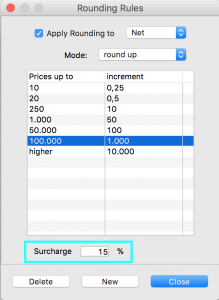
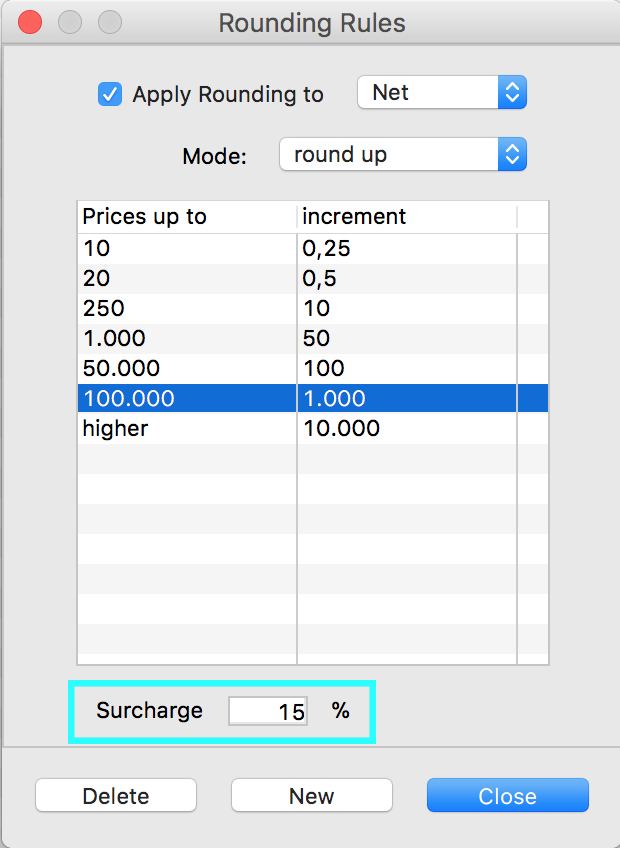
Prices in other currencies are often required at art fairs where participation causes high costs; even a sale in another currency can cause considerably additional costs. In order to at least partially compensate for these costs, a flat rate markup may be applied when calculating rounded prices before rounding. To do this, enter the required surcharge as a percentage in the field Surcharge of the rounding dialog
Adjust prices in other currencies for one work
On the tab costs of a work, all converted prices in other currencies may be viewed and, if necessary, changed. Click on the link More to open the price dialog for the other prices.
In the first line of the dialogue you will find the price in the currency in which you have set it in, followed below by the prices in every other currencies that you have set in theManagment > Currencies area.
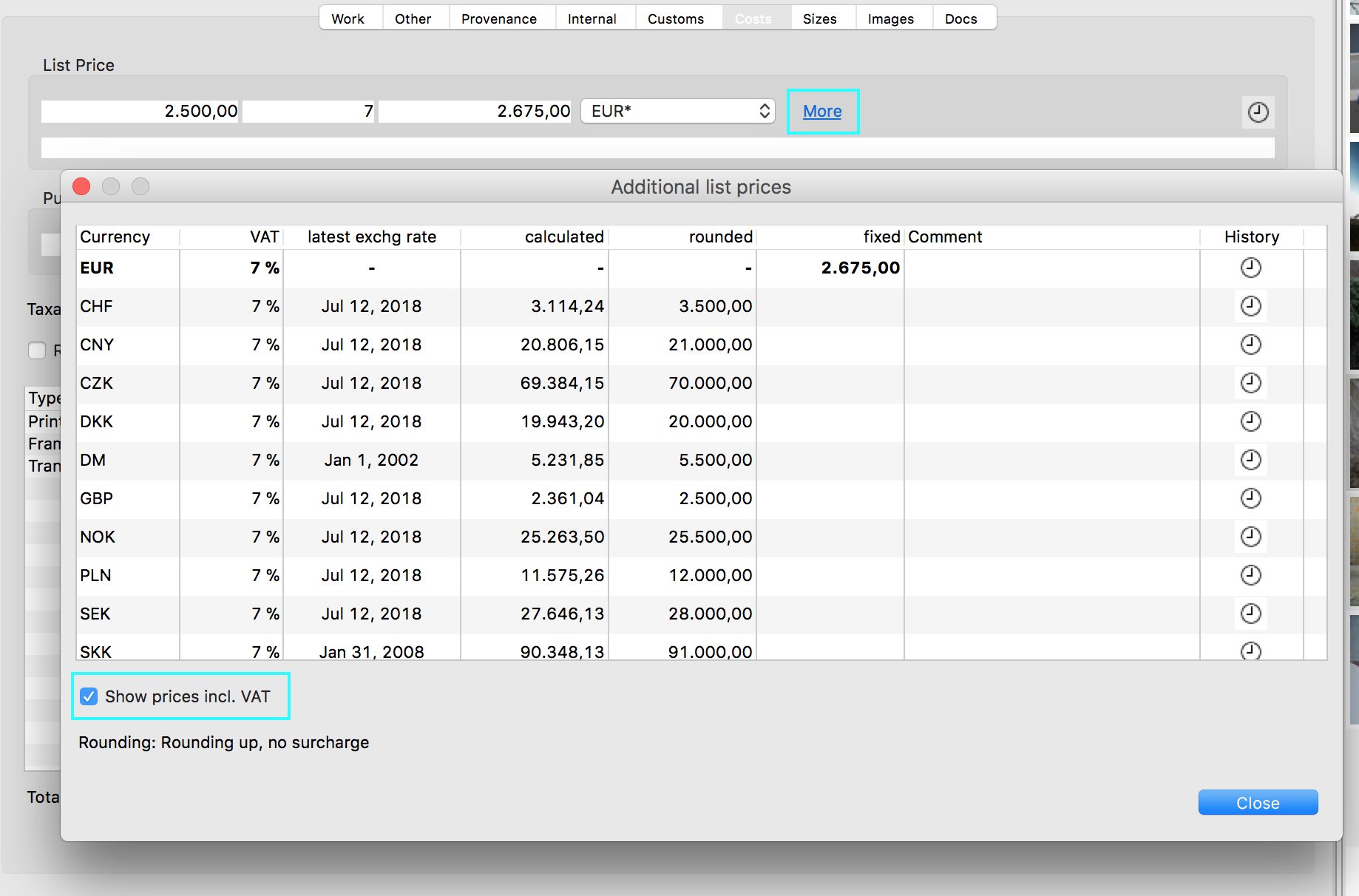
In each line you´ll find the tax rate, the date of the last rate and the price comment, as well as the calculated price, in addition to the currency as it was calculated from the original price in the first line using the stored exchange rate. If rounding rules are activated, following appears in the column rounded the price rounded according to these rules and finally, if available, a fixed predefined price in this currency, which overwrites the automatically calculated one and, if necessary overwrites the rounded price.
By double-clicking on a line, you can specify a fixed price for this currency or delete a predefined price so that the automatic rounding rules take effect again.
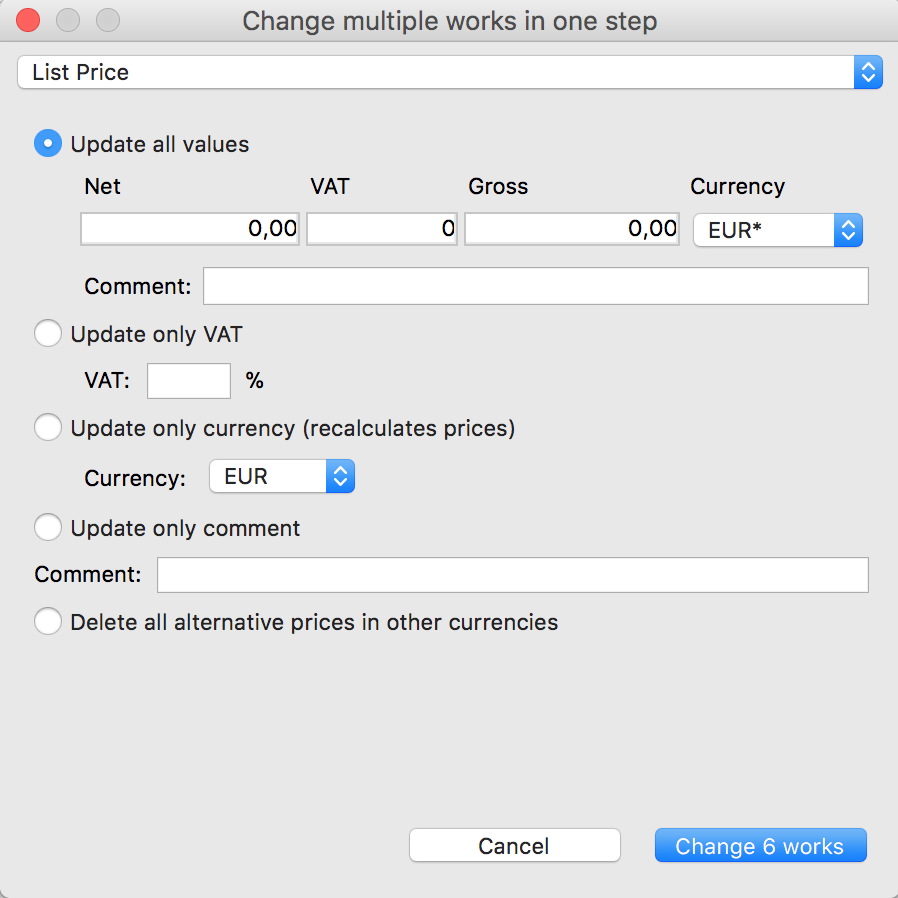
Tip: Have you already specified numerous alternative prices in other currencies, which are therefore no longer automatically rounded? You can quickly delete these alternative prices for selected works in the worklist using the function Change several works.