

- Create a new record by clicking on the
 in the owner change list.
 - Drag the recipient from your contact list into the yellow recipient field.
- Drag the desired works from the work list into the Owner change chart.
- Adjust prices by double-clicking on the respective work.
- Create an invoice document with a corresponding template.
2. Types of owner changes
Choose from six different owner change types: Purchase, credit, invoice (sales), cancellation (invoice), auction, plus a general owner change without actual booking, used to manage other types of artwork circulation.
| Type | When to use |
| Invoice | Indicates regular sales linked to an invoice for your accounting. |
| Cancellation | Invoices may also be cancelled. A cancellation is only possible with the “Create from…” feature  , directly from the cancelled invoice; invoice data will be transferred accordingly. , directly from the cancelled invoice; invoice data will be transferred accordingly. |
| Owner change | Records a specific work’s owner change without entering it into your accounting system. Use this option if you wish to maintain a work’s provenance after it has been sold, or if you want to enter previous owners, for instance. |
| Purchase | Records the puchase of works or an invoice issued by the artist. |
| Credit | Allows you to credit the artist with the agreed share of sales prices in cases where you don’t purchase works yourself but only act as a middleman. |
| Auction | Records purchases and sales at auctions as well as additional information such as lot, estimated and hammer price per work as well as auction data. |
3. Create an Owner Change – Step by Step
Once you’ve added some artworks to your database, you can create an Owner change. For more information on adding works, please read our article Adding a Work.
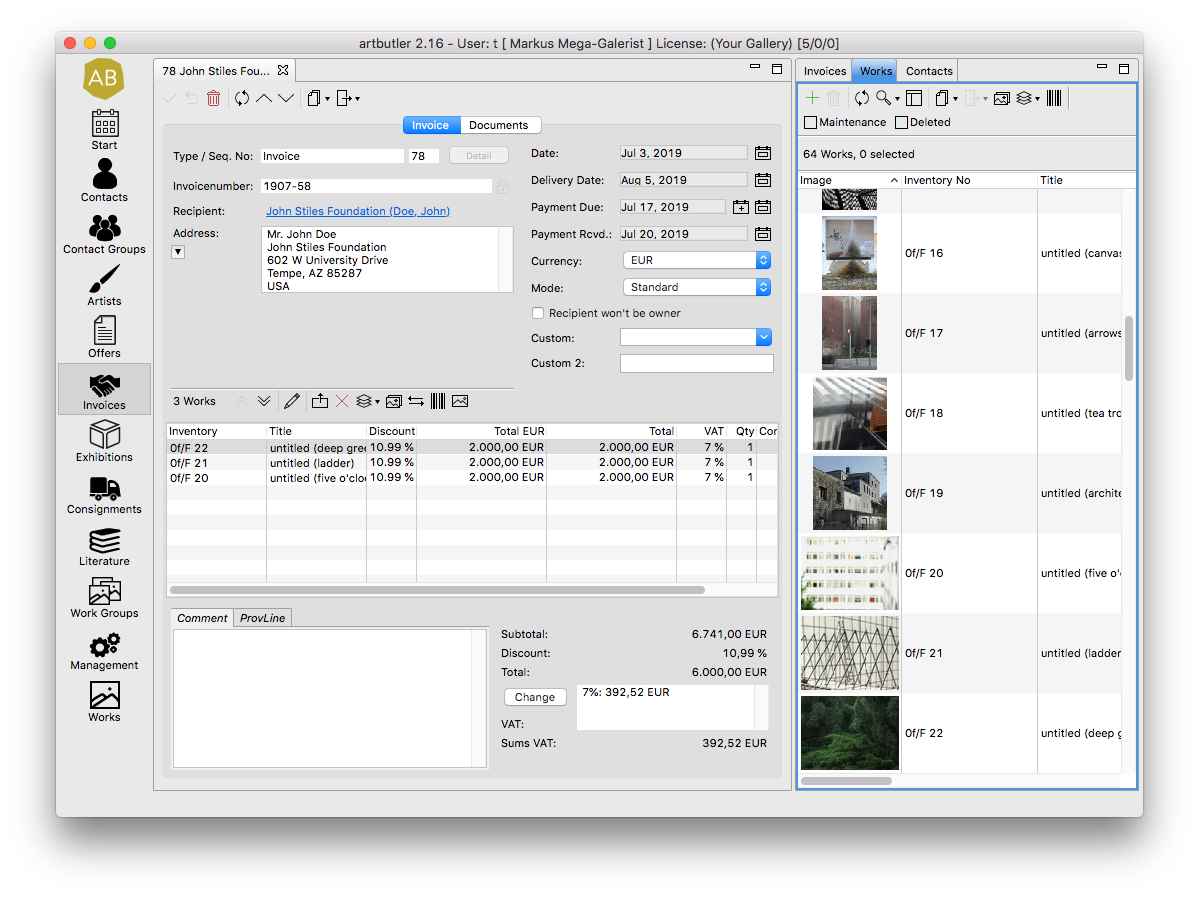
Proceed to the menu Owner change on the navigation bar on your left.
- Click New in the owner change list.
- Select new Owner change type.
- Edit the new, empty record and give it an invoice number (see article Invoice numbers).
- From the contact list on the right, depending on Owner change type, drag recipient, contact record and/or the artist’s contact record into the yellow highlighted fields Recipient and Seller (find more information in our article Yellow highlighted fields). Use the drop-down menu to select the recipient’s billing address or enter another address manually.
- Select currency and mode (standard/margin scheme).
- From the work list on your right, drag and drop the desired works into the chart.
- Adjust the prices by double-clicking on the respective work (more on this in the article Adjusting Prices).
- Use the calendar
 , um ein Lieferdatum, das Zahlungsziel und später den Zahlungseingang einzutragen.
 - Click
 to save record.
4. Adjust prices
You may adjust the added works’ prices. Prices stored in a work’s record won’t be affected. Find out how to change prices in our article Adjusting Prices in Owner Changes.
5. Custom fields
Custom fields allow you to manage internal information such as the cost centre, counter account, or sales context (for example, an art fair abbreviation). Enter the name under artbutler > Preferences and define a value list with user defaults.
For more information about custom fields, see How to use and label custom fields for works.
6. ProvLines
Use the field ProvLine to enter information freely in cases where you want to display a work’s provenance without detailed invoice information.
As an example: You’d like to feature a work’s provenance in sales without disclosing invoice details such as the recipient. Instead, enter the desired text, e.g. Privatsammlung Berlin, 2019, in the ProvLine. On the Provenance tab of the work’s dataset, tick the ProvLines checkbox to display the ProvLine instead of invoice information. Use ARTBUTLER’s special placeholders with pre-defined ProvLines to export provenance.
7. Schedule Overview
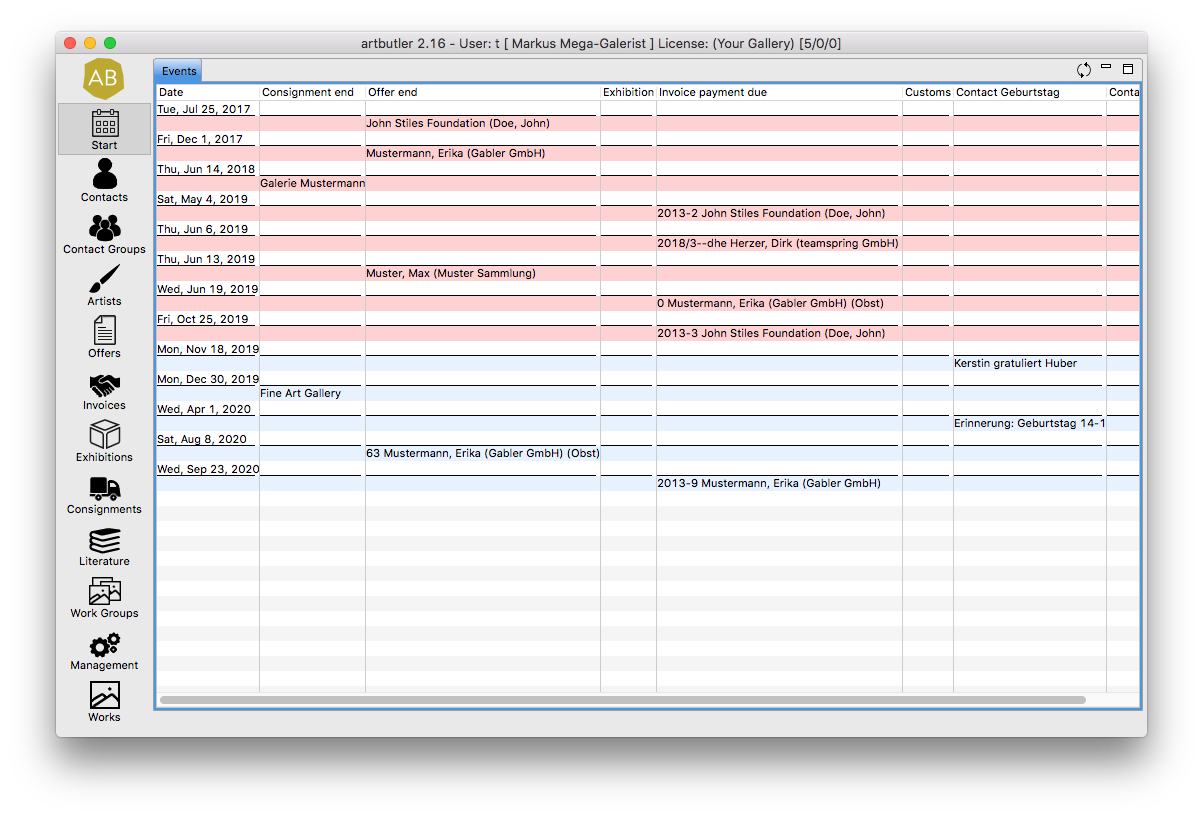
Enter appointments in the calendar in the menu Start and keep track of owner changes payment deadlines.
- Click the calendar symbol in Payment due and select a date.
- The appointment symbol
 is now active. Click it to set time and title.
 - Save record
 .
. - ARTBUTLER’s Start menu will now display the appointment.
- Right click in the overview to edit or delete an appointment.
8. Use export templates
Once you have created an Owner change, you may export records as documents such as gross sales or artist invoices. Read our article Working with templates to find out more.
You can find a large selection of invoice templates in our template pool.
By the way, do you already know our reports? Discover who your best-selling artists and top-selling customers are; you may also list all sales by month.
9. Filter invoices
Want to know the amount of unpaid invoices? Or which artist’s or recipient’s work is included in which invoice? Create filters with your own search criteria. To find out how, see our article Searching and Filtering.
10. Cancel Invoices
Cancel invoices in ARTBUTLER with just one click. Find out more in our article Cancelling Invoices.